Gameplay

MCC:Control schemes

From Halopedia, the Halo wiki

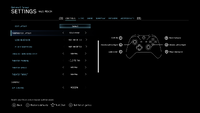
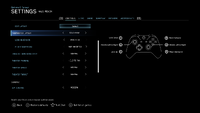
HTMCC-HR ControllerLayoutUniversalDefaultRecon Menu Screenshot.png

The following control schemes are available for use in Halo: The Master Chief Collection. The game features new input actions, new control settings and on PC supports keyboard & mouse for all six games.

The game supports new input actions such as "SELECT PREVIOUS GRENADES" for Halo 3 and Halo 3: ODST, "ZOOM OUT" for keyboard & mouse, and more. The collection also features modded input actions (the text that is highlighted are an exclusive modded map).

Controller[edit]

Thumbstick Layout[edit]

Not inverted[edit]
Inverted[edit]

Button Layout[edit]

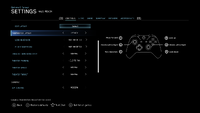
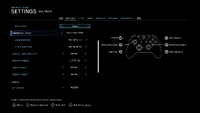
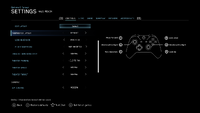
MCC has rebindable button maps for the controller. The following represents the default controls, which are viewed below:

Input Action Controller Button Bindable
Game Menu
"Start" Button
No
Push to Talk
↓ D-Pad
Halo: Reach
Multiple screenshots merge into an image of the entire "EDIT LAYOUT" (Halo: Reach) (Controller) setting menu from Halo: The Master Chief Collection (Windows).Every binding is set by default.Behind the game pause menu is pitch black.
Input Action Controller Button Description Bindable
Movement Jump
A
Set button to JUMP.[Note 1]
Use the equipped Series 8 jetpack or Tlaipoz-pattern harness variant while airborne if "JUMPER JUMPER" is enabled.
Yes
Crouch
Left Analog Click
Set button to CROUCH.
Hold Crouch or Toggle Crouch, depending on the "CROUCH BEHAVIOR" setting.
Actions Fire
Right Trigger
Set button to FIRE your primary weapon.
Also known as Use Right Weapon.[Note 2]
Zoom
Right Analog Click
Set button to cycle between magnification levels for weapon scopes. Can be held or toggled.
Use binoculars if a weapon lacks scope.
Melee
B
Set button to MELEE.
Reload
Right Bumper
Set button to RELOAD.
Throw Grenade
Left Trigger
Set button to THROW GRENADE.
Action
Right Bumper
Set button for primary ACTIONS like interacting, picking up weapons, and entering vehicles.
Change Weapon
Y
Set button to CHANGE WEAPON.
Switch Grenades
Left Bumper
Set button to SWITCH GRENADES.
Select Next Grenades
→ D-Pad
Set button to SELECT NEXT GRENADES.
Select Previous Grenades
← D-Pad
Set button to SELECT PREVIOUS GRENADES.
Use Armor Ability
X
Set button to USE ARMOR ABILITY.
Toggle Night Vision
↑ D-Pad
Set button to TOGGLE NIGHT VISION.
Vehicle Controls Vehicle Function 1
Left Trigger
Set button to use vehicle functions like secondary fire, drifting, boosting, and ascending.
Vehicle Function 2
A
Set button to use vehicle functions like braking and hovering.
Vehicle Function 3
X
Set button to use vehicle functions like aerial maneuvers and descending.
Ascend
A
Set button to ASCEND while piloting air vehicles.
Descend
X
Set button to DESCEND while piloting air vehicles.
UI Controls Toggle Scoreboard
"Back" Button
Set button to TOGGLE MULTIPLAYER SCOREBOARD.
Open Loadouts Menu
X
Set button to open the LOADOUTS MENU.
Forge Ascend
Right Bumper
Set button to ASCEND while in Editor mode.
While piloting a Pelican or Phantom, hold ASCEND to fly up.
Descend
Left Bumper
Set button to DESCEND while in Editor mode.
While piloting a Pelican or Phantom, hold DESCEND to fly down.
Grab/Release Object
A
Set button to GRAB and RELEASE objects while in Editor mode.
Boost
Left Trigger
Set button to BOOST movement speed while in Editor mode.
Precision Edit
Left Analog Click
Set button to enter PRECISION EDIT mode while in Editor mode.
Delete Object
Y
Set button to DELETE OBJECTS while in Editor mode.
Create Object/Object Properties
X
Set button to create objects and access their properties while in Editor mode.
Tools
B
Set button to access TOOLS menu while in Editor mode.
Duplicate
↓ D-Pad
Set button to DUPLICATE objects while in Editor mode.
Reset
→ D-Pad
Set button to RESET object orientation while in Editor mode.
Switch Player Mode
↑ D-Pad
Set button to switch between Player and Editor mode.
Zoom
Right Analog Click
Set button to ZOOM the camera while in Editor mode.
Rotation Mode
Right Trigger
Set button to enter Object ROTATION MODE while in Editor mode.
Toggle Rotation Axes
↓ D-Pad
Set button to switch between global/local rotation axes.
Theater Toggle Panel
X
Set button to toggle visibility of the Theater control panel.
Toggle Interface
B
Set button to toggle visibility of the player HUD and Theater interface.
Toggle First/Third Person
Right Analog Click
Set button to toggle between first and third person view.
Camera Reset
Left Analog Click
Set button to reset the camera position while in orbit cam.
Jump Forward
→ D-Pad
Set button to JUMP FORWARD to the next available rewind point.
Jump Back
← D-Pad
Set button to JUMP BACK to the previous rewind point.
Pause/Resume Playback
A
Set button to pause and resume playback.
Fast Forward
Right Trigger
Set button to increase playback speed.
Toggle Freecam
Y
Set button to switch the camera between anchored and freecam modes.
Boost
Left Trigger
Set button to BOOST the camera movement speed.
Theater Panning
Left Analog Click
Set button to enable panning in Theater mode.
Ascend
Right Bumper
Set button to ASCEND the fly cam while in Theater mode.
Descend
Left Bumper
Set button to DESCEND the fly cam while in Theater mode.
Zoom
Right Analog Click
Set button to ZOOM the fly camera while in Theater mode.
Halo: Combat Evolved
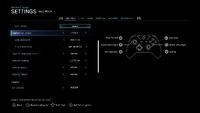
Multiple screenshots merge into an image of the entire "EDIT LAYOUT" (Halo: Combat Evolved) (Controller) setting menu from Halo: The Master Chief Collection (Windows).Every binding is set by default.Behind the game pause menu is pitch black.
Input Action Controller Button Description Bindable
Movement Jump
A
Set button to JUMP. Yes
Crouch
Left Analog Click
Set button to CROUCH.
Hold Crouch or Toggle Crouch, depending on the "CROUCH BEHAVIOR" setting.
Actions Fire
Right Trigger
Set button to FIRE your primary weapon.
Also known as Use Right Weapon.[Note 2]
Zoom
Right Analog Click
Set button to cycle between magnification levels for weapon scopes. Can be held or toggled.
Melee
B
Set button to MELEE.
Reload
Right Bumper
Set button to RELOAD.
Throw Grenade
Left Trigger
Set button to THROW GRENADE.
Action
Right Bumper
Set button for primary ACTIONS like interacting, picking up weapons, and entering vehicles.
Change Weapon
Y
Set button to CHANGE WEAPON.
Switch Grenades
Left Bumper
Set button to SWITCH GRENADES.
Select Next Grenades
→ D-Pad
Set button to SELECT NEXT GRENADES.
Select Previous Grenades
← D-Pad
Set button to SELECT PREVIOUS GRENADES.
Toggle Flashlight
↑ D-Pad
Set button to TOGGLE FLASHLIGHT.
Activate a Sniper Rifle's night-vision while zooming.
Toggle Flashlight Alt
X
Set button to TOGGLE FLASHLIGHT.
Activate a Sniper Rifle's night-vision while zooming.
Move Forward
↑ D-Pad
Set button to Move Forward.
Move Backward
↓ D-Pad
Set button to Move Backward.
Move Left
← D-Pad
Set button to Move Left.
Move Right
→ D-Pad
Set button to Move Right.
Vehicle Controls Vehicle Function 1
Left Trigger
Set button to use vehicle functions like secondary fire, drifting, boosting, and ascending.
Vehicle Function 2
Left Analog Click
Set button to use vehicle functions like braking and hovering.
Vehicle Function 3
A
Set button to use vehicle functions like aerial maneuvers and descending.
UI Controls Toggle Visuals/Scoreboard
"Back" Button
Set button to TOGGLE VISUALS / MULTIPLAYER SCOREBOARD.
Halo 2
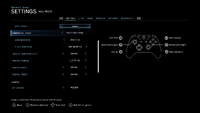
Multiple screenshots merge into an image of the entire "EDIT LAYOUT" (Halo 2) (Controller) setting menu from Halo: The Master Chief Collection (Windows).Every binding is set by default.Behind the game pause menu is pitch black.
Input Action Controller Button Description Bindable
Movement Jump
A
Set button to JUMP. Yes
Crouch
Left Analog Click
Set button to CROUCH.
Hold Crouch or Toggle Crouch, depending on the "CROUCH BEHAVIOR" setting.
Actions Fire
Right Trigger
Set button to FIRE your primary weapon.
Also known as Use Right Weapon.[Note 2]
Fire Secondary
Left Trigger
Set button to FIRE your secondary weapon while dual-wielding.
Also known as Use Left Weapon.[Note 2]
Zoom
Right Analog Click
Set button to cycle between magnification levels for weapon scopes. Can be held or toggled.
Use binoculars if a weapon lacks scope.
Melee
B
Set button to MELEE.
Reload
Right Bumper
Set button to RELOAD.
Reload right and left weapons while dual-wielding, unlike Halo 3.
Throw Grenade
Left Trigger
Set button to THROW GRENADE.
Action
Right Bumper
Set button for primary ACTIONS like interacting, picking up weapons, and entering vehicles.
Change Weapon
Y
Set button to CHANGE WEAPON.
Switch Grenades
→ D-Pad
Set button to SWITCH GRENADES.
Select Next Grenades
→ D-Pad
Set button to SELECT NEXT GRENADES.
Select Previous Grenades
← D-Pad
Set button to SELECT PREVIOUS GRENADES.
Toggle Flashlight
↑ D-Pad
Set button to TOGGLE FLASHLIGHT.
As the Arbiter, instead of a flashlight, it's active camo.
Toggle Flashlight Alt
X
Set button to TOGGLE FLASHLIGHT.
As the Arbiter, instead of a flashlight, it's active camo.
Dual-Wield
Y
Set button to pick up a secondary weapon to DUAL-WIELD.
Also known as Swap Left Weapon.[Note 2]
Vehicle Controls Vehicle Function 1
Left Trigger
Set button to use vehicle functions like secondary fire, drifting, boosting, and ascending.
Vehicle Function 2
A
Set button to use vehicle functions like braking and hovering.
Vehicle Function 3
A
Set button to use vehicle functions like aerial maneuvers and descending.
Banshee Bomb
B
Set button to use BANSHEE BOMB.
Ascend
A
Set button to ASCEND while piloting air vehicles.
Descend
Left Bumper
Set button to DESCEND while piloting air vehicles.
UI Controls Toggle Visuals/Scoreboard
"Back" Button
Set button to TOGGLE VISUALS / MULTIPLAYER SCOREBOARD.
Open Loadouts Menu
Y
Set button to open the LOADOUTS MENU.
Forge Ascend
Right Bumper
Set button to ASCEND while in Editor mode.
Descend
Left Bumper
Set button to DESCEND while in Editor mode.
Grab/Release Object
A
Set button to GRAB and RELEASE objects while in Editor mode.
Boost
Left Trigger
Set button to BOOST movement speed while in Editor mode.
Precision Edit
Left Analog Click
Set button to enter PRECISION EDIT mode while in Editor mode.
Delete Object
Y
Set button to DELETE OBJECTS while in Editor mode.
Create Object/Object Properties
X
Set button to create objects and access their properties while in Editor mode.
Tools
B
Set button to access TOOLS menu while in Editor mode.
Duplicate
↓ D-Pad
Set button to DUPLICATE objects while in Editor mode.
Lock
← D-Pad
Set button to LOCK objects while in Editor mode.
Reset
→ D-Pad
Set button to RESET object orientation while in Editor mode.
Switch Player Mode
↑ D-Pad
Set button to switch between Player and Editor mode.
Zoom
Right Analog Click
Set button to ZOOM the camera while in Editor mode.
Rotation Mode
Right Trigger
Set button to enter Object ROTATION MODE while in Editor mode.
Toggle Rotation Axes
↓ D-Pad
Set button to switch between global/local rotation axes.
Theater Toggle Panel
X
Set button to toggle visibility of the Theater control panel.
Toggle Interface
B
Set button to toggle visibility of the player HUD and Theater interface.
Toggle First/Third Person
Right Analog Click
Set button to toggle between first and third person view.
Camera Reset
Left Analog Click
Set button to reset the camera position while in orbit cam.
Jump Forward
→ D-Pad
Set button to JUMP FORWARD to the next available rewind point.
Jump Back
← D-Pad
Set button to JUMP BACK to the previous rewind point.
Pause/Resume Playback
A
Set button to pause and resume playback.
Fast Forward
Right Trigger
Set button to increase playback speed.
Toggle Freecam
Y
Set button to switch the camera between anchored and freecam modes.
Boost
Left Trigger
Set button to BOOST the camera movement speed.
Theater Panning
Left Analog Click
Set button to enable panning in Theater mode.
Ascend
Right Bumper
Set button to ASCEND the fly cam while in Theater mode.
Descend
Left Bumper
Set button to DESCEND the fly cam while in Theater mode.
Zoom
Right Analog Click
Set button to ZOOM the fly camera while in Theater mode.
Alert Carry
↓ D-Pad
Note: In Halo 2 (classic) it's a single press, but in Halo 2: Anniversary multiplayer, it's a combination of ZOOM + ACTION + JUMP + ↓ D-Pad. No
Halo 3
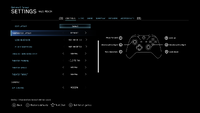
Multiple screenshots merge into an image of the entire "EDIT LAYOUT" (Halo 3) (Controller) setting menu from Halo: The Master Chief Collection (Windows).Every binding is set by default.Behind the game pause menu is pitch black.
Input Action Controller Button Description Bindable
Movement Jump
A
Set button to JUMP. Yes
Crouch
Left Analog Click
Set button to CROUCH.
Hold Crouch or Toggle Crouch, depending on the "CROUCH BEHAVIOR" setting.
Actions Fire
Right Trigger
Set button to FIRE your primary weapon.
Also known as Use Right Weapon.[Note 2]
Fire Secondary
Left Trigger
Set button to FIRE your secondary weapon while dual-wielding.
Also known as Use Left Weapon.[Note 2]
Zoom
Right Analog Click
Set button to cycle between magnification levels for weapon scopes. Can be held or toggled.
Use binoculars if a weapon lacks scope.
Melee
B
Set button to MELEE.
Reload
Right Bumper
Set button to RELOAD.
Reload Secondary Weapon
Left Bumper
Set button to RELOAD SECONDARY WEAPON while dual-wielding.
Also known as Reload Left Weapon.[Note 2]
Throw Grenade
Left Trigger
Set button to THROW GRENADE.
Action
Right Bumper
Set button for primary ACTIONS like interacting, picking up weapons, and entering vehicles.
Change Weapon
Y
Set button to CHANGE WEAPON.
Switch Grenades
Left Bumper
Set button to SWITCH GRENADES.
Select Next Grenades
→ D-Pad
Set button to SELECT NEXT GRENADES.
Select Previous Grenades
← D-Pad
Set button to SELECT PREVIOUS GRENADES.
Use Equipment
X
Set button to USE EQUIPMENT.
Toggle Flashlight
↑ D-Pad
Set button to TOGGLE FLASHLIGHT.
Dual-Wield
Left Bumper
Set button to pick up a secondary weapon to DUAL-WIELD.
Also known as Swap Left Weapon.[Note 2]
Vehicle Controls Vehicle Function 1
Left Trigger
Set button to use vehicle functions like secondary fire, drifting, boosting, and ascending.
Vehicle Function 2
A
Set button to use vehicle functions like braking and hovering.
Vehicle Function 3
A
Set button to use vehicle functions like aerial maneuvers and descending.
Banshee Bomb
B
Set button to use BANSHEE BOMB.
Ascend
A
Set button to ASCEND while piloting air vehicles.
Descend
Left Bumper
Set button to DESCEND while piloting air vehicles.
UI Controls Toggle Scoreboard
"Back" Button
Set button to TOGGLE MULTIPLAYER SCOREBOARD.
Forge Ascend
Right Bumper
Set button to ASCEND while in Editor mode.
Descend
Left Bumper
Set button to DESCEND while in Editor mode.
Grab/Release Object
A
Set button to GRAB and RELEASE objects while in Editor mode.
Boost
Left Trigger
Set button to BOOST movement speed while in Editor mode.
Precision Edit
Left Analog Click
Set button to enter PRECISION EDIT mode while in Editor mode.
Delete Object
Y
Set button to DELETE OBJECTS while in Editor mode.
Create Object/Object Properties
X
Set button to create objects and access their properties while in Editor mode.
Tools
B
Set button to access TOOLS menu while in Editor mode.
Switch Player Mode
↑ D-Pad
Set button to switch between Player and Editor mode.
Zoom
Right Analog Click
Set button to ZOOM the camera while in Editor mode.
Rotation Mode
Right Trigger
Set button to enter Object ROTATION MODE while in Editor mode.
Toggle Rotation Axes
↓ D-Pad
Set button to switch between global/local rotation axes.
Theater Toggle Panel
X
Set button to toggle visibility of the Theater control panel.
Toggle Interface
B
Set button to toggle visibility of the player HUD and Theater interface.
Toggle First/Third Person
Right Analog Click
Set button to toggle between first and third person view.
Camera Reset
Left Analog Click
Set button to reset the camera position while in orbit cam.
Jump Forward
→ D-Pad
Set button to JUMP FORWARD to the next available rewind point.
Jump Back
← D-Pad
Set button to JUMP BACK to the previous rewind point.
Pause/Resume Playback
A
Set button to pause and resume playback.
Fast Forward
Right Trigger
Set button to increase playback speed.
Toggle Freecam
Y
Set button to switch the camera between anchored and freecam modes.
Boost
Left Trigger
Set button to BOOST the camera movement speed.
Theater Panning
Left Analog Click
Set button to enable panning in Theater mode.
Ascend
Right Bumper
Set button to ASCEND the fly cam while in Theater mode.
Descend
Left Bumper
Set button to DESCEND the fly cam while in Theater mode.
Zoom
Right Analog Click
Set button to ZOOM the fly camera while in Theater mode.
Halo 3: ODST
Multiple screenshots merge into an image of the entire "EDIT LAYOUT" (Halo 3: ODST) (Controller) setting menu from Halo: The Master Chief Collection (Windows).Every binding is set by default.Behind the game pause menu is pitch black.
Input Action Controller Button Description Bindable
Movement Jump
A
Set button to JUMP. Yes
Crouch
Left Analog Click
Set button to CROUCH.
Hold Crouch or Toggle Crouch, depending on the "CROUCH BEHAVIOR" setting.
Actions Fire
Right Trigger
Set button to FIRE your primary weapon.
Also known as Use Right Weapon.[Note 2]
Fire Secondary
Left Trigger
Set button to FIRE your secondary weapon while dual-wielding.
Zoom
Right Analog Click
Set button to cycle between magnification levels for weapon scopes. Can be held or toggled.
Use binoculars if a weapon lacks scope.
Melee
B
Set button to MELEE.
Reload
Right Bumper
Set button to RELOAD.
Reload Secondary Weapon
Left Bumper
Set button to RELOAD SECONDARY WEAPON while dual-wielding.
Throw Grenade
Left Trigger
Set button to THROW GRENADE.
Action
Right Bumper
Set button for primary ACTIONS like interacting, picking up weapons, and entering vehicles.
Change Weapon
Y
Set button to CHANGE WEAPON.
Switch Grenades
Left Bumper
Set button to SWITCH GRENADES.
Select Next Grenades
→ D-Pad
Set button to SELECT NEXT GRENADES.
Select Previous Grenades
← D-Pad
Set button to SELECT PREVIOUS GRENADES.
Use Equipment
Left Bumper
Set button to USE EQUIPMENT.
Toggle Night Vision
X
Set button to TOGGLE NIGHT VISION.
Dual-Wield
Left Bumper
Set button to pick up a secondary weapon to DUAL-WIELD.
Vehicle Controls Vehicle Function 1
Left Trigger
Set button to use vehicle functions like secondary fire, drifting, boosting, and ascending.
Vehicle Function 2
A
Set button to use vehicle functions like braking and hovering.
Vehicle Function 3
A
Set button to use vehicle functions like aerial maneuvers and descending.
Banshee Bomb
B
Set button to use BANSHEE BOMB.
Ascend
A
Set button to ASCEND while piloting air vehicles.
Descend
Left Bumper
Set button to DESCEND while piloting air vehicles.
UI Controls Toggle VISR Database
"Back" Button
Set button to TOGGLE VISR DATABASE.
Toggle Display Waypoint Markers
↑ D-Pad
Set button to TOGGLE WAYPOINT MARKERS.
Toggle Display Waypoint Markers Alt
↓ D-Pad
Alternative button to TOGGLE WAYPOINT MARKERS.
Theater Toggle Panel
X
Set button to toggle visibility of the Theater control panel.
Toggle Interface
B
Set button to toggle visibility of the player HUD and Theater interface.
Toggle First/Third Person
Right Analog Click
Set button to toggle between first and third person view.
Camera Reset
Left Analog Click
Set button to reset the camera position while in orbit cam.
Pause/Resume Playback
A
Set button to pause and resume playback.
Fast Forward
Right Trigger
Set button to increase playback speed.
Toggle Freecam
Y
Set button to switch the camera between anchored and freecam modes.
Boost
Left Trigger
Set button to BOOST the camera movement speed.
Theater Panning
Left Analog Click
Set button to enable panning in Theater mode.
Ascend
Right Bumper
Set button to ASCEND the fly cam while in Theater mode.
Descend
Left Bumper
Set button to DESCEND the fly cam while in Theater mode.
Zoom
Right Analog Click
Set button to ZOOM the fly camera while in Theater mode.
Halo 4
Multiple screenshots merge into an image of the entire "EDIT LAYOUT" (Halo 4) (Controller) setting menu from Halo: The Master Chief Collection (Windows).Every binding is set by default.Behind the game pause menu is pitch black.
Input Action Controller Button Description Bindable
Movement Jump
A
Set button to JUMP.
Use the equipped Series 12 jetpack while airborne if "JUMPER JUMPER" is enabled.
Yes
Crouch
Left Analog Click
Set button to CROUCH.
Hold Crouch or Toggle Crouch, depending on the "CROUCH BEHAVIOR" setting.
Sprint
Left Bumper
Set button to SPRINT.
Actions Fire
Right Trigger
Set button to FIRE your primary weapon.
Also known as Use Right Weapon.[Note 2]
Zoom
Right Analog Click
Set button to cycle between magnification levels for weapon scopes. Can be held or toggled.
Use binoculars if a weapon lacks scope.
Melee
B
Set button to MELEE.
Reload
Right Bumper
Set button to RELOAD.
Throw Grenade
Left Trigger
Set button to THROW GRENADE.
Action
Right Bumper
Set button for primary ACTIONS like interacting, picking up weapons, and entering vehicles.
Change Weapon
Y
Set button to CHANGE WEAPON.
Select Next Grenades
→ D-Pad
Set button to SELECT NEXT GRENADES.
Select Previous Grenades
← D-Pad
Set button to SELECT PREVIOUS GRENADES.
Use Armor Ability
X
Set button to USE ARMOR ABILITY.
Special Action
↑ D-Pad
Set button to use the Target Designator in Campaign.
Vehicle Controls Vehicle Function 1
Left Trigger
Set button to use vehicle functions like secondary fire, drifting, boosting, and ascending.
Vehicle Function 2
A
Set button to use vehicle functions like braking and hovering.
Vehicle Function 3
Left Bumper
Set button to use vehicle functions like aerial maneuvers and descending.
Ascend
A
Set button to ASCEND while piloting air vehicles.
Descend
Left Bumper
Set button to DESCEND while piloting air vehicles.
UI Controls Toggle Scoreboard
"Back" Button
Set button to TOGGLE MULTIPLAYER SCOREBOARD.
Open Loadouts Menu
Y
Set button to open the LOADOUTS MENU.
Forge Ascend
Right Bumper
Set button to ASCEND while in Editor mode.
Descend
Left Bumper
Set button to DESCEND while in Editor mode.
Grab/Release Object
A
Set button to GRAB and RELEASE objects while in Editor mode.
Boost
Left Trigger
Set button to BOOST movement speed while in Editor mode.
Precision Edit
Left Analog Click
Set button to enter PRECISION EDIT mode while in Editor mode.
Delete Object
Y
Set button to DELETE OBJECTS while in Editor mode.
Create Object/Object Properties
X
Set button to create objects and access their properties while in Editor mode.
Tools
B
Set button to access TOOLS menu while in Editor mode.
Duplicate
↓ D-Pad
Set button to DUPLICATE objects while in Editor mode.
Lock
← D-Pad
Set button to LOCK objects while in Editor mode.
Reset
→ D-Pad
Set button to RESET object orientation while in Editor mode.
Switch Player Mode
↑ D-Pad
Set button to switch between Player and Editor mode.
Zoom
Right Analog Click
Set button to ZOOM the camera while in Editor mode.
Rotation Mode
Right Trigger
Set button to enter Object ROTATION MODE while in Editor mode.
Toggle Rotation Axes
↓ D-Pad
Set button to switch between global/local rotation axes.
Theater Toggle Panel
X
Set button to toggle visibility of the Theater control panel.
Toggle Interface
B
Set button to toggle visibility of the player HUD and Theater interface.
Toggle First/Third Person
Right Analog Click
Set button to toggle between first and third person view.
Camera Reset
Left Analog Click
Set button to reset the camera position while in orbit cam.
Jump Forward
→ D-Pad
Set button to JUMP FORWARD to the next available rewind point.
Jump Back
← D-Pad
Set button to JUMP BACK to the previous rewind point.
Pause/Resume Playback
A
Set button to pause and resume playback.
Fast Forward
Right Trigger
Set button to increase playback speed.
Toggle Freecam
Y
Set button to switch the camera between anchored and freecam modes.
Boost
Left Trigger
Set button to BOOST the camera movement speed.
Theater Panning
Left Analog Click
Set button to enable panning in Theater mode.
Ascend
Right Bumper
Set button to ASCEND the fly cam while in Theater mode.
Descend
Left Bumper
Set button to DESCEND the fly cam while in Theater mode.
Zoom
Right Analog Click
Set button to ZOOM the fly camera while in Theater mode.
Toggle Flashlight
↓ D-Pad
No

Other Control Settings[edit]

Halo: Reach
Setting Options Official Info
Crouch Behavior Hold Default Crouching for a period of time will require a button hold.
Toggle Crouching for a period of time will require a button press to toggle the effect.
Button Layout Universal Default (Recon) Default Change gamepad layout to a specific controller preset.
Universal Reclaimer
Universal Zoom & Shoot
Universal Bump & Jump
Universal Green Thumbs
Universal Infinite
Default
Boxer
Green Thumbs
Bumper Jumper
Recon
Custom
  • D-Pad & Buttons
Default D-pad & buttons will be normal.
Swapped D-pad & buttons will be swapped.
Inverted D-pad & buttons will be swapped, and also inverted.
  • Bumpers & Triggers
Default Bumpers & triggers will be normal.
Swapped Bumpers & triggers will be swapped.
  • Flight Inversion
Not Inverted Default Look axis will not be inverted when flying.
Inverted Look axis will be inverted when flying.
Theater Turn Sensitivity Slow Set the turn sensitivity of the camera in Theater mode.
Normal Default
Fast
Very Fast
Theater Panning Hold to Pan Default Set the panning behavior of the camera in Theater mode.
Toggle
Theater Speed Slow Set the speed of the camera in Theater mode.
Normal Default
Fast
Very Fast
Theater Thrust Slow Set the thrust speed of the camera in Theater mode.
Normal Default
Fast
Gamepad
Aim Control Classic Aiming will feel like the original Halo game.
Modern Default Aiming will feel consistent with other modern shooters.
Auto Look Centering Disabled Default Automatically center the vertical look axis as the player moves.
Enabled The vertical look axis will move towards the center when moving.
Vibration Enabled Default The gamepad will vibrate during gameplay and cutscenes.
Disabled The gamepad will not vibrate during gameplay and cutscenes.
Horizontal Look Sensitivity 1 Minimum Change how sensitive the horizontal aiming feels.
3 Default
10 Maximum
Vertical Look Sensitivity 1 Minimum Change how sensitive the vertical aiming feels.
3 Default
10 Maximum
Look Acceleration 1 Minimum Change your look acceleration, controlling how quickly the maximum turn speed is reached.
5 Default
10 Maximum
  • Look Axial Dead Zone
0% Minimum Change the amount of input required to exit the dead zone. Used to adjust 'drift'.
12% Default
20% Maximum
  • Look Radial Dead Zone
0% Minimum Change the amount of input required to exit the dead zone based on radius. Used to adjust 'drift'.
12% Default
20% Maximum
Halo: Combat Evolved
Setting Options Official Info
Crouch Behavior Hold Default Crouching for a period of time will require a button hold.
Toggle Crouching for a period of time will require a button press to toggle the effect.
Button Layout Universal Default (Recon) Default Change gamepad layout to a specific controller preset.
Universal Reclaimer
Universal Zoom & Shoot
Universal Bump & Jump
Universal Green Thumbs
Universal Infinite
Default
Jumpy
Bumper Jumper
Boxer
Green Thumbs
The Duke
Hero
Recon
Custom
  • D-Pad & Buttons
Default D-pad & buttons will be normal.
Swapped D-pad & buttons will be swapped.
Inverted D-pad & buttons will be swapped, and also inverted.
  • Bumpers & Triggers
Default Bumpers & triggers will be normal.
Swapped Bumpers & triggers will be swapped.
  • Flight Inversion
Not Inverted Default Look axis will not be inverted when flying.
Inverted Look axis will be inverted when flying.
Gamepad
Aim Control Classic Aiming will feel like the original Halo game.
Modern Default Aiming will feel consistent with other modern shooters.
Auto Look Centering Disabled Default Automatically center the vertical look axis as the player moves.
Enabled The vertical look axis will move towards the center when moving.
Vibration Enabled Default The gamepad will vibrate during gameplay and cutscenes.
Disabled The gamepad will not vibrate during gameplay and cutscenes.
Horizontal Look Sensitivity 1 Minimum Change how sensitive the horizontal aiming feels.
3 Default
10 Maximum
Vertical Look Sensitivity 1 Minimum Change how sensitive the vertical aiming feels.
3 Default
10 Maximum
Look Acceleration 1 Minimum Change your look acceleration, controlling how quickly the maximum turn speed is reached.
5 Default
10 Maximum
  • Look Axial Dead Zone
0% Minimum Change the amount of input required to exit the dead zone. Used to adjust 'drift'.
12% Default
20% Maximum
  • Look Radial Dead Zone
0% Minimum Change the amount of input required to exit the dead zone based on radius. Used to adjust 'drift'.
12% Default
20% Maximum
Halo 2
Setting Options Official Info
Crouch Behavior Hold Default Crouching for a period of time will require a button hold.
Toggle Crouching for a period of time will require a button press to toggle the effect.
Button Layout Universal Default (Recon) Default Change gamepad layout to a specific controller preset.
Universal Reclaimer
Universal Zoom & Shoot
Universal Bump & Jump
Universal Green Thumbs
Universal Infinite
Default
Boxer
Green Thumbs
Custom
  • D-Pad & Buttons
Default D-pad & buttons will be normal.
Swapped D-pad & buttons will be swapped.
Inverted D-pad & buttons will be swapped, and also inverted.
  • Bumpers & Triggers
Default Bumpers & triggers will be normal.
Swapped Bumpers & triggers will be swapped.
  • Dual-Wield Inversion
Not Inverted Default Your Fire button will fire your right-hand weapon and your Fire Secondary button will fire your left-hand weapon while dual-wielding.
Inverted Your Fire button will fire your left-hand weapon and your Fire Secondary button will fire your right-hand weapon while dual-wielding.
  • Flight Inversion
Not Inverted Default Look axis will not be inverted when flying.
Inverted Look axis will be inverted when flying.
Theater Turn Sensitivity Slow Set the turn sensitivity of the camera in Theater mode.
Normal Default
Fast
Very Fast
Theater Panning Hold to Pan Default Set the panning behavior of the camera in Theater mode.
Toggle
Theater Speed Slow Set the speed of the camera in Theater mode.
Normal Default
Fast
Very Fast
Theater Thrust Slow Set the thrust speed of the camera in Theater mode.
Normal Default
Fast
Gamepad
Aim Control Classic Aiming will feel like the original Halo game.
Modern Default Aiming will feel consistent with other modern shooters.
Auto Look Centering Disabled Default Automatically center the vertical look axis as the player moves.
Enabled The vertical look axis will move towards the center when moving.
Vibration Enabled Default The gamepad will vibrate during gameplay and cutscenes.
Disabled The gamepad will not vibrate during gameplay and cutscenes.
Horizontal Look Sensitivity 1 Minimum Change how sensitive the horizontal aiming feels.
3 Default
10 Maximum
Vertical Look Sensitivity 1 Minimum Change how sensitive the vertical aiming feels.
3 Default
10 Maximum
Look Acceleration 1 Minimum Change your look acceleration, controlling how quickly the maximum turn speed is reached.
5 Default
10 Maximum
  • Look Axial Dead Zone
0% Minimum Change the amount of input required to exit the dead zone. Used to adjust 'drift'.
12% Default
20% Maximum
  • Look Radial Dead Zone
0% Minimum Change the amount of input required to exit the dead zone based on radius. Used to adjust 'drift'.
12% Default
20% Maximum
Halo 3
Setting Options Official Info
Crouch Behavior Hold Default Crouching for a period of time will require a button hold.
Toggle Crouching for a period of time will require a button press to toggle the effect.
Button Layout Universal Default (Recon) Default Change gamepad layout to a specific controller preset.
Universal Reclaimer
Universal Zoom & Shoot
Universal Bump & Jump
Universal Green Thumbs
Universal Infinite
Default
Boxer
Green Thumbs
Bumper Jumper
Custom
  • D-Pad & Buttons
Default D-pad & buttons will be normal.
Swapped D-pad & buttons will be swapped.
Inverted D-pad & buttons will be swapped, and also inverted.
  • Bumpers & Triggers
Default Bumpers & triggers will be normal.
Swapped Bumpers & triggers will be swapped.
  • Dual-Wield Inversion
Not Inverted Default Your Fire button will fire your right-hand weapon and your Fire Secondary button will fire your left-hand weapon while dual-wielding.
Inverted Your Fire button will fire your left-hand weapon and your Fire Secondary button will fire your right-hand weapon while dual-wielding.
  • Hornet Control
Button Default Control the altitude using the buttons assigned in the Layout.
Thumbstick Control the altitude using the thumbstick.
  • Flight Inversion
Not Inverted Default Look axis will not be inverted when flying.
Inverted Look axis will be inverted when flying.
Theater Turn Sensitivity Slow Set the turn sensitivity of the camera in Theater mode.
Normal Default
Fast
Very Fast
Theater Panning Hold to Pan Default Set the panning behavior of the camera in Theater mode.
Toggle
Theater Speed Slow Set the speed of the camera in Theater mode.
Normal Default
Fast
Very Fast
Theater Thrust Slow Set the thrust speed of the camera in Theater mode.
Normal Default
Fast
Gamepad
Aim Control Classic Aiming will feel like the original Halo game.
Modern Default Aiming will feel consistent with other modern shooters.
Auto Look Centering Disabled Default Automatically center the vertical look axis as the player moves.
Enabled The vertical look axis will move towards the center when moving.
Vibration Enabled Default The gamepad will vibrate during gameplay and cutscenes.
Disabled The gamepad will not vibrate during gameplay and cutscenes.
Horizontal Look Sensitivity 1 Minimum Change how sensitive the horizontal aiming feels.
3 Default
10 Maximum
Vertical Look Sensitivity 1 Minimum Change how sensitive the vertical aiming feels.
3 Default
10 Maximum
Look Acceleration 1 Minimum Change your look acceleration, controlling how quickly the maximum turn speed is reached.
5 Default
10 Maximum
  • Look Axial Dead Zone
0% Minimum Change the amount of input required to exit the dead zone. Used to adjust 'drift'.
12% Default
20% Maximum
  • Look Radial Dead Zone
0% Minimum Change the amount of input required to exit the dead zone based on radius. Used to adjust 'drift'.
12% Default
20% Maximum
Halo 3: ODST
Setting Options Official Info
Crouch Behavior Hold Default Crouching for a period of time will require a button hold.
Toggle Crouching for a period of time will require a button press to toggle the effect.
Button Layout Universal Default (Recon) Default Change gamepad layout to a specific controller preset.
Universal Reclaimer
Universal Zoom & Shoot
Universal Bump & Jump
Universal Green Thumbs
Universal Infinite
Default
Boxer
Green Thumbs
Bumper Jumper
Custom
  • D-Pad & Buttons
Default D-pad & buttons will be normal.
Swapped D-pad & buttons will be swapped.
Inverted D-pad & buttons will be swapped, and also inverted.
  • Bumpers & Triggers
Default Bumpers & triggers will be normal.
Swapped Bumpers & triggers will be swapped.
  • Dual-Wield Inversion
Not Inverted Default Your Fire button will fire your right-hand weapon and your Fire Secondary button will fire your left-hand weapon while dual-wielding.
Inverted Your Fire button will fire your left-hand weapon and your Fire Secondary button will fire your right-hand weapon while dual-wielding.
  • Hornet Control
Button Default Control the altitude using the buttons assigned in the Layout.
Thumbstick Control the altitude using the thumbstick.
  • Flight Inversion
Not Inverted Default Look axis will not be inverted when flying.
Inverted Look axis will be inverted when flying.
Theater Turn Sensitivity Slow Set the turn sensitivity of the camera in Theater mode.
Normal Default
Fast
Very Fast
Theater Panning Hold to Pan Default Set the panning behavior of the camera in Theater mode.
Toggle
Theater Speed Slow Set the speed of the camera in Theater mode.
Normal Default
Fast
Very Fast
Theater Thrust Slow Set the thrust speed of the camera in Theater mode.
Normal Default
Fast
Gamepad
Aim Control Classic Aiming will feel like the original Halo game.
Modern Default Aiming will feel consistent with other modern shooters.
Auto Look Centering Disabled Default Automatically center the vertical look axis as the player moves.
Enabled The vertical look axis will move towards the center when moving.
Vibration Enabled Default The gamepad will vibrate during gameplay and cutscenes.
Disabled The gamepad will not vibrate during gameplay and cutscenes.
Horizontal Look Sensitivity 1 Minimum Change how sensitive the horizontal aiming feels.
3 Default
10 Maximum
Vertical Look Sensitivity 1 Minimum Change how sensitive the vertical aiming feels.
3 Default
10 Maximum
Look Acceleration 1 Minimum Change your look acceleration, controlling how quickly the maximum turn speed is reached.
5 Default
10 Maximum
  • Look Axial Dead Zone
0% Minimum Change the amount of input required to exit the dead zone. Used to adjust 'drift'.
12% Default
20% Maximum
  • Look Radial Dead Zone
0% Minimum Change the amount of input required to exit the dead zone based on radius. Used to adjust 'drift'.
12% Default
20% Maximum
Halo 4
Setting Options Official Info
Crouch Behavior Hold Default Crouching for a period of time will require a button hold.
Toggle Crouching for a period of time will require a button press to toggle the effect.
Button Layout Universal Default (Recon) Default Change gamepad layout to a specific controller preset.
Universal Reclaimer
Universal Zoom & Shoot
Universal Bump & Jump
Universal Green Thumbs
Universal Infinite
Default
Boxer
Green Thumbs
Bumper Jumper
Recon
Fishstick
Custom
  • D-Pad & Buttons
Default D-pad & buttons will be normal.
Swapped D-pad & buttons will be swapped.
Inverted D-pad & buttons will be swapped, and also inverted.
  • Bumpers & Triggers
Default Bumpers & triggers will be normal.
Swapped Bumpers & triggers will be swapped.
  • Invert Banshee Actions
Not Inverted Default Buttons for the Banshee's brake and trick actions remain in their classic layout.
Inverted Buttons for the Banshee's brake and trick actions are inverted
  • Flight Inversion
Not Inverted Default Look axis will not be inverted when flying.
Inverted Look axis will be inverted when flying.
Theater Turn Sensitivity Slow Set the turn sensitivity of the camera in Theater mode.
Normal Default
Fast
Very Fast
Theater Panning Hold to Pan Default Set the panning behavior of the camera in Theater mode.
Toggle
Theater Speed Slow Set the speed of the camera in Theater mode.
Normal Default
Fast
Very Fast
Theater Thrust Slow Set the thrust speed of the camera in Theater mode.
Normal Default
Fast
Gamepad
Aim Control Classic Aiming will feel like the original Halo game.
Modern Default Aiming will feel consistent with other modern shooters.
Auto Look Centering Disabled Default Automatically center the vertical look axis as the player moves.
Enabled The vertical look axis will move towards the center when moving.
Vibration Enabled Default The gamepad will vibrate during gameplay and cutscenes.
Disabled The gamepad will not vibrate during gameplay and cutscenes.
Horizontal Look Sensitivity 1 Minimum Change how sensitive the horizontal aiming feels.
3 Default
10 Maximum
Vertical Look Sensitivity 1 Minimum Change how sensitive the vertical aiming feels.
3 Default
10 Maximum
Look Acceleration 1 Minimum Change your look acceleration, controlling how quickly the maximum turn speed is reached.
5 Default
10 Maximum
  • Look Axial Dead Zone
0% Minimum Change the amount of input required to exit the dead zone. Used to adjust 'drift'.
12% Default
20% Maximum
  • Look Radial Dead Zone
0% Minimum Change the amount of input required to exit the dead zone based on radius. Used to adjust 'drift'.
12% Default
20% Maximum

Keyboard and Mouse[edit]

Configure Bindings[edit]

Default keyboard and mouse controls for all six games; this also included the key binding information of the configuration file.

The configuration file information.

The file name is GameUserSettings.ini and the file is located:

Microsoft Store C:\Users\%USERPROFILE%\AppData\LocalLow\MCC\
Steam C:\Users\%USERPROFILE%\AppData\LocalLow\MCC\Saved\Config\WindowsNoEditor\

In the file, the main keyboard and mouse bindings for six games are…

Game Line
Halo: Reach CustomKeyboardMouseMappingV2[5]=(GameKeyboardMouseMappings[0]=(AbstractButton=0,VirtualKeyCodes[0]=
Halo: Combat Evolved CustomKeyboardMouseMappingV2[0]=(GameKeyboardMouseMappings[0]=(AbstractButton=0,VirtualKeyCodes[0]=
Halo 2 (Classic) CustomKeyboardMouseMappingV2[1]=(GameKeyboardMouseMappings[0]=(AbstractButton=0,VirtualKeyCodes[0]=
Halo 2: Anniversary multiplayer
Halo 3 CustomKeyboardMouseMappingV2[3]=(GameKeyboardMouseMappings[0]=(AbstractButton=0,VirtualKeyCodes[0]=
Halo 3: ODST CustomKeyboardMouseMappingV2[4]=(GameKeyboardMouseMappings[0]=(AbstractButton=0,VirtualKeyCodes[0]=
Halo 4 CustomKeyboardMouseMappingV2[6]=(GameKeyboardMouseMappings[0]=(AbstractButton=0,VirtualKeyCodes[0]=


Understanding the Texts


]=(GameKeyboardMouseMappings[0]=(AbstractButton=0,VirtualKeyCodes[0]=32,VirtualKeyCodes[1]=0,VirtualKeyCodes[2]=0,VirtualKeyCodes[3]=0,VirtualKeyCodes[4]=0),GameKeyboardMouseMappings[1]=(A
Cyan

In the Halo Reach (MCC) settings menu, there are 51 input actions; apparently, in the configuration file, there are 66. All six games have 66 in the file. Below, the Xs mean they aren't in-game settings; almost all of the Xs don't do anything in any built-in map. Not to be confused with 0 counting as 1.

Category Input Action Configuration File
Halo: Reach Halo: Combat Evolved Halo 2 Halo 3 Halo 3: ODST Halo 4
MOVEMENT JUMP 0
ACTIONS SWITCH GRENADES SELECT NEXT GRENADES 1
ACTIONS ACTION 2
ACTIONS RELOAD 3
ACTIONS CHANGE WEAPON 4
ACTIONS MELEE 5
ACTIONS TOGGLE NIGHT VISION TOGGLE FLASHLIGHT TOGGLE NIGHT VISION 6
ACTIONS THROW GRENADE 7
ACTIONS FIRE 8
MOVEMENT CROUCH 9
ACTIONS ZOOM 10
ACTIONS ZOOM IN 11
ACTIONS ZOOM OUT 12
ACTIONS DUAL-WIELD 13
MOVEMENT SPRINT 14
VEHICLE CONTROLS BANSHEE BOMB 15
MOVEMENT MOVE FORWARD 16
MOVEMENT MOVE BACKWARD 17
MOVEMENT MOVE LEFT 18
MOVEMENT MOVE RIGHT 19
UI CONTROLS TOGGLE SCOREBOARD TOGGLE VISUALS/SCOREBOARD TOGGLE SCOREBOARD TOGGLE VISR DATABASE TOGGLE SCOREBOARD 20
VEHICLE CONTROLS VEHICLE FUNCTION 2 21
VEHICLE CONTROLS VEHICLE FUNCTION 3 22
ACTIONS USE ARMOR ABILITY USE EQUIPMENT USE ARMOR ABILITY 23
VEHICLE CONTROLS VEHICLE FUNCTION 1 24
FORGE ASCEND ASCEND ASCEND 25
FORGE DESCEND DESCEND DESCEND 26
FORGE GRAB / RELEASE OBJECT GRAB / RELEASE OBJECT GRAB / RELEASE OBJECT 27
FORGE BOOST BOOST BOOST 28
FORGE PRECISION EDIT PRECISION EDIT PRECISION EDIT 29
FORGE DELETE OBJECT DELETE OBJECT DELETE OBJECT 30
FORGE CREATE OBJECT / OBJECT PROPERTIES CREATE OBJECT / OBJECT PROPERTIES CREATE OBJECT / OBJECT PROPERTIES 31
FORGE TOOLS TOOLS TOOLS 32
FORGE SWITCH PLAYER MODE SWITCH PLAYER MODE SWITCH PLAYER MODE 33
FORGE ZOOM ZOOM ZOOM 34
FORGE ROTATION MODE ROTATION MODE ROTATION MODE 35
THEATER TOGGLE PANEL TOGGLE PANEL 36
THEATER TOGGLE INTERFACE TOGGLE INTERFACE 37
THEATER TOGGLE FIRST / THIRD PERSON TOGGLE FIRST / THIRD PERSON 38
THEATER CAMERA RESET CAMERA RESET 39
THEATER JUMP FORWARD JUMP FORWARD JUMP FORWARD 40
THEATER JUMP BACK JUMP BACK JUMP BACK 41
THEATER PAUSE / RESUME PLAYBACK PAUSE / RESUME PLAYBACK 42
THEATER FAST FORWARD FAST FORWARD 43
THEATER TOGGLE FREECAM TOGGLE FREECAM 44
THEATER BOOST BOOST 45
THEATER THEATER PANNING THEATER PANNING 46
THEATER ASCEND ASCEND 47
THEATER DESCEND DESCEND 48
ACTIONS FIRE SECONDARY 49
THEATER ZOOM ZOOM 50
FORGE TOGGLE ROTATION AXES TOGGLE ROTATION AXES TOGGLE ROTATION AXES 51
FORGE DUPLICATE DUPLICATE DUPLICATE 52
FORGE LOCK LOCK 53
FORGE RESET RESET RESET 54
ACTIONS RELOAD SECONDARY WEAPON 55
ACTIONS SELECT PREVIOUS GRENADES 56
ACTIONS SPECIAL ACTION 57
UI CONTROLS OPEN LOADOUTS MENU OPEN LOADOUTS MENU OPEN LOADOUTS MENU 58
UI CONTROLS TOGGLE DISPLAY WAYPOINT MARKERS 59
UI CONTROLS TOGGLE DISPLAY WAYPOINT MARKERS ALT 60
61
62
63
64
65
Green

These green numbers are the only things that can be edited in the file; they are "decimal values", which are key and mouse button codes instead of their names; here is the list of key and mouse button number code details.
Editing the configuration file is an alternate way to change bindings in-game settings, but the configuration file isn't user-friendly; it can still be edited with a text editor application.
Just make sure you don't save while MCC is running.

Magenta

In the settings menu, MCC only supports secondary key binding; apparently, in the configuration file, there are more than two key bindings (Five Key Bindings). However, these extra key bindings are lacking for the reason shown below:

Game Primary Key Binding
VirtualKeyCodes[0]=
Secondary Key Binding
VirtualKeyCodes[1]=
Tertiary Key Binding
VirtualKeyCodes[2]=
Quaternary Key Binding
VirtualKeyCodes[3]=
Quinary Key Binding
VirtualKeyCodes[4]=
Halo: Reach Yes No
Halo: Combat Evolved Yes Secondary, tertiary, quaternary, or quinary key bindings—therefore, it's like the game supports secondary key binding.
Halo 2 (Classic) Yes
Halo 2: Anniversary multiplayer Yes No
Halo 3 Yes No
Halo 3: ODST Yes No
Halo 4 Yes No
Input Action Key or Mouse Button Description Bindable
Game Menu
Escape
No
Communication Open Text Chat
J
Set key for TEXT CHAT.[Note 1] Yes
Push to Talk
V
Set key for PUSH TO TALK.
Halo: Reach
Multiple screenshots merge into an image of the entire "CONFIGURE BINDINGS" (Halo: Reach) (Keyboard and Mouse) setting menu from Halo: The Master Chief Collection (Windows).Every binding is set by default.Behind the game pause menu is pitch black.
Input Action Key or Mouse Button Description Configuration File
Input Action
Bindable
Movement Move Forward
W
Set key to Move Forward.[Note 1]
16
Yes
Move Backward
S
Set key to Move Backward.
17
Move Left
A
Set key to Move Left.
18
Move Right
D
Set key to Move Right.
19
Jump
Space
Set key to JUMP.
Use the equipped Series 8 jetpack or Tlaipoz-pattern harness variant while airborne if "JUMPER JUMPER" is enabled.
0
Crouch
Left Ctrl
Set key to CROUCH.
Hold Crouch or Toggle Crouch, depending on the "CROUCH BEHAVIOR" setting.
9
Actions Fire
Mouse 1
Set key to FIRE your primary weapon.
8
Zoom
Mouse 2
Set key to cycle between magnification levels for weapon scopes. Can be held or toggled.
Use binoculars if a weapon lacks scope.
10
Zoom In
Z
Set key to cycle up to the next magnification level.
Use binoculars if a weapon lacks scope.
11
Zoom Out
X
Set key to cycle down to the previous magnification level.
12
Melee
Q
Set key to MELEE.
5
Reload
R
Set key to RELOAD.
3
Throw Grenade
F
Set key to THROW GRENADE.
7
Action
E
Set key for primary ACTIONS like interacting, picking up weapons, and entering vehicles.
2
Change Weapon
1
Set key to CHANGE WEAPON.
4
Switch Grenades
2
Set key to SWITCH GRENADES.
1
Use Armor Ability
Left Shift
Set key to USE ARMOR ABILITY.
23
Toggle Night Vision
4
Set key to TOGGLE NIGHT VISION.
6
Vehicle Controls Vehicle Function 1
Mouse 2
Set key to use vehicle functions like secondary fire, drifting, boosting, and ascending.
24
Vehicle Function 2
Left Ctrl
Set key to use vehicle functions like braking and hovering.
21
Vehicle Function 3
Space
Set key to use vehicle functions like aerial maneuvers and descending.
22
UI Controls Toggle Scoreboard
Tab
Set key to TOGGLE MULTIPLAYER SCOREBOARD.
20
Open Loadouts Menu
L
Set key to open the LOADOUTS MENU.
58
Forge Ascend
R
Set key to ASCEND while in Editor mode.
While piloting a Pelican or Phantom, hold ASCEND to fly up.
25
Descend
F
Set key to DESCEND while in Editor mode.
While piloting a Pelican or Phantom, hold DESCEND to fly down.
26
Grab/Release Object
Mouse 1
Set key to GRAB and RELEASE objects while in Editor mode.
27
Boost
Left Shift
Set key to BOOST movement speed while in Editor mode.
28
Precision Edit
Left Ctrl
Set key to enter PRECISION EDIT mode while in Editor mode.
29
Delete Object
Delete
Set key to DELETE OBJECTS while in Editor mode.
30
Create Object/Object Properties
1
Set key to create objects and access their properties while in Editor mode.
31
Tools
2
Set key to access TOOLS menu while in Editor mode.
32
Duplicate
G
Set key to DUPLICATE objects while in Editor mode.
52
Reset
X
Set key to RESET object orientation while in Editor mode.
54
Switch Player Mode
`
Set key to switch between Player and Editor mode.
33
Zoom
Mouse 2
Set key to ZOOM the camera while in Editor mode.
34
Rotation Mode
Left Alt
Set key to enter Object ROTATION MODE while in Editor mode.
35
Toggle Rotation Axes
E
Set key to switch between global/local rotation axes.
51
Theater Toggle Panel
X
Set key to toggle visibility of the Theater control panel.
36
Toggle Interface
Z
Set key to toggle visibility of the player HUD and Theater interface.
37
Toggle First/Third Person
C
Set key to toggle between first and third person view.
38
Camera Reset
Mouse 2
Set key to reset the camera position while in orbit cam.
39
Jump Forward
Right Arrow
Set key to JUMP FORWARD to the next available rewind point.
40
Jump Back
Left Arrow
Set key to JUMP BACK to the previous rewind point.
41
Pause/Resume Playback
Enter
Set key to pause and resume playback.
42
Fast Forward
E
Set key to increase playback speed.
43
Toggle Freecam
Space
Set key to switch the camera between anchored and freecam modes.
44
Boost
Left Shift
Set key to BOOST the camera movement speed.
45
Theater Panning
Left Alt
Set key to enable panning in Theater mode.
46
Ascend
R
Set key to ASCEND the fly cam while in Theater mode.
47
Descend
F
Set key to DESCEND the fly cam while in Theater mode.
48
Zoom
Mouse 2
Set key to ZOOM the fly camera while in Theater mode.
50
Select Previous Grenades
3
56

Yes & No
Only in the configuration file GameUserSettings.ini.
Switch Grenades Alt
Unbind
65

Yes & No
Only in the configuration file GameUserSettings.ini.
Halo: Combat Evolved
Multiple screenshots merge into an image of the entire "CONFIGURE BINDINGS" (Halo: Combat Evolved) (Keyboard and Mouse) setting menu from Halo: The Master Chief Collection (Windows).Every binding is set by default.Behind the game pause menu is pitch black.
Input Action Key or Mouse Button Description Configuration File
Input Action
Bindable
Movement Move Forward
W
Set key to Move Forward.
16
Yes
Move Backward
S
Set key to Move Backward.
17
Move Left
A
Set key to Move Left.
18
Move Right
D
Set key to Move Right.
19
Jump
Space
Set key to JUMP.
0
Crouch
Left Ctrl
Set key to CROUCH.
Hold Crouch or Toggle Crouch, depending on the "CROUCH BEHAVIOR" setting.
9
Actions Fire
Mouse 1
Set key to FIRE your primary weapon.
8
Zoom
Mouse 2
Set key to cycle between magnification levels for weapon scopes. Can be held or toggled.
10
Zoom In
Z
Set key to cycle up to the next magnification level.
11
Zoom Out
X
Set key to cycle down to the previous magnification level.
12
Melee
Q
Set key to MELEE.
5
Reload
R
Set key to RELOAD.
3
Throw Grenade
F
Set key to THROW GRENADE.
7
Action
E
Set key for primary ACTIONS like interacting, picking up weapons, and entering vehicles.
2
Change Weapon
1
Set key to CHANGE WEAPON.
4
Switch Grenades
2
Set key to SWITCH GRENADES.
1
Toggle Flashlight
4
Set key to TOGGLE FLASHLIGHT.
Activate a Sniper Rifle's night-vision while zooming.
6
Vehicle Controls Vehicle Function 1
Mouse 2
Set key to use vehicle functions like secondary fire, drifting, boosting, and ascending.
24
Vehicle Function 2
Left Ctrl
Set key to use vehicle functions like braking and hovering.
21
Vehicle Function 3
Space
Set key to use vehicle functions like aerial maneuvers and descending.
22
UI Controls Toggle Visuals/Scoreboard
Tab
Set key to TOGGLE VISUALS / MULTIPLAYER SCOREBOARD.
20
Select Previous Grenades
3
56

Yes & No
Only in the configuration file GameUserSettings.ini.
Toggle Flashlight Alt
Unbind
Activate a Sniper Rifle's night-vision while zooming.
64

Yes & No
Only in the configuration file GameUserSettings.ini.
Switch Grenades Alt
Unbind
65

Yes & No
Only in the configuration file GameUserSettings.ini.
Halo 2
Multiple screenshots merge into an image of the entire "CONFIGURE BINDINGS" (Halo 2) (Keyboard and Mouse) setting menu from Halo: The Master Chief Collection (Windows).Every binding and "DUAL-WIELD INVERSION" is set by default.Behind the game pause menu is pitch black.
Input Action Key or Mouse Button Description Configuration File
Input Action
Bindable
Movement Move Forward
W
Set key to Move Forward.
16
Yes
Move Backward
S
Set key to Move Backward.
17
Move Left
A
Set key to Move Left.
18
Move Right
D
Set key to Move Right.
19
Jump
Space
Set key to JUMP.
0
Crouch
Left Ctrl
Set key to CROUCH.
Hold Crouch or Toggle Crouch, depending on the "CROUCH BEHAVIOR" setting.
9
Actions Fire
Mouse 1
Set key to FIRE your primary weapon.
8
Fire Secondary
Mouse 2
Set key to FIRE your secondary weapon while dual-wielding.
49
Zoom
Mouse 2
Set key to cycle between magnification levels for weapon scopes. Can be held or toggled.
Use binoculars if a weapon lacks scope.
10
Zoom In
Z
Set key to cycle up to the next magnification level.
Use binoculars if a weapon lacks scope.
11
Zoom Out
X
Set key to cycle down to the previous magnification level.
12
Melee
Q
Set key to MELEE.
5
Reload
R
Set key to RELOAD.
Reload right and left weapons while dual-wielding, unlike Halo 3.
3
Throw Grenade
F
Set key to THROW GRENADE.
7
Action
E
Set key for primary ACTIONS like interacting, picking up weapons, and entering vehicles.
2
Change Weapon
1
Set key to CHANGE WEAPON.
4
Switch Grenades
2
Set key to SWITCH GRENADES.
1
Toggle Flashlight
4
Set key to TOGGLE FLASHLIGHT.
As the Arbiter, instead of a flashlight, it's active camo.
6
Dual-Wield
C
Set key to pick up a secondary weapon to DUAL-WIELD.
13
Vehicle Controls Vehicle Function 1
Mouse 2
Set key to use vehicle functions like secondary fire, drifting, boosting, and ascending.
24
Vehicle Function 2
Left Ctrl
Set key to use vehicle functions like braking and hovering.
21
Vehicle Function 3
Space
Set key to use vehicle functions like aerial maneuvers and descending.
22
Banshee Bomb
Q
Set key to use BANSHEE BOMB.
15
UI Controls Toggle Visuals/Scoreboard
Tab
Set key to TOGGLE VISUALS / MULTIPLAYER SCOREBOARD.
20
Open Loadouts Menu
L
Set key to open the LOADOUTS MENU.
58
Forge Ascend
R
Set key to ASCEND while in Editor mode.
25
Descend
F
Set key to DESCEND while in Editor mode.
26
Grab/Release Object
Mouse 1
Set key to GRAB and RELEASE objects while in Editor mode.
27
Boost
Left Shift
Set key to BOOST movement speed while in Editor mode.
28
Precision Edit
Left Ctrl
Set key to enter PRECISION EDIT mode while in Editor mode.
29
Delete Object
Delete
Set key to DELETE OBJECTS while in Editor mode.
30
Create Object/Object Properties
1
Set key to create objects and access their properties while in Editor mode.
31
Tools
2
Set key to access TOOLS menu while in Editor mode.
32
Duplicate
G
Set key to DUPLICATE objects while in Editor mode.
52
Lock
C
Set key to LOCK objects while in Editor mode.
53
Reset
X
Set key to RESET object orientation while in Editor mode.
54
Switch Player Mode
`
Set key to switch between Player and Editor mode.
33
Zoom
Mouse 2
Set key to ZOOM the camera while in Editor mode.
34
Rotation Mode
Left Alt
Set key to enter Object ROTATION MODE while in Editor mode.
35
Toggle Rotation Axes
E
Set key to switch between global/local rotation axes.
51
Theater Toggle Panel
X
Set key to toggle visibility of the Theater control panel.
36
Toggle Interface
Z
Set key to toggle visibility of the player HUD and Theater interface.
37
Toggle First/Third Person
C
Set key to toggle between first and third person view.
38
Camera Reset
Mouse 2
Set key to reset the camera position while in orbit cam.
39
Jump Forward
Right Arrow
Set key to JUMP FORWARD to the next available rewind point.
40
Jump Back
Left Arrow
Set key to JUMP BACK to the previous rewind point.
41
Pause/Resume Playback
Enter
Set key to pause and resume playback.
42
Fast Forward
E
Set key to increase playback speed.
43
Toggle Freecam
Space
Set key to switch the camera between anchored and freecam modes.
44
Boost
Left Shift
Set key to BOOST the camera movement speed.
45
Theater Panning
Left Alt
Set key to enable panning in Theater mode.
46
Ascend
R
Set key to ASCEND the fly cam while in Theater mode.
47
Descend
F
Set key to DESCEND the fly cam while in Theater mode.
48
Zoom
Mouse 2
Set key to ZOOM the fly camera while in Theater mode.
50
Toggle Flashlight Alt
Unbind
As the Arbiter, instead of a flashlight, it's active camo.
64

Yes & No
Only in the configuration file GameUserSettings.ini.


Setting Options Official Info
Dual-Wield Inversion Inverted Default Your Fire key will fire your left-hand weapon and your Fire Secondary key will fire your right-hand weapon while dual-wielding.
Not Inverted Your Fire key will fire your right-hand weapon and your Fire Secondary key will fire your left-hand weapon while dual-wielding.
Halo 3
Multiple screenshots merge into an image of the entire "CONFIGURE BINDINGS" (Halo 3) (Keyboard and Mouse) setting menu from Halo: The Master Chief Collection (Windows).Every binding and "DUAL-WIELD INVERSION" is set by default.Behind the game pause menu is pitch black.
Input Action Key or Mouse Button Description Configuration File
Input Action
Bindable
Movement Move Forward
W
Set key to Move Forward.
16
Yes
Move Backward
S
Set key to Move Backward.
17
Move Left
A
Set key to Move Left.
18
Move Right
D
Set key to Move Right.
19
Jump
Space
Set key to JUMP.
0
Crouch
Left Ctrl
Set key to CROUCH.
Hold Crouch or Toggle Crouch, depending on the "CROUCH BEHAVIOR" setting.
9
Actions Fire
Mouse 1
Set key to FIRE your primary weapon.
8
Fire Secondary
Mouse 2
Set key to FIRE your secondary weapon while dual-wielding.
49
Zoom
Mouse 2
Set key to cycle between magnification levels for weapon scopes. Can be held or toggled.
Use binoculars if a weapon lacks scope.
10
Zoom In
Z
Set key to cycle up to the next magnification level.
Use binoculars if a weapon lacks scope.
11
Zoom Out
X
Set key to cycle down to the previous magnification level.
12
Melee
Q
Set key to MELEE.
5
Reload
R
Set key to RELOAD.
3
Reload Secondary Weapon
F
Set key to RELOAD SECONDARY WEAPON while dual-wielding.
55
Throw Grenade
F
Set key to THROW GRENADE.
7
Action
E
Set key for primary ACTIONS like interacting, picking up weapons, and entering vehicles.
2
Change Weapon
1
Set key to CHANGE WEAPON.
4
Select Next Grenades
2
Set key to SELECT NEXT GRENADES.
1
Select Previous Grenades
3
Set key to SELECT PREVIOUS GRENADES.
56
Use Equipment
Left Shift
Set key to USE EQUIPMENT.
23
Toggle Flashlight
4
Set key to TOGGLE FLASHLIGHT.
6
Dual-Wield
C
Set key to pick up a secondary weapon to DUAL-WIELD.
13
Vehicle Controls Vehicle Function 1
Mouse 2
Set key to use vehicle functions like secondary fire, drifting, boosting, and ascending.
24
Vehicle Function 2
Left Ctrl
Set key to use vehicle functions like braking and hovering.
21
Vehicle Function 3
Space
Set key to use vehicle functions like aerial maneuvers and descending.
22
Banshee Bomb
Q
Set key to use BANSHEE BOMB.
15
UI Controls Toggle Scoreboard
Tab
Set key to TOGGLE MULTIPLAYER SCOREBOARD.
20
Forge Ascend
R
Set key to ASCEND while in Editor mode.
25
Descend
F
Set key to DESCEND while in Editor mode.
26
Grab/Release Object
Mouse 1
Set key to GRAB and RELEASE objects while in Editor mode.
27
Boost
Left Shift
Set key to BOOST movement speed while in Editor mode.
28
Precision Edit
Left Ctrl
Set key to enter PRECISION EDIT mode while in Editor mode.
29
Delete Object
Delete
Set key to DELETE OBJECTS while in Editor mode.
30
Create Object/Object Properties
1
Set key to create objects and access their properties while in Editor mode.
31
Tools
2
Set key to access TOOLS menu while in Editor mode.
32
Switch Player Mode
`
Set key to switch between Player and Editor mode.
33
Zoom
Mouse 2
Set key to ZOOM the camera while in Editor mode.
34
Rotation Mode
Left Alt
Set key to enter Object ROTATION MODE while in Editor mode.
35
Toggle Rotation Axes
E
Set key to switch between global/local rotation axes.
51
Theater Toggle Panel
X
Set key to toggle visibility of the Theater control panel.
36
Toggle Interface
Z
Set key to toggle visibility of the player HUD and Theater interface.
37
Toggle First/Third Person
C
Set key to toggle between first and third person view.
38
Camera Reset
Mouse 2
Set key to reset the camera position while in orbit cam.
39
Jump Forward
Right Arrow
Set key to JUMP FORWARD to the next available rewind point.
40
Jump Back
Left Arrow
Set key to JUMP BACK to the previous rewind point.
41
Pause/Resume Playback
Enter
Set key to pause and resume playback.
42
Fast Forward
E
Set key to increase playback speed.
43
Toggle Freecam
Space
Set key to switch the camera between anchored and freecam modes.
44
Boost
Left Shift
Set key to BOOST the camera movement speed.
45
Theater Panning
Left Alt
Set key to enable panning in Theater mode.
46
Ascend
R
Set key to ASCEND the fly cam while in Theater mode.
47
Descend
F
Set key to DESCEND the fly cam while in Theater mode.
48
Zoom
Mouse 2
Set key to ZOOM the fly camera while in Theater mode.
50
Select Next Grenades Alt
Unbind
65

Yes & No
Only in the configuration file GameUserSettings.ini.


Setting Options Official Info
Dual-Wield Inversion Inverted Default Your Fire key will fire your left-hand weapon and your Fire Secondary key will fire your right-hand weapon while dual-wielding.
Not Inverted Your Fire key will fire your right-hand weapon and your Fire Secondary key will fire your left-hand weapon while dual-wielding.
Halo 3: ODST
Multiple screenshots merge into an image of the entire "CONFIGURE BINDINGS" (Halo 3: ODST) (Keyboard and Mouse) setting menu from Halo: The Master Chief Collection (Windows).Every binding and "DUAL-WIELD INVERSION" is set by default.Behind the game pause menu is pitch black.
Input Action Key or Mouse Button Description Configuration File
Input Action
Bindable
Movement Move Forward
W
Set key to Move Forward.
16
Yes
Move Backward
S
Set key to Move Backward.
17
Move Left
A
Set key to Move Left.
18
Move Right
D
Set key to Move Right.
19
Jump
Space
Set key to JUMP.
0
Crouch
Left Ctrl
Set key to CROUCH.
Hold Crouch or Toggle Crouch, depending on the "CROUCH BEHAVIOR" setting.
9
Actions Fire
Mouse 1
Set key to FIRE your primary weapon.
8
Fire Secondary
Mouse 2
Set key to FIRE your secondary weapon while dual-wielding.
49
Zoom
Mouse 2
Set key to cycle between magnification levels for weapon scopes. Can be held or toggled.
Use binoculars if a weapon lacks scope.
10
Zoom In
Z
Set key to cycle up to the next magnification level.
Use binoculars if a weapon lacks scope.
11
Zoom Out
X
Set key to cycle down to the previous magnification level.
12
Melee
Q
Set key to MELEE.
5
Reload
R
Set key to RELOAD.
3
Reload Secondary Weapon
F
Set key to RELOAD SECONDARY WEAPON while dual-wielding.
55
Throw Grenade
F
Set key to THROW GRENADE.
7
Action
E
Set key for primary ACTIONS like interacting, picking up weapons, and entering vehicles.
2
Change Weapon
1
Set key to CHANGE WEAPON.
4
Select Next Grenades
2
Set key to SELECT NEXT GRENADES.
1
Select Previous Grenades
3
Set key to SELECT PREVIOUS GRENADES.
56
Use Equipment
Left Shift
Set key to USE EQUIPMENT.
23
Toggle Night Vision
4
Set key to TOGGLE NIGHT VISION.
6
Dual-Wield
C
Set key to pick up a secondary weapon to DUAL-WIELD.
13
Vehicle Controls Vehicle Function 1
Mouse 2
Set key to use vehicle functions like secondary fire, drifting, boosting, and ascending.
24
Vehicle Function 2
Left Ctrl
Set key to use vehicle functions like braking and hovering.
21
Vehicle Function 3
Space
Set key to use vehicle functions like aerial maneuvers and descending.
22
Banshee Bomb
Q
Set key to use BANSHEE BOMB.
15
UI Controls Toggle VISR Database
Tab
Set key to TOGGLE VISR DATABASE.
20
Toggle Display Waypoint Markers
Up Arrow
Set key to TOGGLE WAYPOINT MARKERS.
59
Toggle Display Waypoint Markers Alt
Down Arrow
Alternative key to TOGGLE WAYPOINT MARKERS.
60
Theater Toggle Panel
X
Set key to toggle visibility of the Theater control panel.
36
Toggle Interface
Z
Set key to toggle visibility of the player HUD and Theater interface.
37
Toggle First/Third Person
C
Set key to toggle between first and third person view.
38
Camera Reset
Mouse 2
Set key to reset the camera position while in orbit cam.
39
Pause/Resume Playback
Enter
Set key to pause and resume playback.
42
Fast Forward
E
Set key to increase playback speed.
43
Toggle Freecam
Space
Set key to switch the camera between anchored and freecam modes.
44
Boost
Left Shift
Set key to BOOST the camera movement speed.
45
Theater Panning
Left Alt
Set key to enable panning in Theater mode.
46
Ascend
R
Set key to ASCEND the fly cam while in Theater mode.
47
Descend
F
Set key to DESCEND the fly cam while in Theater mode.
48
Zoom
Mouse 2
Set key to ZOOM the fly camera while in Theater mode.
50
Select Next Grenades Alt
Unbind
65

Yes & No
Only in the configuration file GameUserSettings.ini.


Setting Options Official Info
Dual-Wield Inversion Inverted Default Your Fire key will fire your left-hand weapon and your Fire Secondary key will fire your right-hand weapon while dual-wielding.
Not Inverted Your Fire key will fire your right-hand weapon and your Fire Secondary key will fire your left-hand weapon while dual-wielding.
Halo 4
Multiple screenshots merge into an image of the entire "CONFIGURE BINDINGS" (Halo 4) (Keyboard and Mouse) setting menu from Halo: The Master Chief Collection (Windows).Every binding is set by default.Behind the game pause menu is pitch black.
Input Action Key or Mouse Button Description Configuration File
Input Action
Bindable
Movement Move Forward
W
Set key to Move Forward.
16
Yes
Move Backward
S
Set key to Move Backward.
17
Move Left
A
Set key to Move Left.
18
Move Right
D
Set key to Move Right.
19
Jump
Space
Set key to JUMP.
Use the equipped Series 12 jetpack while airborne if "JUMPER JUMPER" is enabled.
0
Crouch
Left Ctrl
Set key to CROUCH.
Hold Crouch or Toggle Crouch, depending on the "CROUCH BEHAVIOR" setting.
9
Sprint
Left Shift
Set key to SPRINT.
14
Actions Fire
Mouse 1
Set key to FIRE your primary weapon.
8
Zoom
Mouse 2
Set key to cycle between magnification levels for weapon scopes. Can be held or toggled.
Use binoculars if a weapon lacks scope.
10
Zoom In
Z
Set key to cycle up to the next magnification level.
Use binoculars if a weapon lacks scope.
11
Zoom Out
X
Set key to cycle down to the previous magnification level.
12
Melee
Q
Set key to MELEE.
5
Reload
R
Set key to RELOAD.
3
Throw Grenade
F
Set key to THROW GRENADE.
7
Action
E
Set key for primary ACTIONS like interacting, picking up weapons, and entering vehicles.
2
Change Weapon
1
Set key to CHANGE WEAPON.
4
Select Next Grenades
2
Set key to SELECT NEXT GRENADES.
1
Select Previous Grenades
3
Set key to SELECT PREVIOUS GRENADES.
56
Use Armor Ability
C
Set key to USE ARMOR ABILITY.
23
Special Action
G
Set key to use the Target Designator in Campaign.
57
Vehicle Controls Vehicle Function 1
Mouse 2
Set key to use vehicle functions like secondary fire, drifting, boosting, and ascending.
24
Vehicle Function 2
Left Ctrl
Set key to use vehicle functions like braking and hovering.
21
Vehicle Function 3
Space
Set key to use vehicle functions like aerial maneuvers and descending.
22
UI Controls Toggle Scoreboard
Tab
Set key to TOGGLE MULTIPLAYER SCOREBOARD.
20
Open Loadouts Menu
L
Set key to open the LOADOUTS MENU.
58
Forge Ascend
R
Set key to ASCEND while in Editor mode.
25
Descend
F
Set key to DESCEND while in Editor mode.
26
Grab/Release Object
Mouse 1
Set key to GRAB and RELEASE objects while in Editor mode.
27
Boost
Left Shift
Set key to BOOST movement speed while in Editor mode.
28
Precision Edit
Left Ctrl
Set key to enter PRECISION EDIT mode while in Editor mode.
29
Delete Object
Delete
Set key to DELETE OBJECTS while in Editor mode.
30
Create Object/Object Properties
1
Set key to create objects and access their properties while in Editor mode.
31
Tools
2
Set key to access TOOLS menu while in Editor mode.
32
Duplicate
G
Set key to DUPLICATE objects while in Editor mode.
52
Lock
C
Set key to LOCK objects while in Editor mode.
53
Reset
X
Set key to RESET object orientation while in Editor mode.
54
Switch Player Mode
`
Set key to switch between Player and Editor mode.
33
Zoom
Mouse 2
Set key to ZOOM the camera while in Editor mode.
34
Rotation Mode
Left Alt
Set key to enter Object ROTATION MODE while in Editor mode.
35
Toggle Rotation Axes
E
Set key to switch between global/local rotation axes.
51
Theater Toggle Panel
X
Set key to toggle visibility of the Theater control panel.
36
Toggle Interface
Z
Set key to toggle visibility of the player HUD and Theater interface.
37
Toggle First/Third Person
C
Set key to toggle between first and third person view.
38
Camera Reset
Mouse 2
Set key to reset the camera position while in orbit cam.
39
Jump Forward
Right Arrow
Set key to JUMP FORWARD to the next available rewind point.
40
Jump Back
Left Arrow
Set key to JUMP BACK to the previous rewind point.
41
Pause/Resume Playback
Enter
Set key to pause and resume playback.
42
Fast Forward
E
Set key to increase playback speed.
43
Toggle Freecam
Space
Set key to switch the camera between anchored and freecam modes.
44
Boost
Left Shift
Set key to BOOST the camera movement speed.
45
Theater Panning
Left Alt
Set key to enable panning in Theater mode.
46
Ascend
R
Set key to ASCEND the fly cam while in Theater mode.
47
Descend
F
Set key to DESCEND the fly cam while in Theater mode.
48
Zoom
Mouse 2
Set key to ZOOM the fly camera while in Theater mode.
50
Toggle Flashlight
4
6

Yes & No
Only in the configuration file GameUserSettings.ini.

Other Control Settings[edit]

Setting Options Official Info
Look Inversion Not Inverted Default Look axis will not be inverted.
Inverted Look axis will be inverted.
Flight Inversion Not Inverted Default Look axis will not be inverted when flying.
Inverted Look axis will be inverted when flying.
Crouch Behavior Hold Default Crouching for a period of time will require a button hold.
Toggle Crouching for a period of time will require a button press to toggle the effect.
Theater Turn Sensitivity Slow Set the turn sensitivity of the camera in Theater mode.
Normal Default
Fast
Very Fast
Theater Panning Hold to Pan Default Set the panning behavior of the camera in Theater mode.
Toggle
Theater Speed Slow Set the speed of the camera in Theater mode.
Normal Default
Fast
Very Fast
Theater Thrust Slow Set the thrust speed of the camera in Theater mode.
Normal Default
Fast
Mouse
Mouse Sensitivity 0.1 Minimum Control the amount of mouse movement needed to move a direction in the look axis.
1.6 Default
10 Maximum
  • Zoomed Sensitivity Scale
0.1 Minimum Adjust the mouse sensitivity when using weapon zoom.
1 Default
2 Maximum
  • Vehicle Sensitivity Scale
0.1 Minimum Adjust the mouse sensitivity when driving vehicles.
1 Default
2 Maximum
Mouse Acceleration Off Default Look axis movement is not increased when mouse travel is fast.
On Look axis movement is increased when mouse travel is fast.
  • Acceleration Min Rate
0 Minimum If mouse acceleration is enabled, set the lower threshold at which acceleration starts.
0 Default
100 Maximum
  • Acceleration Max Rate
1 Minimum If mouse acceleration is enabled, set the upper limit at which acceleration ends.
100 Default
800 Maximum
  • Acceleration Scale
0 Minimum If mouse acceleration is enabled, set the acceleration scaling curve.
0 Default
100 Maximum
  • Acceleration Power
0 Minimum If mouse acceleration is enabled, set the intensity of the scaling curve.
1 Default
100 Maximum
Mouse Smoothing Off Default Mouse movements will not be smoothed out.
On Mouse movements will be smoothed out.

Controller and Mouse & Keyboard Control Settings[edit]

Halo: Reach
Setting Options Official Info
Jumper Jumper Disabled Default Enable to activate Jetpack equipment by holding the 'Jump' button while airbourne. Recommended for 'Bumper Jumper' button layouts.
Enabled Disable to activate Jetpack equipment only by holding the 'Use Equipment' button.
Halo 4
Setting Options Official Info
Jumper Jumper Disabled Default Enable to activate Jetpack equipment by holding the 'Jump' button while airbourne. Recommended for 'Bumper Jumper' button layouts.
Enabled Disable to activate Jetpack equipment only by holding the 'Use Equipment' button.

Removed[edit]

Input Action[edit]

In an older version of MCC, when the keyboard & mouse were a feature for the collection, the C key used to be used for picking up weapons in Halo: Combat Evolved but without having to hold it for a short second, unlike "ACTION," because Halo: Combat Evolved (PC port) featured an input action called "EXCHANGE WEAPON," and the anniversary version was based on the PC port, not the Xbox version. In the latest version of MCC, GameKeyboardMouseMappings[13]=(AbstractButton=13, which is bound by the C key by default; it's not "EXCHANGE WEAPON" anymore.[1]

Control Setting[edit]

Setting Options Official Info
Zoom Mode[2] Hold Zooming for a period of time will require a button hold.
Toggle Zooming for a period of time will require a button press to toggle the effect.

Notes[edit]

  1. ^ a b c The "Set button to _.", "Set key for _.", and "Set key to _." descriptions are from the Halo: The Master Chief Collection (PC) settings menu.
  2. ^ a b c d e f g h i j k The controller layout displayed on the Halo: The Master Chief Collection controller setting menu

Sources[edit]