Real World
Halopedia

Control schemes

From Halopedia, the Halo wiki

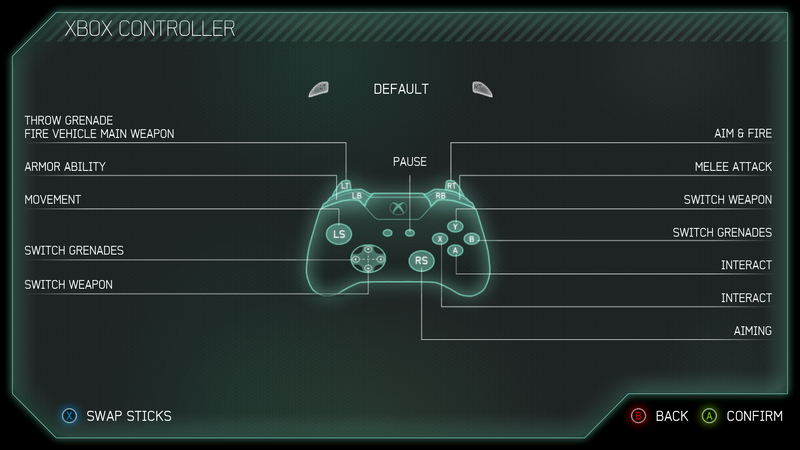
This is a list of controller layouts available in the Halo games for the Xbox, the Xbox 360, and the Xbox One.

Stick layouts[edit]

All Halo games save for the Halo Wars feature the same four stick layouts.

Default[edit]

Left Stick - Move Forward/Backward | Strafe Left/Right
Right Stick - Look Up/Down | Rotate Left/Right

Southpaw[edit]

"For Lefties"
Left Stick - Look Up/Down | Rotate Left/Right
Right Stick - Move Forward/Backward | Strafe Left/Right

Legacy[edit]

"An older way of doing things."

Left Stick - Move Forward/Backward | Rotate Left/Right
Right Stick - Look Up/Down | Strafe Left/Right

Legacy Southpaw[edit]

"An older way of doing things for lefties"

Left Stick - Look Up/Down | Strafe Left/Right
Right Stick - Move Forward/Backward | Rotate Left/Right

General[edit]

Alert carry[edit]

Main article: Alert carry

Alert carry is a feature introduced in Halo 2 for machinima purposes. The feature can be accessed by pressing "down" on the D-pad (Halo 2 only) or using a combination of buttons (Halo 3 and subsequent games).

Halo: Combat Evolved[edit]

Main article: Halo: Combat Evolved
Default
Screenshot of "Buttons Settings" set to "Default" in the Halo: Combat Evolved (Revision 2)  settings menu. (Note: The screenshot was taken from the emulator Xemu).

A - Jump
B - Melee attack
X - Reload weapon/Action
Y - Switch weapons
Left Analog - Movement
Left Analog Click - Crouch
Right Analog - Camera
Right Analog Click - Zoom
Right Trigger - Fire primary weapon
Left Trigger - Throw grenade

"Back" Button - Go back/Multiplayer score
"Start" Button - Pause game
↑ D-Pad - Teamspeak

Black Button / Right Bumper - Switch grenades
White Button / Left Bumper - Flashlight/Teamspeak

Southpaw
Screenshot of "Buttons Settings" set to "Southpaw" in the Halo: Combat Evolved (Revision 2)  settings menu. (Note: The screenshot was taken from the emulator Xemu).

A - Jump
B - Melee attack
X - Reload weapon/Action
Y - Switch weapons
Left Analog - Movement
Left Analog Click - Crouch
Right Analog - Camera
Right Analog Click - Zoom
Right Trigger - Throw grenade
Left Trigger - Fire primary weapon

"Back" Button - Go back/Multiplayer score
"Start" Button - Pause game
↑ D-Pad - Teamspeak

Black Button / Right Bumper - Switch grenades
White Button / Left Bumper - Flashlight/Teamspeak

Jumpy
Screenshot of "Buttons Settings" set to "Jumpy" in the Halo: Combat Evolved (Revision 2)  settings menu. (Note: The screenshot was taken from the emulator Xemu).

A - Throw grenade
B - Melee attack
X - Reload weapon/Action
Y - Switch weapons
Left Analog - Movement
Left Analog Click - Crouch
Right Analog - Camera
Right Analog Click - Zoom
Right Trigger - Fire primary weapon
Left Trigger - Jump

"Back" Button - Go back/Multiplayer score
"Start" Button - Pause game
↑ D-Pad - Teamspeak

Black Button / Right Bumper - Switch grenades
White Button / Left Bumper - Flashlight/Teamspeak

Boxer
Screenshot of "Buttons Settings" set to "Boxer" in the Halo: Combat Evolved (Revision 2)  settings menu. (Note: The screenshot was taken from the emulator Xemu).

A - Jump
B - Throw grenade
X - Reload weapon/Action
Y - Switch weapons
Left Analog - Movement
Left Analog Click - Crouch
Right Analog - Camera
Right Analog Click - Zoom
Right Trigger - Fire primary weapon
Left Trigger - Melee attack

"Back" Button - Go back/Multiplayer score
"Start" Button - Pause game
↑ D-Pad - Teamspeak

Black Button / Right Bumper - Switch grenades
White Button / Left Bumper - Flashlight/Teamspeak

Green Thumb
Screenshot of "Buttons Settings" set to "Green Thumb" in the Halo: Combat Evolved (Revision 2)  settings menu. (Note: The screenshot was taken from the emulator Xemu).

A - Jump
B - Zoom
X - Reload weapon/Action
Y - Switch weapons
Left Analog - Movement
Left Analog Click - Crouch
Right Analog - Camera
Right Analog Click - Melee attack
Right Trigger - Fire primary weapon
Left Trigger - Throw grenade

"Back" Button - Go back/Multiplayer score
"Start" Button - Pause game
↑ D-Pad - Teamspeak

Black Button / Right Bumper - Switch grenades
White Button / Left Bumper - Flashlight/Teamspeak

Halo: Combat Evolved (PC port) — Mouse and Keyboard (Default)[edit]

Screenshots
Movement
HCEPC — MouseAndKeyboard Movement Menu Screenshot.png
Combat
HCEPC — MouseAndKeyboard Combat Menu Screenshot.png
Actions
HCEPC — MouseAndKeyboard Actions Menu Screenshot.png
MISC.
HCEPC — MouseAndKeyboard MISC Menu Screenshot.png
 
Main article: Halo: Combat Evolved (PC port)
Category Action Keyboard Mouse
Movement Move Forward W Unbind
Move Backward S Unbind
Move Left A Unbind
Move Right D Unbind
Look Up Unbind N/A
Look Down Unbind N/A
Look Left Unbind N/A
Look Right Unbind N/A
Combat Fire Weapon Unbind Left Button
Throw Grenade Unbind Right Button
Switch Grenade G Unbind
Switch Weapon Tab Unbind
Reload R Unbind
Melee Attack F Unbind
Exchange Weapon X Unbind
Actions Jump Space Unbind
Crouch Left Control Unbind
Flashlight Q Unbind
Scope Zoom Z Middle Button
Action E Unbind
MISC. Menu Accept Enter Unbind
Menu Back Escape Unbind
Say T Unbind
Say to Team Y Unbind
Say To Vehicle H Unbind
Show Scores F1 Unbind

Vehicle Controls[edit]

M12 Warthog
Variants
M12 Chaingun Warthog
Promotional image for an early build of Halo: Combat Evolved featuring John-117 driving his M12 Chaingun Warthog off a cliff. Screenshot of the level The Silent Cartographer from the Halo: Combat Evolved press kit on the The Ultimate Halo Companion DVD Set.
M12A Rocket Warthog
HCE-M12A1RocketHog.png
 
Seat Action Vehicle Controls
PC port M12 Chaingun Warthog M12A Rocket Warthog
Driver Move Forward Move Forward
Move Backward Move Backward
Jump Brake
Gunner Fire Weapon Use M41 Light Anti-Aircraft Gun Use M39 102mm shaped charge-high explosive rocket turret
Look Rotate M41 Light Anti-Aircraft Gun Rotate M39 102mm shaped charge-high explosive rocket turret
Reload None Reload M39 102mm shaped charge-high explosive rocket turret
Passenger Fire Weapon Fire Weapon
Scope Zoom Scope Zoom
Switch Weapon Switch Weapon
Reload Reload
Throw Grenade Throw Grenade
Every Seat Action Exit M12 Warthog
Unusable control
Toggleable Search Lights Can't be disabled while driving the vehicle.
M808B Scorpion
Variants
Campaign
M808B Scorpion 030569 deployed in an icy ravine on Installation 04. From Halo: Combat Evolved campaign level Assault on the Control Room.
Multiplayer
HCE-MP-M808BScorpionMBT.png
 
Action Vehicle Controls
PC port
Look Rotate M512 90mm Smooth Bore High Velocity Cannon
Move Forward Move Forward
Move Backward Move Backward
Fire Weapon Use M512 90mm Smooth Bore High Velocity Cannon
Throw Grenade Use M231 Medium Machine Gun
Action Exit M808B Scorpion
Unusable control
Toggleable Search Lights Can't be disabled while driving the vehicle.
Banshee
HCE-T26BansheeGSA.png
Action Vehicle Controls
PC port
Look Rotate Banshee
Move Forward Move Forward
Move Backward Move Backward
Fire Weapon Use two DEML-AW, Plasma Bolt/Diffused (Class-2)s
Throw Grenade Use HAAW/M, Heavy Fuel Rod (Class-3)
Action Exit Banshee
Ghost
HCE-Ghost.png
Action Vehicle Controls
PC port
Look Rotate Ghost
Move Forward Move Forward
Move Backward Move Backward
Move Left Move Left
Move Right Move Right
Fire Weapon Use two Class-2 directed energy cannons
Action Exit Ghost
Usable on foot controls
Switch Grenade
Say
Say to Team
Say To Vehicle
Show Scores
Menu Back

Halo 2[edit]

Main article: Halo 2
Default
Note: The screenshot was taken from the emulator Xemu.

A - Jump
B - Melee attack
X - Reload weapon/Swap weapon/Action
Y - Switch weapons/Dual wield weapons
Left Analog - Movement
Left Analog Click - Crouch
Right Analog - Camera
Right Analog Click - Zoom
Right Trigger - Fire primary weapon
Left Trigger - Throw grenade/Fire secondary weapon/E-brake/Boost

"Back" Button - Go back/Multiplayer score
"Start" Button - Pause
↑ D-Pad - Teamspeak
↓ D-Pad - Lower weapon

Black Button / Right Bumper - Switch grenades
White Button / Left Bumper - Flashlight/Invisibility/Teamspeak

Southpaw
Note: The screenshot was taken from the emulator Xemu.

A - Jump
B - Melee attack
X - Reload weapon/Swap weapon/Action
Y - Switch weapons/Dual wield weapons
Left Analog - Movement
Left Analog Click - Crouch
Right Analog - Camera
Right Analog Click - Zoom
Right Trigger - Throw grenade/Fire secondary weapon/E-brake/Boost
Left Trigger - Fire primary weapon

"Back" Button - Go back/Multiplayer score
"Start" Button - Pause
↑ D-Pad - Teamspeak
↓ D-Pad - Lower weapon

Black Button / Right Bumper - Switch grenades
White Button / Left Bumper - Flashlight/Invisibility/Teamspeak

Boxer
Note: The screenshot was taken from the emulator Xemu.

A - Jump
B - Throw grenade/Fire secondary weapon/E-brake/Boost
X - Reload weapon/Swap weapon/Action
Y - Switch weapons/Dual wield weapons
Left Analog - Movement
Left Analog Click - Crouch
Right Analog - Camera
Right Analog Click - Zoom
Right Trigger - Fire primary weapon
Left Trigger - Melee attack

"Back" Button - Go back/Multiplayer score
"Start" Button - Pause
↑ D-Pad - Teamspeak
↓ D-Pad - Lower weapon

Black Button / Right Bumper - Switch grenades
White Button / Left Bumper - Flashlight/Invisibility/Teamspeak

Green Thumb
Note: The screenshot was taken from the emulator Xemu.

A - Jump
B - Zoom
X - Reload weapon/Swap weapon/Action
Y - Switch weapons/Dual wield weapons
Left Analog - Movement
Left Analog Click - Crouch
Right Analog - Camera
Right Analog Click - Melee attack
Right Trigger - Fire primary weapon
Left Trigger - Throw grenade/Fire secondary weapon/E-brake/Boost

"Back" Button - Go back/Multiplayer score
"Start" Button - Pause
↑ D-Pad - Teamspeak
↓ D-Pad - Lower weapon

Black Button / Right Bumper - Switch grenades
White Button / Left Bumper - Flashlight/Invisibility/Teamspeak

Vehicle Controls[edit]

M12 Warthog
Help.png This section is a stub. You can help Halopedia by expanding it.
M808B Scorpion
Help.png This section is a stub. You can help Halopedia by expanding it.
Spectre
Help.png This section is a stub. You can help Halopedia by expanding it.
Wraith
H2-T26WraithAGC-Active.png
Unusable control
Two Medium plasma cannons
Banshee
Help.png This section is a stub. You can help Halopedia by expanding it.
Ghost
Help.png This section is a stub. You can help Halopedia by expanding it.

Halo 2 (Windows Vista)[edit]

Main article: Halo 2 (Windows Vista)
Era-rw.png This article is a stub. You can help Halopedia by expanding it. Reason: Please don't use Project Cartographer.

Halo 3[edit]

Main article: Halo 3
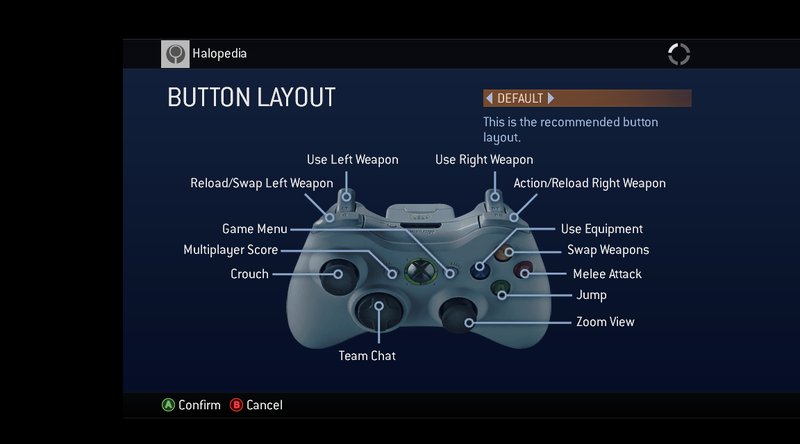
Default
Poster

The source artwork for the controller tutorial side of the poster included in the Halo 3 game box.
A poster included in physical copies of Halo 3, showcasing the game's
controller layout.

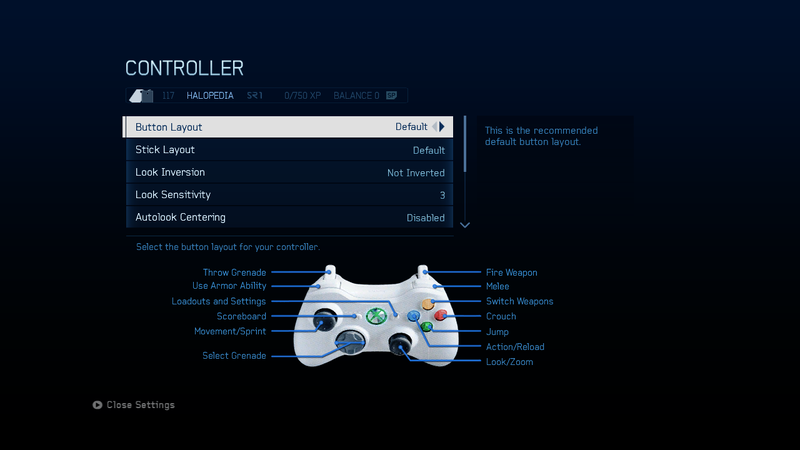
Screenshot of Settings Menu

Note: The screenshot was taken from the emulator Xenia.
The button layout is set to default.

Default.

A - Jump
B - Melee Attack
X - Use Equipment
Y - Swap Weapons
Left Analog - Movement
Left Analog Click - Crouch
Right Analog Click - Zoom View
Right Analog - Aiming
Right Trigger - Use Right Weapon
Left Trigger - Use Left Weapon/Throw Grenade
Up on Directional Pad - Team Chat
Right Bumper - Action/Reload Right Weapon
Left Bumper - Reload/Swap Left Weapon
D-Pad - Activates/Deactivates Flashlight

This is the most common control scheme despite many flaws (see below) that often become apparent to more experienced players. This is the control scheme that Bungie starts you with, but it is suggested that one quickly learns to either use the claw grip, bumper jumper, walkie talkie, or possibly even green thumb, all of which are more often used by experienced players.

Please note that it is not possible to aim while meleeing, jumping, and deploying equipment without use of the "claw grip."

Southpaw
Note: The screenshot was taken from the emulator Xenia.
For lefties.

A - Jump
B - Melee Attack
X - Use Equipment
Y - Swap Weapons
Left Analog Click - Crouch
Right Analog Click - Zoom View
Right Trigger - Use Left Weapon
Left Trigger - Use Right Weapon
Up on Directional Pad - Team Chat
Right Bumper - Action/Reload Right Weapon
Left Bumper - Reload/Swap Left Weapon

This is the same as default except that the triggers are switched.

Please note that if you compare new players using all button layouts this is the most accurate. Because unlike all of the other layouts offered in the game this is the only one that you are not required to use the same hand to shoot and aim with. Therefore, having more reaction time and accuracy.

Boxer
Note: The screenshot was taken from the emulator Xenia.
Pulling the left trigger will melee.

A - Jump
B - Throw Grenade
X - Use Equipment
Y - Swap Weapons
Left Analog Click - Crouch
Right Analog Click - Zoom View
Right Trigger - Use Right Weapon
Left Trigger - Melee/Use Left Weapon
Up on Directional Pad - Team Chat
Right Bumper - Action/Reload Right Weapon
Left Bumper - Reload/Swap Left Weapon

This has the advantage of giving the user aim while meleeing, but has the disadvantage of not allowing you to aim while throwing grenades.

Please note that it is not possible to aim while throwing grenades, jumping, and deploying equipment without use of the "claw grip."

Green Thumb
Note: The screenshot was taken from the emulator Xenia.
Pressing the right stick will melee.

A - Jump
B - Zoom View
X - Use Equipment
Y - Swap Weapons
Left Analog Click - Crouch
Right Analog Click - Melee Attack
Right Trigger - Use Right Weapon
Left Trigger - Use Left Weapon
Up on Directional Pad - Team Chat
Right Bumper - Action/Reload Right Weapon
Left Bumper - Reload/Swap Left Weapon

This has the advantage of giving you some control over your aim while meleeing without compromising the aim of your grenades. However it is considered hard to learn and can be somewhat unreliable if not mastered.

Please note that it is not possible to aim while zooming, jumping, and deploying equipment without use of the "claw grip."

Also this is very similar to the default Call of Duty controls.

Bumper Jumper
Note: The screenshot was taken from the emulator Xenia.
Jump and Melee are on the bumpers.

A - Reload/Swap Left Weapon/change grenade type
B - Action/Reload Right Weapon
X - Use Equipment
Y - Swap Weapons
Left Analog Click - Crouch
Right Analog Click - Zoom View
Right Trigger - Use Right Weapon
Left Trigger - Use Left Weapon
Up on Directional Pad - Team Chat
Right Bumper - Melee Attack
Left Bumper - Jump

This has been called by many to be the best possible controller configuration as you can aim while meleeing, jumping, zooming, and throwing grenades without having to use the uncomfortable claw grip usually only taking a few days to learn.

Please note that it is not possible to aim while deploying equipment without use of the "claw grip," although this is not much of a deterrent for most.

Bungie originally considered this as the default control scheme of Halo 3, but thought it would be too radically different to players used to Halo: Combat Evolved and Halo 2 and so altered it into the actual default configuration.[citation needed] However, with its relative popularity among Bungie workers, it was kept as an alternate configuration.

Using the Banshee becomes much easier with this control scheme, seeing as how you can use your cannon and aim, as well as perform tricks and determine your trajectory at the same time.

Walkie Talkie
Note: The screenshot was taken from the emulator Xenia.
Multiplayer team broadcasting is on the Left Bumper.

A - Jump
B - Action/Reload Right Weapon
X - Reload/Swap Left Weapon
Y - Swap Weapons
Left Analog Click - Crouch
Right Analog Click - Zoom View
Right Trigger - Use Right Weapon
Left Trigger - Use Left Weapon
Up on Directional Pad - Use Equipment
Right Bumper - Melee Attack
Left Bumper - Team Chat

This has very similar advantages to Bumper Jumper except you can aim while deploying equipment but not while jumping, and it is much more convenient to communicate with your team as you can continue walking and aiming while you switch into your team chat.

Please note that it is not possible to aim while jumping without use of the "claw grip."

Theater (mode)

A - Play/Pause
B - Hide/Show HUD
X - Hide/Show Control Pad
Y - Flying Cam/Player Cam
Left Analog - Movement
Left Analog Click - Pan
Right Analog - Camera
Right Trigger - Slow Motion/Fast Forward
Left Trigger - Thrust
Directional Pad - Switch Player
Right Bumper - Move Up
Left Bumper - Move Down

Forge (mode)

A - Pick up/ Drop Item
B - Hold to Drop Item
X - Inventory/Item Options
Y - Delete Item
Left Analog - Move/Rotate Selected Item
Right Analog - Look/Rotate Selected Item
Right Trigger - Hold to Rotate Selected Item
Left Trigger - Thrust
Directional Pad - Play/ Edit Mode
Right Bumper - Move Up
Left Bumper - Move Down

Vehicle Controls[edit]

Help.png This section is a stub. You can help Halopedia by expanding it.

Halo 3: ODST[edit]

Main article: Halo 3: ODST

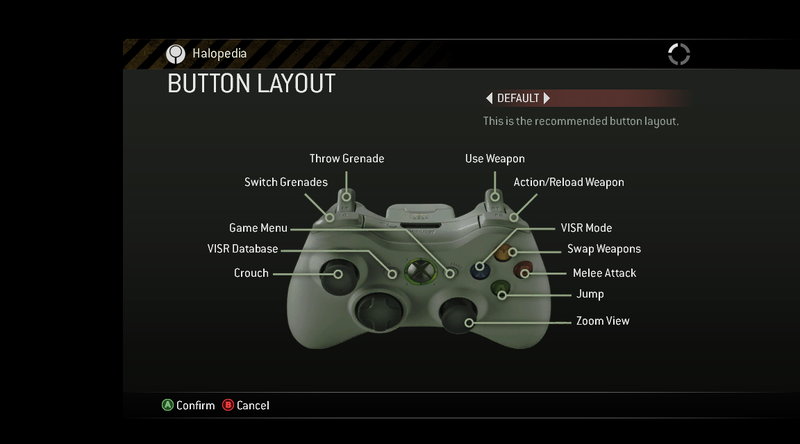
The controls in Halo 3: ODST are largely the same as in Halo 3, except the "Back" button accesses the VISR Database, the X button activates VISR Mode, and D-pad "up" views waypoints.

Default

Note: The screenshot was taken from the emulator Xenia.

Southpaw

Note: The screenshot was taken from the emulator Xenia.

Boxer

Note: The screenshot was taken from the emulator Xenia.

Green Thumb

Note: The screenshot was taken from the emulator Xenia.

Bumper Jumper

Note: The screenshot was taken from the emulator Xenia.

Walkie Talkie

Note: The screenshot was taken from the emulator Xenia.

Theater (mode)
Help.png This section is a stub. You can help Halopedia by expanding it.

Vehicle Controls[edit]

Help.png This section is a stub. You can help Halopedia by expanding it.

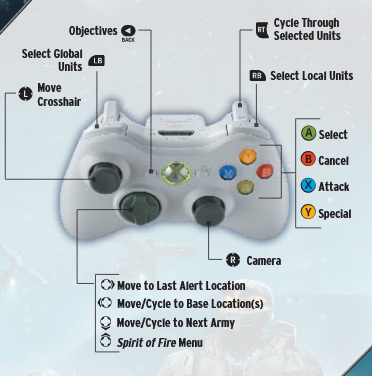
Halo Wars[edit]

Main article: Halo Wars

A - Press to select/Hold to select with "paintbrush" tool
B - Cancel selection
X - Move/Gather/Primary attack
Y - Special/Secondary attack
Left Analog - Move crosshair
Right Analog - Camera
Right Trigger - Cycle through selection
Left Trigger - Hold to speed up camera
"Back" Button" - Objectives
"Start" Button" - Pause
Up on D-pad - Leader abilities menu
Down on D-pad - Move/cycle to next army
Right on D-pad - Move to last alert location
Left on D-pad - Move/cycle to base locations
Right Bumper - Select local units
Left Bumper - Select global units

Halo: Reach[edit]

Main article: Halo: Reach
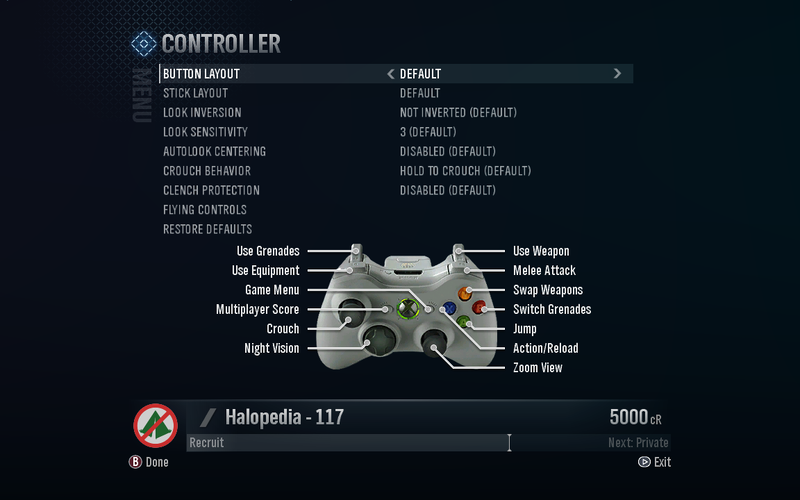
Default
N/A

Note: The screenshot was taken from the emulator Xenia.

N/A

Screenshot of "Button Layout" set to "Default" in the Halo Reach menu.

A - Jump
B - Switch Grenades
X - Action/Reload
Y - Swap Weapons
Left Analog - Movement
Left Analog Click - Crouch
Right Analog Click - Zoom View
Right Analog - Aiming
Right Trigger - Use Weapon
Left Trigger - Use Grenades
Right Bumper - Melee Attack
Left Bumper - Use Equipment
D-Pad - Team Chat
D-Pad - Open Mic/Regoup
D-Pad - Night Vision

Southpaw
N/A

Note: The screenshot was taken from the emulator Xenia.

N/A

Screenshot of "Button Layout" set to "Southpaw" in the Halo Reach menu.

A - Jump
B - Switch Grenades
X - Action/Reload
Y - Swap Weapons
Left Analog - Movement
Left Analog Click - Crouch
Right Analog Click - Zoom View
Right Analog - Aiming
Right Trigger - Use Grenades
Left Trigger - Use Weapon
Right Bumper - Use Equipment
Left Bumper - Melee Attack
D-Pad - Team Chat
D-Pad - Open Mic/Regoup
D-Pad - Night Vision

Boxer
N/A

Note: The screenshot was taken from the emulator Xenia.

N/A

Screenshot of "Button Layout" set to "Boxer" in the Halo Reach menu.

A - Jump
B - Switch Grenades
X - Action/Reload
Y - Swap Weapons
Left Analog - Movement
Left Analog Click - Crouch
Right Analog Click - Zoom View
Right Analog - Aiming
Right Trigger - Use Weapon
Left Trigger - Melee Attack
Right Bumper - Use Grenades
Left Bumper - Use Equipment
D-Pad - Team Chat
D-Pad - Open Mic/Regoup
D-Pad - Night Vision

Green Thumb
N/A

Note: The screenshot was taken from the emulator Xenia.

N/A

Screenshot of "Button Layout" set to "Green Thumb" in the Halo Reach menu.

A - Jump
B - Switch Grenades
X - Action/Reload
Y - Swap Weapons
Left Analog - Movement
Left Analog Click - Crouch
Right Analog Click - Melee Attack
Right Analog - Aiming
Right Trigger - Use Weapon
Left Trigger - Use Grenades
Right Bumper - Zoom View
Left Bumper - Use Equipment
D-Pad - Team Chat
D-Pad - Open Mic/Regoup
D-Pad - Night Vision

Bumper Jumper
N/A

Note: The screenshot was taken from the emulator Xenia.

N/A

Screenshot of "Button Layout" set to "Bumper Jumper" in the Halo Reach menu.

A - Switch Grenades
B - Action/Reload
X - Use Equipment
Y - Swap Weapons
Left Analog - Movement
Left Analog Click - Crouch
Right Analog Click - Zoom View
Right Analog - Aiming
Right Trigger - Use Weapon
Left Trigger - Use Grenades
Right Bumper - Melee Attack
Left Bumper - Jump
D-Pad - Team Chat
D-Pad - Open Mic/Regoup
D-Pad - Night Vision

Recon
N/A

Note: The screenshot was taken from the emulator Xenia.

N/A

Screenshot of "Button Layout" set to "Recon" in the Halo Reach menu.

A - Jump
B - Melee Attack
X - Switch Grenades
Y - Swap Weapons
Left Analog - Movement
Left Analog Click - Crouch
Right Analog Click - Zoom View
Right Analog - Aiming
Right Trigger - Use Weapon
Left Trigger - Use Grenades
Right Bumper - Action/Reload
Left Bumper - Use Equipment
D-Pad - Team Chat
D-Pad - Open Mic/Regoup
D-Pad - Night Vision

Theater (mode)

A - Play/Pause
B - Toggle HUD
X - Invoke Controls
Y - Change Camera Type
Left Analog - Movement
Left Analog Click - Change Follow View
Right Analog Click - Camera View
Right Analog - Aiming
Right Trigger - Adjust Playback Speed
Left Trigger - Camera Boost
Right Bumper - Fly Up
Left Bumper - Fly Down
↑/↓ D-Pad - Change Player
D-Pad - Skip Forward
D-Pad - Skip Back

Forge (mode)

A - Drop/Pick Up
B - Tools
X - Object Options
Y - Delete
Left Analog - Move
Right Analog Click - Zoom View
Right Analog - Pivot
Right Trigger + Right Analog - Rotate
Right Trigger + Left Analog - Push/Rotate
Left Trigger + Left Analog - Thrust
Right Bumper - Fly Up
Left Bumper - Fly Down
D-Pad - Play/Edit

Vehicle Controls[edit]

M12 Warthog
Help.png This section is a stub. You can help Halopedia by expanding it.
M274R Mongoose
Mongoose.png
Help.png This section is a stub. You can help Halopedia by expanding it.
M808C Scorpion
HReach-M808ScorpionMBT.png
Help.png This section is a stub. You can help Halopedia by expanding it.
UH-144 Falcon
Variants
Campaign Falcon
A screenshot of a UH-144 Falcon on the level Winter Contingency.
Standard Falcon
A screenshot of a UH-144 Falcon on Forge World.
Nose gun Falcon
Reach-UH144-Falcon-03.png
Grenadier Falcon
The Grenadier Falcon. Originally taken by User:BaconShelf.
 
Help.png This section is a stub. You can help Halopedia by expanding it.
D77 Pelican
Pelican render.png
Help.png This section is a stub. You can help Halopedia by expanding it.
Wraith
HReach-T26WraithAGC.png
Help.png This section is a stub. You can help Halopedia by expanding it.
Banshee
Halo Reach Type 26 GSA.png
Help.png This section is a stub. You can help Halopedia by expanding it.
Revenant
Renenantrender.png
Help.png This section is a stub. You can help Halopedia by expanding it.
Phantom
HReach-PhantomDropship-FrontAngle.png
Help.png This section is a stub. You can help Halopedia by expanding it.
Seat Action Vehicle Controls
Xbox 360
Pilot N/A N/A
N/A N/A
Type-44 DEW/M N/A N/A
N/A N/A
Unusable control
Belly hatch door It can't be closed
Searchlights Can't be enable

Halo: Combat Evolved Anniversary[edit]

Main article: Halo: Combat Evolved Anniversary
Default
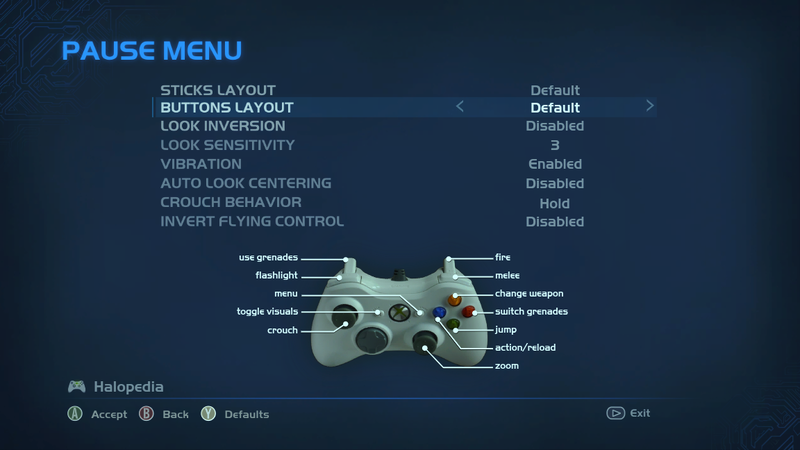
Screenshot of "Buttons Layout" set to "Default" in the Halo: Combat Evolved Anniversary settings menu (Note: The screenshot was taken from the emulator Xenia).

A - Jump
B - Switch Grenades
X - Action/Reload
Y - Change Weapon
Left Analog - Movement
Left Analog Click - Crouch
Right Analog Click - Zoom
Right Analog - Look
Right Trigger - Fire
Left Trigger - Use Grenades
Right Bumper - Melee
Left Bumper - Flashlight
Back - Toggle Visuals

Southpaw
Screenshot of "Buttons Layout" set to "Southpaw" in the Halo: Combat Evolved Anniversary settings menu (Note: The screenshot was taken from the emulator Xenia).

A - Jump
B - Melee
X - Action/Reload
Y - Change Weapon
Left Analog - Movement
Left Analog Click - Crouch
Right Analog Click - Zoom
Right Analog - Look
Right Trigger - Use Grenades
Left Trigger - Fire
Right Bumper - Switch Grenades
Left Bumper - Flashlight
Back - Toggle Visuals

Jumpy
Screenshot of "Buttons Layout" set to "Jumpy" in the Halo: Combat Evolved Anniversary settings menu (Note: The screenshot was taken from the emulator Xenia).

A - Use Grenades
B - Melee
X - Action/Reload
Y - Change Weapon
Left Analog - Movement
Left Analog Click - Crouch
Right Analog Click - Zoom
Right Analog - Look
Right Trigger - Fire
Left Trigger - Jump
Right Bumper - Flashlight
Left Bumper - Switch Grenades
Back - Toggle Visuals

Bumper Jumper
Screenshot of "Buttons Layout" set to "Bumper Jumper" in the Halo: Combat Evolved Anniversary settings menu (Note: The screenshot was taken from the emulator Xenia).

A - Switch Grenades
B - Action/Reload
X - Flashlight
Y - Change Weapon
Left Analog - Movement
Left Analog Click - Crouch
Right Analog Click - Zoom
Right Analog - Look
Right Trigger - Fire
Left Trigger - Use Grenades
Right Bumper - Melee
Left Bumper - Jump
Back - Toggle Visuals

Boxer
Screenshot of "Buttons Layout" set to "Boxer" in the Halo: Combat Evolved Anniversary settings menu (Note: The screenshot was taken from the emulator Xenia).

A - Jump
B - Switch Grenades
X - Action/Reload
Y - Change Weapon
Left Analog - Movement
Left Analog Click - Crouch
Right Analog Click - Zoom
Right Analog - Look
Right Trigger - Fire
Left Trigger - Melee
Right Bumper - Use Grenades
Left Bumper - Flashlight
Back - Toggle Visuals

Green Thumb
Screenshot of "Buttons Layout" set to "Green Thumb" in the Halo: Combat Evolved Anniversary settings menu (Note: The screenshot was taken from the emulator Xenia).

A - Jump
B - Switch Grenades
X - Action/Reload
Y - Change Weapon
Left Analog - Movement
Left Analog Click - Crouch
Right Analog Click - Melee
Right Analog - Look
Right Trigger - Fire
Left Trigger - Use Grenades
Right Bumper - Zoom
Left Bumper - Flashlight
Back - Toggle Visuals

The Duke
Screenshot of "Buttons Layout" set to "The Duke" in the Halo: Combat Evolved Anniversary settings menu (Note: The screenshot was taken from the emulator Xenia).

A - Jump
B - Melee
X - Action/Reload
Y - Change Weapon
Left Analog - Movement
Left Analog Click - Crouch
Right Analog Click - Zoom
Right Analog - Look
Right Trigger - Fire
Left Trigger - Use Grenades
Right Bumper - Flashlight
Left Bumper - Switch Grenades
Back - Toggle Visuals

Hero
Screenshot of "Buttons Layout" set to "Hero" in the Halo: Combat Evolved Anniversary settings menu (Note: The screenshot was taken from the emulator Xenia).

A - Jump
B - Melee
X - Flashlight
Y - Change Weapon
Left Analog - Movement
Left Analog Click - Crouch
Right Analog Click - Zoom
Right Analog - Look
Right Trigger - Fire
Left Trigger - Use Grenades
Right Bumper - Action/Reload
Left Bumper - Switch Grenades
Back - Toggle Visuals

Recon
Screenshot of "Buttons Layout" set to "Recon" in the Halo: Combat Evolved Anniversary settings menu (Note: The screenshot was taken from the emulator Xenia).

A - Jump
B - Melee
X - Switch Grenades
Y - Change Weapon
Left Analog - Movement
Left Analog Click - Crouch
Right Analog Click - Zoom
Right Analog - Look
Right Trigger - Fire
Left Trigger - Use Grenades
Right Bumper - Action/Reload
Left Bumper - Flashlight
Back - Toggle Visuals

Halo 4[edit]

Main article: Halo 4
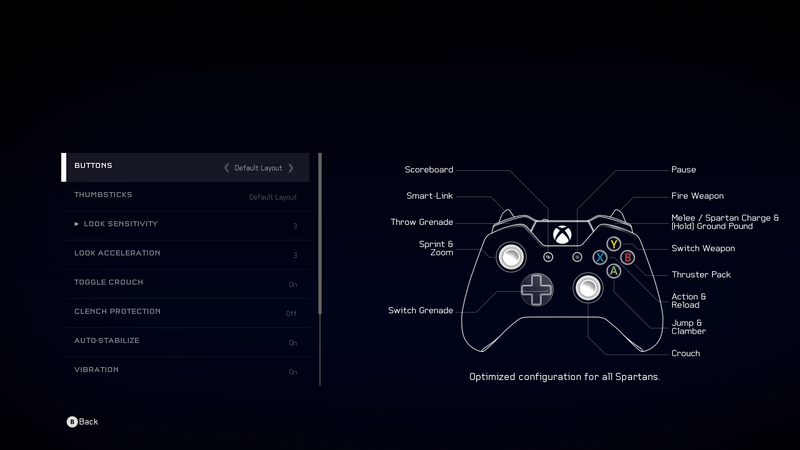
Default
Note: The screenshot was taken from the emulator Xenia.

A - Jump
B - Crouch
X - Action/Reload
Y - Switch Weapons
Left Analog - Movement
Left Analog Click - Sprint
Right Analog Click - Zoom
Right Analog - Look
Right Trigger - Fire Weapon
Left Trigger - Throw Grenade
Right Bumper - Melee
Left Bumper - Use Armor Ability
←/→ D-Pad - Switch Grenade

Boxer
Note: The screenshot was taken from the emulator Xenia.

A - Jump
B - Sprint
X - Action/Reload
Y - Switch Weapons
Left Analog - Movement
Left Analog Click - Crouch
Right Analog Click - Zoom
Right Analog - Look
Right Trigger - Fire Weapon
Left Trigger - Melee Attacks
Right Bumper - Throw Grenade
Left Bumper - Use Armor Ability
←/→ D-Pad - Switch Grenade

Bumper Jumper
Note: The screenshot was taken from the emulator Xenia.

A - Sprint
B - Action/Reload
X - Use Armor Ability
Y - Switch Weapons
Left Analog - Movement
Left Analog Click - Crouch
Right Analog Click - Zoom
Right Analog - Look
Right Trigger - Fire Weapon
Left Trigger - Throw Grenade
Right Bumper - Melee Attack
Left Bumper - Jump
←/→ D-Pad - Switch Grenade

Fishstick
Note: The screenshot was taken from the emulator Xenia.

A - Jump
B - Crouch
X - Action/Reload
Y - Switch Weapons
Left Analog - Movement
Left Analog Click - Sprint
Right Analog Click - Melee
Right Analog - Look
Right Trigger - Fire Weapon
Left Trigger - Zoom
Right Bumper - Throw Grenade
Left Bumper - Use Armor Ability
←/→ D-Pad - Switch Grenade

Green Thumb
Note: The screenshot was taken from the emulator Xenia.

A - Jump
B - Crouch
X - Action/Reload
Y - Switch Weapons
Left Analog - Movement
Left Analog Click - Sprint
Right Analog Click - Melee
Right Analog - Look
Right Trigger - Fire Weapon
Left Trigger - Throw Grenade
Right Bumper - Zoom
Left Bumper - Use Armor Ability
←/→ D-Pad - Switch Grenade

Recon
Note: The screenshot was taken from the emulator Xenia.

A - Jump
B - Melee
X - Sprint
Y - Switch Weapons
Left Analog - Movement
Left Analog Click - Crouch
Right Analog Click - Zoom
Right Analog - Look
Right Trigger - Fire Weapon
Left Trigger - Throw Grenade
Right Bumper - Action/Reload
Left Bumper - Use Armor Ability
←/→ D-Pad - Switch Grenade

Southpaw
Note: The screenshot was taken from the emulator Xenia.

A - Jump
B - Crouch
X - Action/Reload
Y - Switch Weapons
Left Analog - Movement
Left Analog Click - Sprint
Right Analog Click - Zoom
Right Analog - Look
Right Trigger - Throw Grenade
Left Trigger - Fire Weapon
Right Bumper - Use Armor Ability
Left Bumper - Melee
←/→ D-Pad - Switch Grenade

Vehicle Controls[edit]

Help.png This section is a stub. You can help Halopedia by expanding it.

Halo: Spartan Assault and Spartan Strike[edit]

Halo: Spartan Assault
Xinput Device (Xbox 360)

Screenshot of "View Controls" menu from Halo: Spartan Assault (Xbox 360)[1] (Note: The screenshot was taken from the emulator Xenia).

Touch Input (iOS)

Screenshot of "View Controls" menu from Halo: Spartan Assault (Apple iOS).

Mouse and Keyboard (N/A)

HSA keyboard.jpg

Halo: Spartan Strike

Screenshot of "View Controls" menu from Halo: Spartan Strike (Apple iOS).

Main article: Halo: Spartan Assault

B - Switch Grenade
X - Action
Y - Switch Weapons
Left Analog - Movement
Right Analog - Look
Right Trigger - Fire Weapon
Left Trigger - Throw Grenade
Right Bumper - Melee
Left Bumper - Use Armor Ability

Halo: The Master Chief Collection[edit]

Main article: Halo: The Master Chief Collection

In addition to the specific control schemes of each individual game in the collection, The Master Chief Collection features several "Universal" control setups that span all six games.

Halo: Reach
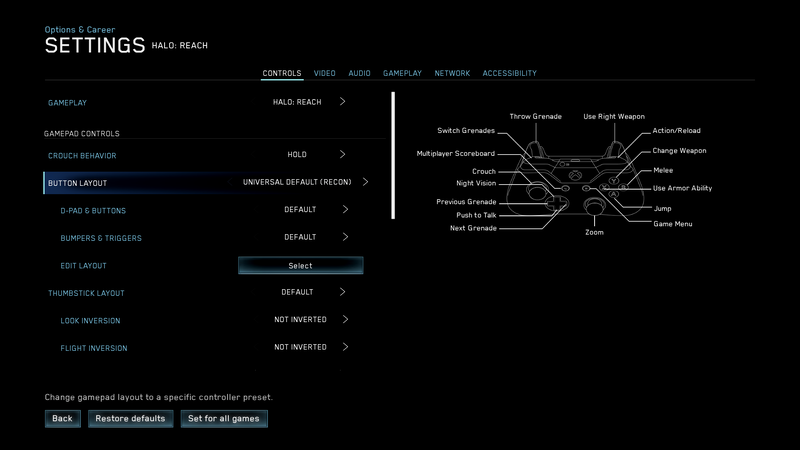
Universal Default (Recon)
Configure Gamepad

HTMCC-HR ControllerLayoutUniversalDefaultRecon Menu Screenshot.png

Edit Layout

HTMCC-HR ControllerLayoutUniversalDefaultRecon Menu Screenshot Alt.png

Button Action
A Jump
B Melee
X Use Armor Ability
Y Change Weapon
Left Analog Movement
Left Analog Click Crouch
Right Analog Click Zoom
Right Analog Look
Right Trigger Use Right Weapon
Left Trigger Throw Grenade
Right Bumper Action Reload
Left Bumper Switch Grenades
"Back" Button" Toggle Scoreboard
"Start" Button" Game Menu
D-Pad Toggle Night Vision
D-Pad Push to Talk
D-Pad Select Next Grenades
D-Pad Select Previous Grenades
Universal Reclaimer
HTMCC-HR ControllerLayoutUniversalReclaimer Menu Screenshot.png
Button Action
A N/A
B N/A
X N/A
Y N/A
Left Analog N/A
Left Analog Click N/A
Right Analog Click N/A
Right Analog N/A
Right Trigger N/A
Left Trigger N/A
Right Bumper N/A
Left Bumper N/A
"Back" Button" N/A
"Start" Button" N/A
D-Pad N/A
D-Pad N/A
D-Pad N/A
D-Pad N/A
Universal Zoom & Shoot
HTMCC-HR ControllerLayoutUniversalZoomAndShoot Menu Screenshot.png
Button Action
A N/A
B N/A
X N/A
Y N/A
Left Analog N/A
Left Analog Click N/A
Right Analog Click N/A
Right Analog N/A
Right Trigger N/A
Left Trigger N/A
Right Bumper N/A
Left Bumper N/A
"Back" Button" N/A
"Start" Button" N/A
D-Pad N/A
D-Pad N/A
D-Pad N/A
D-Pad N/A
Universal Bump & Jump
HTMCC-HR ControllerLayoutUniversalBumpAndJump Menu Screenshot.png
Button Action
A N/A
B N/A
X N/A
Y N/A
Left Analog N/A
Left Analog Click N/A
Right Analog Click N/A
Right Analog N/A
Right Trigger N/A
Left Trigger N/A
Right Bumper N/A
Left Bumper N/A
"Back" Button" N/A
"Start" Button" N/A
D-Pad N/A
D-Pad N/A
D-Pad N/A
D-Pad N/A
Universal Green Thumbs
HTMCC-HR ControllerLayoutUniversalGreenThumbs Menu Screenshot.png
Button Action
A N/A
B N/A
X N/A
Y N/A
Left Analog N/A
Left Analog Click N/A
Right Analog Click N/A
Right Analog N/A
Right Trigger N/A
Left Trigger N/A
Right Bumper N/A
Left Bumper N/A
"Back" Button" N/A
"Start" Button" N/A
D-Pad N/A
D-Pad N/A
D-Pad N/A
D-Pad N/A
Universal Infinite
HTMCC-HR ControllerLayoutUniversalInfinite Menu Screenshot.png
Button Action
A N/A
B N/A
X N/A
Y N/A
Left Analog N/A
Left Analog Click N/A
Right Analog Click N/A
Right Analog N/A
Right Trigger N/A
Left Trigger N/A
Right Bumper N/A
Left Bumper N/A
"Back" Button" N/A
"Start" Button" N/A
D-Pad N/A
D-Pad N/A
D-Pad N/A
D-Pad N/A
Default
HTMCC-HR ControllerLayoutDefault Menu Screenshot.png
Button Action
A N/A
B N/A
X N/A
Y N/A
Left Analog N/A
Left Analog Click N/A
Right Analog Click N/A
Right Analog N/A
Right Trigger N/A
Left Trigger N/A
Right Bumper N/A
Left Bumper N/A
"Back" Button" N/A
"Start" Button" N/A
D-Pad N/A
D-Pad N/A
D-Pad N/A
D-Pad N/A
Boxer
HTMCC-HR ControllerLayoutBoxer Menu Screenshot.png
Button Action
A N/A
B N/A
X N/A
Y N/A
Left Analog N/A
Left Analog Click N/A
Right Analog Click N/A
Right Analog N/A
Right Trigger N/A
Left Trigger N/A
Right Bumper N/A
Left Bumper N/A
"Back" Button" N/A
"Start" Button" N/A
D-Pad N/A
D-Pad N/A
D-Pad N/A
D-Pad N/A
Green Thumbs
HTMCC-HR ControllerLayoutGreenThumbs Menu Screenshot.png
Button Action
A N/A
B N/A
X N/A
Y N/A
Left Analog N/A
Left Analog Click N/A
Right Analog Click N/A
Right Analog N/A
Right Trigger N/A
Left Trigger N/A
Right Bumper N/A
Left Bumper N/A
"Back" Button" N/A
"Start" Button" N/A
D-Pad N/A
D-Pad N/A
D-Pad N/A
D-Pad N/A
Bumper Jumper
HTMCC-HR ControllerLayoutBumperJumper Menu Screenshot.png
Button Action
A N/A
B N/A
X N/A
Y N/A
Left Analog N/A
Left Analog Click N/A
Right Analog Click N/A
Right Analog N/A
Right Trigger N/A
Left Trigger N/A
Right Bumper N/A
Left Bumper N/A
"Back" Button" N/A
"Start" Button" N/A
D-Pad N/A
D-Pad N/A
D-Pad N/A
D-Pad N/A
Recon
HTMCC-HR ControllerLayoutRecon Menu Screenshot.png
Button Action
A N/A
B N/A
X N/A
Y N/A
Left Analog N/A
Left Analog Click N/A
Right Analog Click N/A
Right Analog N/A
Right Trigger N/A
Left Trigger N/A
Right Bumper N/A
Left Bumper N/A
"Back" Button" N/A
"Start" Button" N/A
D-Pad N/A
D-Pad N/A
D-Pad N/A
D-Pad N/A
Halo: Combat Evolved
Universal Default (Recon)
Configure Gamepad

HTMCC-HCE ControllerLayoutUniversalDefaultRecon Menu Screenshot.png

Edit Layout

HTMCC-HCE — ControllerLayoutUniversalDefaultRecon Menu Screenshot Alt.png

Button Action
A N/A
B N/A
X N/A
Y N/A
Left Analog N/A
Left Analog Click N/A
Right Analog Click N/A
Right Analog N/A
Right Trigger N/A
Left Trigger N/A
Right Bumper N/A
Left Bumper N/A
"Back" Button" N/A
"Start" Button" N/A
D-Pad N/A
D-Pad N/A
D-Pad N/A
D-Pad N/A
Universal Reclaimer
HTMCC-HCE ControllerLayoutUniversalReclaimer Menu Screenshot.png
Button Action
A N/A
B N/A
X N/A
Y N/A
Left Analog N/A
Left Analog Click N/A
Right Analog Click N/A
Right Analog N/A
Right Trigger N/A
Left Trigger N/A
Right Bumper N/A
Left Bumper N/A
"Back" Button" N/A
"Start" Button" N/A
D-Pad N/A
D-Pad N/A
D-Pad N/A
D-Pad N/A
Universal Zoom & Shoot
HTMCC-HCE ControllerLayoutUniversalZoomAndShoot Menu Screenshot.png
Button Action
A N/A
B N/A
X N/A
Y N/A
Left Analog N/A
Left Analog Click N/A
Right Analog Click N/A
Right Analog N/A
Right Trigger N/A
Left Trigger N/A
Right Bumper N/A
Left Bumper N/A
"Back" Button" N/A
"Start" Button" N/A
D-Pad N/A
D-Pad N/A
D-Pad N/A
D-Pad N/A
Universal Bump & Jump
HTMCC-HCE ControllerLayoutUniversalBumpAndJump Menu Screenshot.png
Button Action
A N/A
B N/A
X N/A
Y N/A
Left Analog N/A
Left Analog Click N/A
Right Analog Click N/A
Right Analog N/A
Right Trigger N/A
Left Trigger N/A
Right Bumper N/A
Left Bumper N/A
"Back" Button" N/A
"Start" Button" N/A
D-Pad N/A
D-Pad N/A
D-Pad N/A
D-Pad N/A
Universal Green Thumbs
HTMCC-HCE ControllerLayoutUniversalGreenThumbs Menu Screenshot.png
Button Action
A N/A
B N/A
X N/A
Y N/A
Left Analog N/A
Left Analog Click N/A
Right Analog Click N/A
Right Analog N/A
Right Trigger N/A
Left Trigger N/A
Right Bumper N/A
Left Bumper N/A
"Back" Button" N/A
"Start" Button" N/A
D-Pad N/A
D-Pad N/A
D-Pad N/A
D-Pad N/A
Universal Infinite
HTMCC-HCE ControllerLayoutUniversalInfinite Menu Screenshot.png
Button Action
A N/A
B N/A
X N/A
Y N/A
Left Analog N/A
Left Analog Click N/A
Right Analog Click N/A
Right Analog N/A
Right Trigger N/A
Left Trigger N/A
Right Bumper N/A
Left Bumper N/A
"Back" Button" N/A
"Start" Button" N/A
D-Pad N/A
D-Pad N/A
D-Pad N/A
D-Pad N/A
Default
HTMCC-HCE ControllerLayoutDefault Menu Screenshot.png
Button Action
A N/A
B N/A
X N/A
Y N/A
Left Analog N/A
Left Analog Click N/A
Right Analog Click N/A
Right Analog N/A
Right Trigger N/A
Left Trigger N/A
Right Bumper N/A
Left Bumper N/A
"Back" Button" N/A
"Start" Button" N/A
D-Pad N/A
D-Pad N/A
D-Pad N/A
D-Pad N/A
Jumpy
HTMCC-HCE ControllerLayoutJumpy Menu Screenshot.png
Button Action
A N/A
B N/A
X N/A
Y N/A
Left Analog N/A
Left Analog Click N/A
Right Analog Click N/A
Right Analog N/A
Right Trigger N/A
Left Trigger N/A
Right Bumper N/A
Left Bumper N/A
"Back" Button" N/A
"Start" Button" N/A
D-Pad N/A
D-Pad N/A
D-Pad N/A
D-Pad N/A
Bumper Jumper
HTMCC-HCE ControllerLayoutBumperJumper Menu Screenshot.png
Button Action
A N/A
B N/A
X N/A
Y N/A
Left Analog N/A
Left Analog Click N/A
Right Analog Click N/A
Right Analog N/A
Right Trigger N/A
Left Trigger N/A
Right Bumper N/A
Left Bumper N/A
"Back" Button" N/A
"Start" Button" N/A
D-Pad N/A
D-Pad N/A
D-Pad N/A
D-Pad N/A
Boxer
HTMCC-HCE ControllerLayoutBoxer Menu Screenshot.png
Button Action
A N/A
B N/A
X N/A
Y N/A
Left Analog N/A
Left Analog Click N/A
Right Analog Click N/A
Right Analog N/A
Right Trigger N/A
Left Trigger N/A
Right Bumper N/A
Left Bumper N/A
"Back" Button" N/A
"Start" Button" N/A
D-Pad N/A
D-Pad N/A
D-Pad N/A
D-Pad N/A
Green Thumbs
HTMCC-HCE ControllerLayoutGreenThumbs Menu Screenshot.png
Button Action
A N/A
B N/A
X N/A
Y N/A
Left Analog N/A
Left Analog Click N/A
Right Analog Click N/A
Right Analog N/A
Right Trigger N/A
Left Trigger N/A
Right Bumper N/A
Left Bumper N/A
"Back" Button" N/A
"Start" Button" N/A
D-Pad N/A
D-Pad N/A
D-Pad N/A
D-Pad N/A
The Duke
HTMCC-HCE ControllerLayoutTheDuke Menu Screenshot.png
Button Action
A N/A
B N/A
X N/A
Y N/A
Left Analog N/A
Left Analog Click N/A
Right Analog Click N/A
Right Analog N/A
Right Trigger N/A
Left Trigger N/A
Right Bumper N/A
Left Bumper N/A
"Back" Button" N/A
"Start" Button" N/A
D-Pad N/A
D-Pad N/A
D-Pad N/A
D-Pad N/A
Hero
HTMCC-HCE ControllerLayoutHero Menu Screenshot.png
Button Action
A N/A
B N/A
X N/A
Y N/A
Left Analog N/A
Left Analog Click N/A
Right Analog Click N/A
Right Analog N/A
Right Trigger N/A
Left Trigger N/A
Right Bumper N/A
Left Bumper N/A
"Back" Button" N/A
"Start" Button" N/A
D-Pad N/A
D-Pad N/A
D-Pad N/A
D-Pad N/A
Recon
HTMCC-HCE ControllerLayoutRecon Menu Screenshot.png
Button Action
A N/A
B N/A
X N/A
Y N/A
Left Analog N/A
Left Analog Click N/A
Right Analog Click N/A
Right Analog N/A
Right Trigger N/A
Left Trigger N/A
Right Bumper N/A
Left Bumper N/A
"Back" Button" N/A
"Start" Button" N/A
D-Pad N/A
D-Pad N/A
D-Pad N/A
D-Pad N/A
Halo 2
Universal Default (Recon)
Old

HMCC-Control Layout-Universal Default (Recon).jpg

Configure Gamepad (Latest)

HTMCC-H2 ControllerLayoutUniversalDefaultRecon Menu Screenshot.png

Edit Layout (Latest)

HTMCC-H2 — ControllerLayoutUniversalDefaultRecon Menu Screenshot Alt.png

Button Action
A Jump
B Melee
X Flashlight
Y Change Weapon Swap Left Weapon
Left Analog Movement
Left Analog Click Crouch
Right Analog Click Zoom
Right Analog Look
Right Trigger Use Right Weapon
Left Trigger Throw Grenade Use Left Weapon
Right Bumper Action Reload
Left Bumper
"Back" Button" Toggle Visuals/Multiplayer Scoreboard
"Start" Button" Game Menu
D-Pad Flashlight
D-Pad Push to Talk
D-Pad Switch Grenades Select Next Grenades
D-Pad Select Previous Grenades
Universal Reclaimer
Old

TMCC - Universal Reclaimer.jpg

Latest

HTMCC-H2 ControllerLayoutUniversalReclaimer Menu Screenshot.png

Button Action
A Jump
B Crouch
X Action Reload
Y Change Weapon Swap Left Weapon
Left Analog Movement
Left Analog Click Crouch
Right Analog Click Zoom
Right Analog Look
Right Trigger Use Right Weapon
Left Trigger Throw Grenade Use Left Weapon
Right Bumper Melee
Left Bumper
"Back" Button" Toggle Visuals/Multiplayer Scoreboard
"Start" Button" Game Menu
D-Pad Flashlight
D-Pad Push to Talk
D-Pad Switch Grenades Select Next Grenades
D-Pad Select Previous Grenades
Universal Zoom & Shoot
Old

TMCC - Universal Zoom and Shoot.jpg

Latest

HTMCC-H2 ControllerLayoutUniversalZoomAndShoot Menu Screenshot.png

Button Action
A Jump
B Crouch
X Action Reload
Y Change Weapon Swap Left Weapon
Left Analog Movement
Left Analog Click
Right Analog Click Melee
Right Analog Look
Right Trigger Use Right Weapon
Left Trigger Zoom Use Left Weapon
Right Bumper Throw Grenade
Left Bumper Flashlight
"Back" Button" Toggle Visuals/Multiplayer Scoreboard
"Start" Button" Game Menu
D-Pad
D-Pad Push to Talk
D-Pad Switch Grenades Select Next Grenades
D-Pad Select Previous Grenades
Universal Bump & Jump
Old

TMCC - Universal Bump and Jump.jpg

Latest

HTMCC-H2 ControllerLayoutUniversalBumpAndJump Menu Screenshot.png

Button Action
A Swap Left Weapon
B Action Reload
X
Y Change Weapon
Left Analog Movement
Left Analog Click Crouch
Right Analog Click Zoom
Right Analog Look
Right Trigger Use Right Weapon
Left Trigger Throw Grenade Use Left Weapon
Right Bumper Melee
Left Bumper Jump
"Back" Button" Toggle Visuals/Multiplayer Scoreboard
"Start" Button" Game Menu
D-Pad Flashlight
D-Pad Push to Talk
D-Pad Switch Grenades Select Next Grenades
D-Pad Select Previous Grenades
Universal Green Thumbs
Old

TMCC - Green Fingers.jpg

Latest

HTMCC-H2 ControllerLayoutUniversalGreenThumbs Menu Screenshot.png

Button Action
A Jump
B Crouch
X Action Reload
Y Change Weapon Swap Left Weapon
Left Analog Movement
Left Analog Click
Right Analog Click Melee
Right Analog Look
Right Trigger Use Right Weapon
Left Trigger Throw Grenade Use Left Weapon
Right Bumper Zoom
Left Bumper
"Back" Button" Toggle Visuals/Multiplayer Scoreboard
"Start" Button" Game Menu
D-Pad Flashlight
D-Pad Push to Talk
D-Pad Switch Grenades Select Next Grenades
D-Pad Select Previous Grenades
Universal Infinite
HTMCC-H2 ControllerLayoutUniversalInfinite Menu Screenshot.png
Button Action
A N/A
B N/A
X N/A
Y N/A
Left Analog N/A
Left Analog Click N/A
Right Analog Click N/A
Right Analog N/A
Right Trigger N/A
Left Trigger N/A
Right Bumper N/A
Left Bumper N/A
"Back" Button" N/A
"Start" Button" N/A
D-Pad N/A
D-Pad N/A
D-Pad N/A
D-Pad N/A
Default
Old

TMCC - Default.jpg

Latest

HTMCC-H2 ControllerLayoutDefault Menu Screenshot.png

Button Action
A Jump
B Melee
X Action Reload
Y Change Weapon Swap Left Weapon
Left Analog Movement
Left Analog Click Crouch
Right Analog Click Zoom
Right Analog Look
Right Trigger Use Right Weapon
Left Trigger Throw Grenade Use Left Weapon
Right Bumper Switch Grenades Select Next Grenades
Left Bumper Flashlight
"Back" Button" Toggle Visuals/Multiplayer Scoreboard
"Start" Button" Game Menu
D-Pad
D-Pad Push to Talk
D-Pad
D-Pad Select Previous Grenades
Boxer
HTMCC-H2 ControllerLayoutBoxer Menu Screenshot.png
Button Action
A N/A
B N/A
X N/A
Y N/A
Left Analog N/A
Left Analog Click N/A
Right Analog Click N/A
Right Analog N/A
Right Trigger N/A
Left Trigger N/A
Right Bumper N/A
Left Bumper N/A
"Back" Button" N/A
"Start" Button" N/A
D-Pad N/A
D-Pad N/A
D-Pad N/A
D-Pad N/A
Green Thumbs
HTMCC-H2 ControllerLayoutGreenThumbs Menu Screenshot.png
Button Action
A N/A
B N/A
X N/A
Y N/A
Left Analog N/A
Left Analog Click N/A
Right Analog Click N/A
Right Analog N/A
Right Trigger N/A
Left Trigger N/A
Right Bumper N/A
Left Bumper N/A
"Back" Button" N/A
"Start" Button" N/A
D-Pad N/A
D-Pad N/A
D-Pad N/A
D-Pad N/A
Halo 3
Universal Default (Recon)
Configure Gamepad

HTMCC-H3 ControllerLayoutUniversalDefaultRecon Menu Screenshot.png

Edit Layout

HTMCC-H3 — ControllerLayoutUniversalDefaultRecon Menu Screenshot Alt.png

Button Action
A N/A
B N/A
X N/A
Y N/A
Left Analog N/A
Left Analog Click N/A
Right Analog Click N/A
Right Analog N/A
Right Trigger N/A
Left Trigger N/A
Right Bumper N/A
Left Bumper N/A
"Back" Button" N/A
"Start" Button" N/A
D-Pad N/A
D-Pad N/A
D-Pad N/A
D-Pad N/A
Universal Reclaimer
HTMCC-H3 ControllerLayoutUniversalReclaimer Menu Screenshot.png
Button Action
A N/A
B N/A
X N/A
Y N/A
Left Analog N/A
Left Analog Click N/A
Right Analog Click N/A
Right Analog N/A
Right Trigger N/A
Left Trigger N/A
Right Bumper N/A
Left Bumper N/A
"Back" Button" N/A
"Start" Button" N/A
D-Pad N/A
D-Pad N/A
D-Pad N/A
D-Pad N/A
Universal Zoom & Shoot
HTMCC-H3 ControllerLayoutUniversalZoomAndShoot Menu Screenshot.png
Button Action
A N/A
B N/A
X N/A
Y N/A
Left Analog N/A
Left Analog Click N/A
Right Analog Click N/A
Right Analog N/A
Right Trigger N/A
Left Trigger N/A
Right Bumper N/A
Left Bumper N/A
"Back" Button" N/A
"Start" Button" N/A
D-Pad N/A
D-Pad N/A
D-Pad N/A
D-Pad N/A
Universal Bump & Jump
HTMCC-H3 ControllerLayoutUniversalBumpAndJump Menu Screenshot.png
Button Action
A N/A
B N/A
X N/A
Y N/A
Left Analog N/A
Left Analog Click N/A
Right Analog Click N/A
Right Analog N/A
Right Trigger N/A
Left Trigger N/A
Right Bumper N/A
Left Bumper N/A
"Back" Button" N/A
"Start" Button" N/A
D-Pad N/A
D-Pad N/A
D-Pad N/A
D-Pad N/A
Universal Green Thumbs
HTMCC-H3 ControllerLayoutUniversalGreenThumbs Menu Screenshot.png
Button Action
A N/A
B N/A
X N/A
Y N/A
Left Analog N/A
Left Analog Click N/A
Right Analog Click N/A
Right Analog N/A
Right Trigger N/A
Left Trigger N/A
Right Bumper N/A
Left Bumper N/A
"Back" Button" N/A
"Start" Button" N/A
D-Pad N/A
D-Pad N/A
D-Pad N/A
D-Pad N/A
Universal Infinite
HTMCC-H3 ControllerLayoutUniversalInfinite Menu Screenshot.png
Button Action
A N/A
B N/A
X N/A
Y N/A
Left Analog N/A
Left Analog Click N/A
Right Analog Click N/A
Right Analog N/A
Right Trigger N/A
Left Trigger N/A
Right Bumper N/A
Left Bumper N/A
"Back" Button" N/A
"Start" Button" N/A
D-Pad N/A
D-Pad N/A
D-Pad N/A
D-Pad N/A
Default
HTMCC-H3 ControllerLayoutDefault Menu Screenshot.png
Button Action
A N/A
B N/A
X N/A
Y N/A
Left Analog N/A
Left Analog Click N/A
Right Analog Click N/A
Right Analog N/A
Right Trigger N/A
Left Trigger N/A
Right Bumper N/A
Left Bumper N/A
"Back" Button" N/A
"Start" Button" N/A
D-Pad N/A
D-Pad N/A
D-Pad N/A
D-Pad N/A
Boxer
HTMCC-H3 ControllerLayoutBoxer Menu Screenshot.png
Button Action
A N/A
B N/A
X N/A
Y N/A
Left Analog N/A
Left Analog Click N/A
Right Analog Click N/A
Right Analog N/A
Right Trigger N/A
Left Trigger N/A
Right Bumper N/A
Left Bumper N/A
"Back" Button" N/A
"Start" Button" N/A
D-Pad N/A
D-Pad N/A
D-Pad N/A
D-Pad N/A
Green Thumbs
HTMCC-H3 ControllerLayoutGreenThumbs Menu Screenshot.png
Button Action
A N/A
B N/A
X N/A
Y N/A
Left Analog N/A
Left Analog Click N/A
Right Analog Click N/A
Right Analog N/A
Right Trigger N/A
Left Trigger N/A
Right Bumper N/A
Left Bumper N/A
"Back" Button" N/A
"Start" Button" N/A
D-Pad N/A
D-Pad N/A
D-Pad N/A
D-Pad N/A
Bumper Jumper
HTMCC-H3 ControllerLayoutBumperJumper Menu Screenshot.png
Button Action
A N/A
B N/A
X N/A
Y N/A
Left Analog N/A
Left Analog Click N/A
Right Analog Click N/A
Right Analog N/A
Right Trigger N/A
Left Trigger N/A
Right Bumper N/A
Left Bumper N/A
"Back" Button" N/A
"Start" Button" N/A
D-Pad N/A
D-Pad N/A
D-Pad N/A
D-Pad N/A
Halo 3: ODST
Universal Default (Recon)
Configure Gamepad

HTMCC-H3ODST ControllerLayoutUniversalDefaultRecon Menu Screenshot.png

Edit Layout

HTMCC-H3ODST — ControllerLayoutUniversalDefaultRecon Menu Screenshot Alt.png

Button Action
A N/A
B N/A
X N/A
Y N/A
Left Analog N/A
Left Analog Click N/A
Right Analog Click N/A
Right Analog N/A
Right Trigger N/A
Left Trigger N/A
Right Bumper N/A
Left Bumper N/A
"Back" Button" N/A
"Start" Button" N/A
D-Pad N/A
D-Pad N/A
D-Pad N/A
D-Pad N/A
Universal Reclaimer
HTMCC-H3ODST ControllerLayoutUniversalReclaimer Menu Screenshot.png
Button Action
A N/A
B N/A
X N/A
Y N/A
Left Analog N/A
Left Analog Click N/A
Right Analog Click N/A
Right Analog N/A
Right Trigger N/A
Left Trigger N/A
Right Bumper N/A
Left Bumper N/A
"Back" Button" N/A
"Start" Button" N/A
D-Pad N/A
D-Pad N/A
D-Pad N/A
D-Pad N/A
Universal Zoom & Shoot
HTMCC-H3ODST ControllerLayoutUniversalZoomAndShoot Menu Screenshot.png
Button Action
A N/A
B N/A
X N/A
Y N/A
Left Analog N/A
Left Analog Click N/A
Right Analog Click N/A
Right Analog N/A
Right Trigger N/A
Left Trigger N/A
Right Bumper N/A
Left Bumper N/A
"Back" Button" N/A
"Start" Button" N/A
D-Pad N/A
D-Pad N/A
D-Pad N/A
D-Pad N/A
Universal Bump & Jump
HTMCC-H3ODST ControllerLayoutUniversalBumpAndJump Menu Screenshot.png
Button Action
A N/A
B N/A
X N/A
Y N/A
Left Analog N/A
Left Analog Click N/A
Right Analog Click N/A
Right Analog N/A
Right Trigger N/A
Left Trigger N/A
Right Bumper N/A
Left Bumper N/A
"Back" Button" N/A
"Start" Button" N/A
D-Pad N/A
D-Pad N/A
D-Pad N/A
D-Pad N/A
Universal Green Thumbs
HTMCC-H3ODST ControllerLayoutUniversalGreenThumbs Menu Screenshot.png
Button Action
A N/A
B N/A
X N/A
Y N/A
Left Analog N/A
Left Analog Click N/A
Right Analog Click N/A
Right Analog N/A
Right Trigger N/A
Left Trigger N/A
Right Bumper N/A
Left Bumper N/A
"Back" Button" N/A
"Start" Button" N/A
D-Pad N/A
D-Pad N/A
D-Pad N/A
D-Pad N/A
Universal Infinite
HTMCC-H3ODST ControllerLayoutUniversalInfinite Menu Screenshot.png
Button Action
A N/A
B N/A
X N/A
Y N/A
Left Analog N/A
Left Analog Click N/A
Right Analog Click N/A
Right Analog N/A
Right Trigger N/A
Left Trigger N/A
Right Bumper N/A
Left Bumper N/A
"Back" Button" N/A
"Start" Button" N/A
D-Pad N/A
D-Pad N/A
D-Pad N/A
D-Pad N/A
Default
HTMCC-H3ODST ControllerLayoutDefault Menu Screenshot.png
Button Action
A N/A
B N/A
X N/A
Y N/A
Left Analog N/A
Left Analog Click N/A
Right Analog Click N/A
Right Analog N/A
Right Trigger N/A
Left Trigger N/A
Right Bumper N/A
Left Bumper N/A
"Back" Button" N/A
"Start" Button" N/A
D-Pad N/A
D-Pad N/A
D-Pad N/A
D-Pad N/A
Boxer
HTMCC-H3ODST ControllerLayoutBoxer Menu Screenshot.png
Button Action
A N/A
B N/A
X N/A
Y N/A
Left Analog N/A
Left Analog Click N/A
Right Analog Click N/A
Right Analog N/A
Right Trigger N/A
Left Trigger N/A
Right Bumper N/A
Left Bumper N/A
"Back" Button" N/A
"Start" Button" N/A
D-Pad N/A
D-Pad N/A
D-Pad N/A
D-Pad N/A
Green Thumbs
HTMCC-H3ODST ControllerLayoutGreenThumbs Menu Screenshot.png
Button Action
A N/A
B N/A
X N/A
Y N/A
Left Analog N/A
Left Analog Click N/A
Right Analog Click N/A
Right Analog N/A
Right Trigger N/A
Left Trigger N/A
Right Bumper N/A
Left Bumper N/A
"Back" Button" N/A
"Start" Button" N/A
D-Pad N/A
D-Pad N/A
D-Pad N/A
D-Pad N/A
Bumper Jumper
HTMCC-H3ODST ControllerLayoutBumperJumper Menu Screenshot.png
Button Action
A N/A
B N/A
X N/A
Y N/A
Left Analog N/A
Left Analog Click N/A
Right Analog Click N/A
Right Analog N/A
Right Trigger N/A
Left Trigger N/A
Right Bumper N/A
Left Bumper N/A
"Back" Button" N/A
"Start" Button" N/A
D-Pad N/A
D-Pad N/A
D-Pad N/A
D-Pad N/A
Halo 4
Universal Default (Recon)
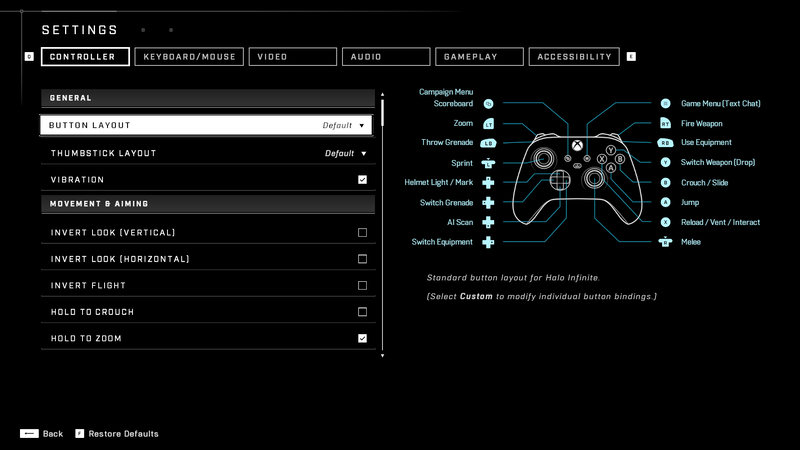
Configure Gamepad

HTMCC-H4 ControllerLayoutUniversalDefaultRecon Menu Screenshot.png

Edit Layout

HTMCC-H4 — ControllerLayoutUniversalDefaultRecon Menu Screenshot Alt.png

Button Action
A N/A
B N/A
X N/A
Y N/A
Left Analog N/A
Left Analog Click N/A
Right Analog Click N/A
Right Analog N/A
Right Trigger N/A
Left Trigger N/A
Right Bumper N/A
Left Bumper N/A
"Back" Button" N/A
"Start" Button" N/A
D-Pad N/A
D-Pad N/A
D-Pad N/A
D-Pad N/A
Universal Reclaimer
HTMCC-H4 ControllerLayoutUniversalReclaimer Menu Screenshot.png
Button Action
A N/A
B N/A
X N/A
Y N/A
Left Analog N/A
Left Analog Click N/A
Right Analog Click N/A
Right Analog N/A
Right Trigger N/A
Left Trigger N/A
Right Bumper N/A
Left Bumper N/A
"Back" Button" N/A
"Start" Button" N/A
D-Pad N/A
D-Pad N/A
D-Pad N/A
D-Pad N/A
Universal Zoom & Shoot
HTMCC-H4 ControllerLayoutUniversalZoomAndShoot Menu Screenshot.png
Button Action
A N/A
B N/A
X N/A
Y N/A
Left Analog N/A
Left Analog Click N/A
Right Analog Click N/A
Right Analog N/A
Right Trigger N/A
Left Trigger N/A
Right Bumper N/A
Left Bumper N/A
"Back" Button" N/A
"Start" Button" N/A
D-Pad N/A
D-Pad N/A
D-Pad N/A
D-Pad N/A
Universal Bump & Jump
HTMCC-H4 ControllerLayoutUniversalBumpAndJump Menu Screenshot.png
Button Action
A N/A
B N/A
X N/A
Y N/A
Left Analog N/A
Left Analog Click N/A
Right Analog Click N/A
Right Analog N/A
Right Trigger N/A
Left Trigger N/A
Right Bumper N/A
Left Bumper N/A
"Back" Button" N/A
"Start" Button" N/A
D-Pad N/A
D-Pad N/A
D-Pad N/A
D-Pad N/A
Universal Green Thumbs
HTMCC-H4 ControllerLayoutUniversalGreenThumbs Menu Screenshot.png
Button Action
A N/A
B N/A
X N/A
Y N/A
Left Analog N/A
Left Analog Click N/A
Right Analog Click N/A
Right Analog N/A
Right Trigger N/A
Left Trigger N/A
Right Bumper N/A
Left Bumper N/A
"Back" Button" N/A
"Start" Button" N/A
D-Pad N/A
D-Pad N/A
D-Pad N/A
D-Pad N/A
Universal Infinite
HTMCC-H4 ControllerLayoutUniversalInfinite Menu Screenshot.png
Button Action
A N/A
B N/A
X N/A
Y N/A
Left Analog N/A
Left Analog Click N/A
Right Analog Click N/A
Right Analog N/A
Right Trigger N/A
Left Trigger N/A
Right Bumper N/A
Left Bumper N/A
"Back" Button" N/A
"Start" Button" N/A
D-Pad N/A
D-Pad N/A
D-Pad N/A
D-Pad N/A
Default
HTMCC-H4 ControllerLayoutDefault Menu Screenshot.png
Button Action
A N/A
B N/A
X N/A
Y N/A
Left Analog N/A
Left Analog Click N/A
Right Analog Click N/A
Right Analog N/A
Right Trigger N/A
Left Trigger N/A
Right Bumper N/A
Left Bumper N/A
"Back" Button" N/A
"Start" Button" N/A
D-Pad N/A
D-Pad N/A
D-Pad N/A
D-Pad N/A
Boxer
HTMCC-H4 ControllerLayoutBoxer Menu Screenshot.png
Button Action
A N/A
B N/A
X N/A
Y N/A
Left Analog N/A
Left Analog Click N/A
Right Analog Click N/A
Right Analog N/A
Right Trigger N/A
Left Trigger N/A
Right Bumper N/A
Left Bumper N/A
"Back" Button" N/A
"Start" Button" N/A
D-Pad N/A
D-Pad N/A
D-Pad N/A
D-Pad N/A
Green Thumbs
HTMCC-H4 ControllerLayoutGreenThumbs Menu Screenshot.png
Button Action
A N/A
B N/A
X N/A
Y N/A
Left Analog N/A
Left Analog Click N/A
Right Analog Click N/A
Right Analog N/A
Right Trigger N/A
Left Trigger N/A
Right Bumper N/A
Left Bumper N/A
"Back" Button" N/A
"Start" Button" N/A
D-Pad N/A
D-Pad N/A
D-Pad N/A
D-Pad N/A
Bumper Jumper
HTMCC-H4 ControllerLayoutBumperJumper Menu Screenshot.png
Button Action
A N/A
B N/A
X N/A
Y N/A
Left Analog N/A
Left Analog Click N/A
Right Analog Click N/A
Right Analog N/A
Right Trigger N/A
Left Trigger N/A
Right Bumper N/A
Left Bumper N/A
"Back" Button" N/A
"Start" Button" N/A
D-Pad N/A
D-Pad N/A
D-Pad N/A
D-Pad N/A
Recon
HTMCC-H4 ControllerLayoutRecon Menu Screenshot.png
Button Action
A N/A
B N/A
X N/A
Y N/A
Left Analog N/A
Left Analog Click N/A
Right Analog Click N/A
Right Analog N/A
Right Trigger N/A
Left Trigger N/A
Right Bumper N/A
Left Bumper N/A
"Back" Button" N/A
"Start" Button" N/A
D-Pad N/A
D-Pad N/A
D-Pad N/A
D-Pad N/A
Fishstick
HTMCC-H4 ControllerLayoutFishstick Menu Screenshot.png
Button Action
A N/A
B N/A
X N/A
Y N/A
Left Analog N/A
Left Analog Click N/A
Right Analog Click N/A
Right Analog N/A
Right Trigger N/A
Left Trigger N/A
Right Bumper N/A
Left Bumper N/A
"Back" Button" N/A
"Start" Button" N/A
D-Pad N/A
D-Pad N/A
D-Pad N/A
D-Pad N/A

Mouse and Keyboard (Default)[edit]

Configuration file name GameUserSettings.ini
File Location (Microsoft Store) C:\Users\%USERPROFILE%\AppData\LocalLow\MCC\
File Location (Steam) C:\Users\%USERPROFILE%\AppData\LocalLow\MCC\Saved\Config\WindowsNoEditor\
Halo: Reach
HTMCC-HR MouseAndKeyboardDefault Menu Screenshot.png
In-game Line: CustomKeyboardMouseMappingV2[5]=
Action Key Action = Blue Default Key (First Key Binding) = Grenn Unbind Key (Secondary Key Binding) = Red
Communication Open Text Chat J N/A
Push to Talk V N/A
Movement Move Forward W N/A
Move Backward S GameKeyboardMouseMappings[17]=(AbstractButton=17,VirtualKeyCodes[0]=83,VirtualKeyCodes[1]=0
Move Left A N/A
Move Right D N/A
Jump Space GameKeyboardMouseMappings[0]=(AbstractButton=0,VirtualKeyCodes[0]=32,VirtualKeyCodes[1]=0
Crouch Left Ctrl N/A
Actions Fire Mouse 1 N/A
Zoom Mouse 2 N/A
Zoom In Z N/A
Zoom Out X N/A
Melee Q N/A
Reload R N/A
Throw Grenade F N/A
Action E N/A
Change Weapon 1 N/A
Switch Grenades 2 N/A
Use Armor Ability Shift N/A
Toggle Night Vision 4 N/A
Vehicle Controls Vehicle Function 1 Mouse 2 N/A
Vehicle Function 2 Left Ctrl N/A
Vehicle Function 3 Space N/A
UI Controls Toggle Scoreboard Tab N/A
Open loadouts Menu L N/A
Forge Ascend R N/A
Descend F N/A
Grab/Release Object Mouse 1 N/A
Boost Shift N/A
Precision Edit Left Ctrl N/A
Delete Object Delete N/A
Create Object/Object Properties 1 N/A
Tools 2 N/A
Duplicate G N/A
Reset X N/A
Switch Player Mode ` N/A
Zoom Mouse 2 N/A
Rotation Mode Left Alt N/A
Toggle Rotation Axes E N/A
Theater Toggle Panel X N/A
Toggle Interface Z N/A
First/Third Person C N/A
Camera Reset Mouse 2 N/A
Jump Forward Right N/A
Jump Back Left N/A
Pause/Resume Playback Enter N/A
Fast Forward E N/A
Toggle Freecam Space N/A
Boost Shift N/A
Theater Panning Left Alt N/A
Ascend R N/A
Descend F N/A
Zoom Mouse 2 N/A
Halo: Combat Evolved
HTMCC-HCE MouseAndKeyboardDefault Menu Screenshot.png
In-game Line: CustomKeyboardMouseMappingV2[0]=
Action Key Action = Blue Default Key (First Key Binding) = Grenn Unbind Key (Secondary Key Binding) = Red
Communication Open Text Chat J N/A
Push to Talk V N/A
Movement Move Forward W N/A
Move Backward S N/A
Move Left A N/A
Move Right D N/A
Jump Space GameKeyboardMouseMappings[0]=(AbstractButton=0,VirtualKeyCodes[0]=32,VirtualKeyCodes[1]=0
Crouch Left Ctrl N/A
Actions Fire Mouse 1 N/A
Zoom Mouse 2 N/A
Zoom In Z N/A
Zoom Out X N/A
Melee Q N/A
Reload R N/A
Throw Grenade F N/A
Action E N/A
Change Weapon 1 N/A
Switch Grenades 2 N/A
Toggle Flashlight 4 GameKeyboardMouseMappings[6]=(AbstractButton=6,VirtualKeyCodes[0]=52,VirtualKeyCodes[1]=0
Vehicle Controls Vehicle Function 1 Mouse 2 N/A
Vehicle Function 2 Left Ctrl N/A
Vehicle Function 3 Space N/A
UI Controls Toggle Scoreboard/Scoreboard Tab N/A
N/A Toggle Flashlight Alt Unbind GameKeyboardMouseMappings[64]=(AbstractButton=64,VirtualKeyCodes[0]=0,VirtualKeyCodes[1]=0
Halo 2
HTMCC-H2 MouseAndKeyboardDefault Menu Screenshot.png
In-game Line: CustomKeyboardMouseMappingV2[1]=
Action Key Action = Blue Default Key (First Key Binding) = Grenn Unbind Key (Secondary Key Binding) = Red
Communication Open Text Chat J N/A
Push to Talk V N/A
Movement Move Forward W N/A
Move Backward S N/A
Move Left A N/A
Move Right D N/A
Jump Space GameKeyboardMouseMappings[0]=(AbstractButton=0,VirtualKeyCodes[0]=32,VirtualKeyCodes[1]=0
Crouch Left Ctrl N/A
Actions Fire Mouse 1 N/A
Fire Secondary Mouse 2 N/A
Zoom Mouse 2 N/A
Zoom In Z N/A
Zoom Out X N/A
Melee Q N/A
Reload R N/A
Throw Grenade F N/A
Action E N/A
Change Weapon 1 N/A
Switch Grenades 2 N/A
Toggle Flashlight 4 N/A
Dual-Wield C N/A
Vehicle Controls Vehicle Function 1 Mouse 2 N/A
Vehicle Function 2 Left Ctrl N/A
Vehicle Function 3 Space N/A
Banshee Bomb Q N/A
UI Controls Toggle Scoreboard Tab N/A
Open loadouts Menu L N/A
Forge Ascend R N/A
Descend F N/A
Grab/Release Object Mouse 1 N/A
Boost Shift N/A
Precision Edit Left Ctrl N/A
Delete Object Delete N/A
Create Object/Object Properties 1 N/A
Tools 2 N/A
Duplicate G N/A
Reset X N/A
Switch Player Mode ` N/A
Zoom Mouse 2 N/A
Rotation Mode Left Alt N/A
Toggle Rotation Axes E N/A
Theater Toggle Panel X N/A
Toggle Interface Z N/A
First/Third Person C N/A
Camera Reset Mouse 2 N/A
Jump Forward Right N/A
Jump Back Left N/A
Pause/Resume Playback Enter N/A
Fast Forward E N/A
Toggle Freecam Space N/A
Boost Shift N/A
Theater Panning Left Alt N/A
Ascend R N/A
Descend F N/A
Zoom Mouse 2 N/A
Halo 3
HTMCC-H3 MouseAndKeyboardDefault Menu Screenshot.png
In-game Line: CustomKeyboardMouseMappingV2[3]=
Action Key Action = Blue Default Key (First Key Binding) = Grenn Unbind Key (Secondary Key Binding) = Red
Communication Open Text Chat J N/A
Push to Talk V N/A
Movement Move Forward W N/A
Move Backward S N/A
Move Left A N/A
Move Right D N/A
Jump Space GameKeyboardMouseMappings[0]=(AbstractButton=0,VirtualKeyCodes[0]=32,VirtualKeyCodes[1]=0
Crouch Left Ctrl N/A
Actions Fire Mouse 1 N/A
Fire Secondary Mouse 2 GameKeyboardMouseMappings[49]=(AbstractButton=49,VirtualKeyCodes[0]=2,VirtualKeyCodes[1]=0
Zoom Mouse 2 N/A
Zoom In Z N/A
Zoom Out X N/A
Melee Q N/A
Reload R N/A
Reload Secondary Weapon F GameKeyboardMouseMappings[55]=(AbstractButton=55,VirtualKeyCodes[0]=70,VirtualKeyCodes[1]=0
Throw Grenade F N/A
Action E N/A
Change Weapon 1 N/A
Select Next Grenades 2 N/A
Select Previous Grenades 3 N/A
Use Equipment Shift N/A
Toggle Night Vision 4 N/A
Dual-Wield C N/A
Vehicle Controls Vehicle Function 1 Mouse 2 N/A
Vehicle Function 2 Left Ctrl N/A
Vehicle Function 3 Space N/A
Banshee Bomb Q N/A
UI Controls Toggle Scoreboard Tab N/A
Forge Ascend R N/A
Descend F N/A
Grab/Release Object Mouse 1 N/A
Boost Shift N/A
Precision Edit Left Ctrl N/A
Delete Object Delete N/A
Create Object/Object Properties 1 N/A
Tools 2 N/A
Switch Player Mode ` N/A
Zoom Mouse 2 N/A
Rotation Mode Left Alt N/A
Toggle Rotation Axes E N/A
Theater Toggle Panel X N/A
Toggle Interface Z N/A
First/Third Person C N/A
Camera Reset Mouse 2 N/A
Jump Forward Right N/A
Jump Back Left N/A
Pause/Resume Playback Enter N/A
Fast Forward E N/A
Toggle Freecam Space N/A
Boost Shift N/A
Theater Panning Left Alt N/A
Ascend R N/A
Descend F N/A
Zoom Mouse 2 N/A
Halo 3: ODST
HTMCC-H3ODST MouseAndKeyboardDefault Menu Screenshot.png
In-game Line: CustomKeyboardMouseMappingV2[4]=
Action Key Action = Blue Default Key (First Key Binding) = Grenn Unbind Key (Secondary Key Binding) = Red
Communication Open Text Chat J N/A
Push to Talk V N/A
Movement Move Forward W N/A
Move Backward S N/A
Move Left A N/A
Move Right D N/A
Jump Space GameKeyboardMouseMappings[0]=(AbstractButton=0,VirtualKeyCodes[0]=32,VirtualKeyCodes[1]=0
Crouch Left Ctrl N/A
Actions Fire Mouse 1 N/A
Fire Secondary Mouse 2 GameKeyboardMouseMappings[49]=(AbstractButton=49,VirtualKeyCodes[0]=2,VirtualKeyCodes[1]=0
Zoom Mouse 2 N/A
Zoom In Z N/A
Zoom Out X N/A
Melee Q N/A
Reload R N/A
Reload Secondary Weapon F GameKeyboardMouseMappings[55]=(AbstractButton=55,VirtualKeyCodes[0]=70,VirtualKeyCodes[1]=0
Throw Grenade F N/A
Action E N/A
Change Weapon 1 N/A
Select Next Grenades 2 N/A
Select Previous Grenades 3 N/A
Use Equipment Shift N/A
Toggle Night Vision 4 N/A
Dual-Wield C N/A
Vehicle Controls Vehicle Function 1 Mouse 2 N/A
Vehicle Function 2 Left Ctrl N/A
Vehicle Function 3 Space N/A
Banshee Bomb Q N/A
UI Controls Toggle Scoreboard Tab N/A
Toggle Display Waypoint Markers Up N/A
Toggle Display Waypoint Markers Alt Down N/A
Theater Toggle Panel X N/A
Toggle Interface Z N/A
First/Third Person C N/A
Camera Reset Mouse 2 N/A
Jump Forward Right N/A
Jump Back Left N/A
Pause/Resume Playback Enter N/A
Fast Forward E N/A
Toggle Freecam Space N/A
Boost Shift N/A
Theater Panning Left Alt N/A
Ascend R N/A
Descend F N/A
Zoom Mouse 2 N/A
Halo 4
HTMCC-H4 MouseAndKeyboardDefault Menu Screenshot.png
In-game Line: CustomKeyboardMouseMappingV2[6]=
Action Key Action = Blue Default Key (First Key Binding) = Grenn Unbind Key (Secondary Key Binding) = Red
Communication Open Text Chat J N/A
Push to Talk V N/A
Movement Move Forward W N/A
Move Backward S N/A
Move Left A N/A
Move Right D N/A
Jump Space GameKeyboardMouseMappings[0]=(AbstractButton=0,VirtualKeyCodes[0]=32,VirtualKeyCodes[1]=0
Crouch Left Ctrl GameKeyboardMouseMappings[9]=(AbstractButton=9,VirtualKeyCodes[0]=162,VirtualKeyCodes[1]=0
Sprint Shift N/A
Actions Fire Mouse 1 N/A
Zoom Mouse 2 GameKeyboardMouseMappings[10]=(AbstractButton=10,VirtualKeyCodes[0]=2,VirtualKeyCodes[1]=0
Zoom In Z N/A
Zoom Out X N/A
Melee Q N/A
Reload R N/A
Throw Grenade F N/A
Action E GameKeyboardMouseMappings[2]=(AbstractButton=2,VirtualKeyCodes[0]=69,VirtualKeyCodes[1]=0
Change Weapon 1 N/A
Select Next Grenades 2 N/A
Select Previous Grenades 3 N/A
Use Armor Ability C N/A
Special Action G N/A
Vehicle Controls Vehicle Function 1 Mouse 2 N/A
Vehicle Function 2 Left Ctrl N/A
Vehicle Function 3 Space N/A
UI Controls Toggle Scoreboard Tab N/A
Open loadouts Menu L N/A
Forge Ascend R N/A
Descend F N/A
Grab/Release Object Mouse 1 N/A
Boost Shift N/A
Precision Edit Left Ctrl N/A
Delete Object Delete N/A
Create Object/Object Properties 1 N/A
Tools 2 N/A
Duplicate G N/A
Lock C N/A
Reset X N/A
Switch Player Mode ` N/A
Zoom Mouse 2 N/A
Rotation Mode Left Alt N/A
Toggle Rotation Axes E N/A
Theater Toggle Panel X N/A
Toggle Interface Z N/A
First/Third Person C N/A
Camera Reset Mouse 2 N/A
Jump Forward Right N/A
Jump Back Left N/A
Pause/Resume Playback Enter N/A
Fast Forward E N/A
Toggle Freecam Space N/A
Boost Shift N/A
Theater Panning Left Alt N/A
Ascend R N/A
Descend F N/A
Zoom Mouse 2 N/A

Halo 5: Guardians[edit]

Main article: Halo 5: Guardians

Halo 5 Guardians introduced Spartan Abilities, which will be in parenthesis.

Default
N/A

H5G beta - controller layout.jpg

Screenshot of Halo 5: Forge Menu

Screenshot of "Buttons" set to "Default Layout" in the Halo 5: Forge settings menu.

A - Jump (& Clamber)
B - (Thruster Pack)
X - Action & Reload
Y - Change Weapon
Left Analog - Movement
Left Analog Click - (Sprint) & Secondary Zoom
Right Analog Click - Crouch (& Slide)
Right Analog - Look
Right Trigger - Fire Weapon
Left Trigger - (Smart-Link)
Left Bumper - Throw Grenade
Right Bumper - Melee Attack (& Spartan Charge & Ground Pound [HOLD])
←/→ D-Pad - Switch Grenades

Southpaw
Screenshot of "Buttons" set to "Southpaw" in the Halo 5: Forge settings menu.

A - Jump (& Clamber)
B - Crouch (& Slide)
X - Action & Reload
Y - Change Weapon
Left Analog - Movement
Left Analog Click - (Sprint)
Right Analog Click - (Smart-Link) & Zoom
Right Analog - Look
Right Trigger - Throw Grenade
Left Trigger - Fire Weapon
Left Bumper - Melee Attack (& Spartan Charge & Ground Pound [HOLD])
Right Bumper - (Thruster Pack)
←/→ D-Pad - Switch Grenades

Boxer
Screenshot of "Buttons" set to "Boxer" in the Halo 5: Forge settings menu.

A - Jump (& Clamber)
B - (Sprint)
X - Action & Reload
Y - Switch Weapons
Left Analog - Movement
Left Analog Click - Crouch (& Slide)
Right Analog Click - (Smart-Link) & Zoom
Right Analog - Look
Right Trigger - Fire Weapon
Left Trigger - Melee Attack (& Spartan Charge & Ground Pound [HOLD])
Left Bumper - (Thruster Pack)
Right Bumper - Throw Grenade
←/→ D-Pad - Switch Grenades

Green Thumb
Screenshot of "Buttons" set to "Green Thumb" in the Halo 5: Forge settings menu.

A - Jump (& Clamber)
B - Crouch (& Slide)
X - Action & Reload
Y - Switch Weapons
Left Analog - Movement
Left Analog Click - (Sprint) & Zoom
Right Analog Click - Melee Attack (& Spartan Charge & Ground Pound [HOLD])
Right Analog - Look
Right Trigger - Fire Weapon
Left Trigger - (Smart-Link)
Left Bumper - Throw Grenade
Right Bumper - (Thruster Pack)
←/→ D-Pad - Switch Grenades

Bumper Jumper
Screenshot of "Buttons" set to "Bumper Jumper" in the Halo 5: Forge settings menu.

A - (Sprint)
B - Action & Reload
X - (Thruster Pack)
Y - Switch Weapons
Left Analog - Movement
Left Analog Click - Crouch (& Slide)
Right Analog Click - (Smart-Link) & Zoom
Right Analog - Look
Right Trigger - Fire Weapon
Left Trigger - Throw Grenade
Left Bumper - Jump (& Clamber)
Right Bumper - Melee Attack (& Spartan Charge & Ground Pound [HOLD])
←/→ D-Pad - Switch Grenades

Recon
Screenshot of "Buttons" set to "Recon" in the Halo 5: Forge settings menu.

A - Jump (& Clamber)
B - Melee Attack (& Spartan Charge & Ground Pound [HOLD])
X - (Sprint)
Y - Switch Weapons
Left Analog - Movement
Left Analog Click - Crouch (& Slide)
Right Analog Click - (Smart-Link) & Zoom
Right Analog - Look
Right Trigger - Fire Weapon
Left Trigger - Throw Grenade
Left Bumper - (Thruster Pack)
Right Bumper - Action & Reload
←/→ D-Pad - Switch Grenades

Fishstick
Screenshot of "Buttons" set to "Fishstick" in the Halo 5: Forge settings menu.

A - Jump (& Clamber)
B - Crouch (& Slide)
X - Action & Reload
Y - Switch Weapons
Left Analog - Movement
Left Analog Click - (Sprint) & Zoom
Right Analog Click - Melee Attack (& Spartan Charge & Ground Pound [HOLD])
Right Analog - Look
Right Trigger - Fire Weapon
Left Trigger - (Smart-Link)
Left Bumper - (Thruster Pack)
Right Bumper - Throw Grenade
←/→ D-Pad - Switch Grenades

Halo 4
Screenshot of "Buttons" set to "Halo 4" in the Halo 5: Forge settings menu.

A - Jump (& Clamber)
B - Crouch (& Slide)
X - Action & Reload
Y - Switch Weapons
Left Analog - Movement
Left Analog Click - (Sprint)
Right Analog Click - (Smart-Link) & Zoom
Right Analog - Look
Right Trigger - Fire Weapon
Left Trigger - Throw Grenade
Left Bumper - (Thruster Pack)
Right Bumper - Melee Attack (& Spartan Charge & Ground Pound [HOLD])
←/→ D-Pad - Switch Grenades

Helljumper
Screenshot of "Buttons" set to "Helljumper" in the Halo 5: Forge settings menu.

A - (Sprint) & Zoom
B - Action & Reload
X - (Thruster Pack)
Y - Switch Weapons
Left Analog - Movement
Left Analog Click - Crouch (& Slide)
Right Analog Click - Melee Attack (& Spartan Charge & Ground Pound [HOLD])
Right Analog - Look
Right Trigger - Fire Weapon
Left Trigger - (Smart-Link)
Left Bumper - Jump (& Clamber)
Right Bumper - Throw Grenade
←/→ D-Pad - Switch Grenades

Halo 5: Forge — Mouse and Keyboard (Default)[edit]

Main article: Halo 5: Forge
On-foot and Vehicle (mode)
Action Key or Mouse Button
Global Chat T
Team Chat Y
Scoreboard Tab
Interactive Scoreboard Ctrl + Tab
Pause Game Esc
On-foot (mode)
H5GForge - MouseAndKeyboard OnFoot Menu Screenshot.png
Action Key or Mouse Button
Move Forward W
Move Backwards S
Straft Left A
Straft Right D
Jump Space
Crouch Left Ctrl
Thrushter Pack Caps Lock
Sprint/Stabilize Shift
Fire Weapon Left Mouse
Swap Weapon Q Wheel Down
Action E
Reload R
Smart Link (Zoom) Right Mouse
Melee F Middle Mouse
Change Zoom Level Z
Increase Zoom Unbind
Decrease Zoom Unbind
Machinima: Lower Weapon L
Machinima: Detach Camera O
Machinima: Display Posion I
Machinima: Toggle Pan P
Machinima: Toggle Control K
Vehicle (mode)
H5GForge - MouseAndKeyboard Vehicle Menu Screenshot.png
Action Key or Mouse Button
Move Forward W
Move Backwards S
Move Left A
Move Right D
Brake F
Boost Shift
Exit Vehicle E
Fire Weapon Left Mouse
Swap Weapon Q Wheel Down
Switch Seats Space
Descend Vehicle Left Ctrl
Banshee Maneuver Right Mouse
Global Chat T
Team Chat Y
Machinima: Detach Camera O
Machinima: Display Posion I
Machinima: Toggle Pan P
Machinima: Toggle Control K
Forge Controls
Interaction Mode

H5GForge — MouseAndKeyboard ForgeControls InteractionMode Menu Screenshot.png

Move Mode

H5GForge — MouseAndKeyboard ForgeControls MoveMode Menu Screenshot.png

Vehicle Controls[edit]

Help.png This section is a stub. You can help Halopedia by expanding it.

Halo Infinite[edit]

Main article: Halo Infinite
Default
Infinite ControllerLayoutDefault.png
Button Action
A Jump
B Crouch/Slide
X Reload/Vent/Interact
Y Switch Weapon/Drop Weapon
Left Analog Movement
Left Analog Click Sprint Zoom Level
Right Analog Click Melee
Right Analog Look
Right Trigger Fire Weapon
Left Trigger Zoom
Right Bumper Use Equipment
Left Bumper Throw Grenade
"Back" Button" Campaign Menu/Scoreboard
"Start" Button" Game Menu (Text Chat)
D-Pad Helmet Light/Mark
D-Pad AI Scan
D-Pad Switch Equipment Custom Input
D-Pad Switch Grenade
Legacy
Infinite ControllerLayoutLegacy.png
Button Action
A Jump
B Crouch/Slide
X Reload/Vent/Interact
Y Switch Weapon/Drop Weapon
Left Analog Movement
Left Analog Click Sprint Zoom Level
Right Analog Click Zoom
Right Analog Look
Right Trigger Fire Weapon
Left Trigger Throw Grenade
Right Bumper Melee
Left Bumper Use Equipment
"Back" Button" Campaign Menu/Scoreboard
"Start" Button" Game Menu (Text Chat)
D-Pad Helmet Light/Mark
D-Pad AI Scan
D-Pad Switch Equipment Custom Input
D-Pad Switch Grenade
Bumper Jumper
Infinite ControllerLayoutBumperJumper.png
Button Action
A Sprint Zoom Level
B Reload/Vent/Interact
X Use Equipment
Y Switch Weapon/Drop Weapon
Left Analog Movement
Left Analog Click Crouch/Slide
Right Analog Click Zoom
Right Analog Look
Right Trigger Fire Weapon
Left Trigger Throw Grenade
Right Bumper Melee
Left Bumper Jump
"Back" Button" Campaign Menu/Scoreboard
"Start" Button" Game Menu (Text Chat)
D-Pad Helmet Light/Mark
D-Pad AI Scan
D-Pad Switch Equipment Custom Input
D-Pad Switch Grenade
Recon
Infinite ControllerLayoutRecon.png
Button Action
A Jump
B Melee
X Sprint Zoom Level
Y Switch Weapon/Drop Weapon
Left Analog Movement
Left Analog Click Crouch/Slide
Right Analog Click Zoom
Right Analog Look
Right Trigger Fire Weapon
Left Trigger Throw Grenade
Right Bumper Reload/Vent/Interact
Left Bumper Use Equipment
"Back" Button" Campaign Menu/Scoreboard
"Start" Button" Game Menu (Text Chat)
D-Pad Helmet Light/Mark
D-Pad AI Scan
D-Pad Switch Equipment Custom Input
D-Pad Switch Grenade
Button Puncher
Infinite ControllerLayoutButtonPuncher.png
Button Action
A Jump
B Melee
X Reload/Vent/Interact
Y Switch Weapon/Drop Weapon
Left Analog Movement
Left Analog Click Sprint Zoom Level
Right Analog Click Crouch/Slide
Right Analog Look
Right Trigger Fire Weapon
Left Trigger Zoom
Right Bumper Use Equipment
Left Bumper Throw Grenade
"Back" Button" Campaign Menu/Scoreboard
"Start" Button" Game Menu (Text Chat)
D-Pad Helmet Light/Mark
D-Pad AI Scan
D-Pad Switch Equipment Custom Input
D-Pad Switch Grenade
Helljumper
Infinite ControllerLayoutHelljumper.png
Button Action
A Sprint Zoom Level
B Reload/Vent/Interact
X Use Equipment
Y Switch Weapon/Drop Weapon
Left Analog Movement
Left Analog Click Crouch/Slide
Right Analog Click Melee
Right Analog Look
Right Trigger Fire Weapon
Left Trigger Zoom
Right Bumper Throw Grenade
Left Bumper Jump
"Back" Button" Campaign Menu/Scoreboard
"Start" Button" Game Menu (Text Chat)
D-Pad Helmet Light/Mark
D-Pad AI Scan
D-Pad Switch Equipment Custom Input
D-Pad Switch Grenade

Input devices[edit]

Original Xbox controller[edit]

Main article: wikipedia:Xbox controller
The Duke

Xbox-Duke-Controller.jpg

Xbox Controller S

Xbox controller diagram.jpg

Button Name Range
A N/A
B N/A
X N/A
Y N/A
Left Analog N/A
Left Analog Click N/A
Right Analog N/A
Right Analog Click N/A
Right Trigger N/A
Left Trigger N/A
"Back" Button N/A
"Start" Button N/A
↑ D-Pad N/A
→ D-Pad N/A
← D-Pad N/A
↓ D-Pad N/A
Black Button N/A
White Button N/A

Xinput device[edit]

Main article: wikipedia:DirectInput § XInput
Xbox 360

Xbox-360-Wireless-Controller-White.jpg

Xbox One

Microsoft-Xbox-One-controller.jpg

Xbox Series X/S

55836945-e141-4d47-9dad-21d902948816.jpg

Button Name Range
A buttton 0 to 1 (2 possibilities)
B buttton 0 to 1 (2 possibilities)
X buttton 0 to 1 (2 possibilities)
Y buttton 0 to 1 (2 possibilities)
LB buttton 0 to 1 (2 possibilities)
Back buttton 0 to 1 (2 possibilities)
Start buttton 0 to 1 (2 possibilities)
Left analog stick center pushed in 0 to 1 (2 possibilities)
Right analog stick center pushed in 0 to 1 (2 possibilities)
Left trigger 0 to 255 (256 possibilities)
Right trigger 0 to 255 (256 possibilities)
X silver guide button 0 to 1 (2 possibilities)

Mouse and Keyboard[edit]

Main article: wikipedia:Game_controller § Mouse_and_keyboard
Help.png This section is a stub. You can help Halopedia by expanding it.

https://www.halopedia.org/List_of_Keys_and_Mouse_Buttons/Keys_and_Mouse_Buttons Example:https://imgur.com/a/uN4PWDp Source: https://help.mjtnet.com/article/262-virtual-key-codes

Trivia[edit]

  • The Duke button layout from Halo: Combat Evolved Anniversary, which mimics that of Halo: Combat Evolved, is named in reference to the first version of the Xbox Controller. The unwieldy "Duke" was soon replaced with the more ergonomic "Controller S".
  • The Fishstick control scheme from Halo 5 is nearly identical to the default controller layout for the Call of Duty series. The layout's name is a play on the series' CoD abbreviation: cod is a species of fish.

Gallery[edit]