Gameplay

CEA:Control schemes

From Halopedia, the Halo wiki

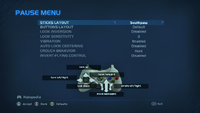
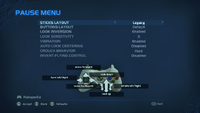
A screenshot of "Buttons Layout" set to "Default" in the Halo: Combat Evolved Anniversary settings menu.Behind the game pause menu is pitch black.Note: The screenshot was taken from the emulator Xenia.

The following control schemes are available for use in Halo: Combat Evolved Anniversary. For the control schemes of the original Halo: Combat Evolved, see here.

Halo: Combat Evolved Anniversary (Xbox 360)[edit]

Sticks Layout[edit]

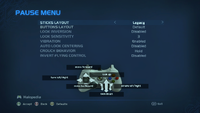
Not inverted[edit]

Inverted[edit]

Buttons Layout[edit]

Default[edit]

A screenshot of "Buttons Layout" set to "Default" in the Halo: Combat Evolved Anniversary settings menu.Behind the game pause menu is pitch black.Note: The screenshot was taken from the emulator Xenia.

A - Jump
B - Switch Grenades
X - Action/Reload
Y - Change Weapon
Left Analog Click - Crouch
Right Analog Click - Zoom
Right Trigger - Fire
Left Trigger - Use Grenades
Right Bumper - Melee
Left Bumper - Flashlight
Back - Toggle Visuals

Southpaw[edit]

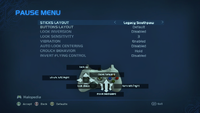
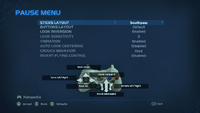
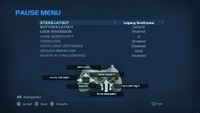
A screenshot of "Buttons Layout" set to "Southpaw" in the Halo: Combat Evolved Anniversary settings menu.Behind the game pause menu is pitch black.Note: The screenshot was taken from the emulator Xenia.

A - Jump
B - Melee
X - Action/Reload
Y - Change Weapon
Left Analog Click - Crouch
Right Analog Click - Zoom
Right Trigger - Use Grenades
Left Trigger - Fire
Right Bumper - Switch Grenades
Left Bumper - Flashlight
Back - Toggle Visuals

Jumpy[edit]

A screenshot of "Buttons Layout" set to "Jumpy" in the Halo: Combat Evolved Anniversary settings menu.Behind the game pause menu is pitch black.Note: The screenshot was taken from the emulator Xenia.

A - Use Grenades
B - Melee
X - Action/Reload
Y - Change Weapon
Left Analog Click - Crouch
Right Analog Click - Zoom
Right Trigger - Fire
Left Trigger - Jump
Right Bumper - Flashlight
Left Bumper - Switch Grenades
Back - Toggle Visuals

Bumper Jumper[edit]

A screenshot of "Buttons Layout" set to "Bumper Jumper" in the Halo: Combat Evolved Anniversary settings menu.Behind the game pause menu is pitch black.Note: The screenshot was taken from the emulator Xenia.

A - Switch Grenades
B - Action/Reload
X - Flashlight
Y - Change Weapon
Left Analog Click - Crouch
Right Analog Click - Zoom
Right Trigger - Fire
Left Trigger - Use Grenades
Right Bumper - Melee
Left Bumper - Jump
Back - Toggle Visuals

Boxer[edit]

A screenshot of "Buttons Layout" set to "Boxer" in the Halo: Combat Evolved Anniversary settings menu.Behind the game pause menu is pitch black.Note: The screenshot was taken from the emulator Xenia.

A - Jump
B - Switch Grenades
X - Action/Reload
Y - Change Weapon
Left Analog Click - Crouch
Right Analog Click - Zoom
Right Trigger - Fire
Left Trigger - Melee
Right Bumper - Use Grenades
Left Bumper - Flashlight
Back - Toggle Visuals

Green Thumb[edit]

A screenshot of "Buttons Layout" set to "Green Thumb" in the Halo: Combat Evolved Anniversary settings menu.Behind the game pause menu is pitch black.Note: The screenshot was taken from the emulator Xenia.

A - Jump
B - Switch Grenades
X - Action/Reload
Y - Change Weapon
Left Analog Click - Crouch
Right Analog Click - Melee
Right Trigger - Fire
Left Trigger - Use Grenades
Right Bumper - Zoom
Left Bumper - Flashlight
Back - Toggle Visuals

The Duke[edit]

A screenshot of "Buttons Layout" set to "The Duke" in the Halo: Combat Evolved Anniversary settings menu.Behind the game pause menu is pitch black.Note: The screenshot was taken from the emulator Xenia.

This control scheme is designed to more closely emulate the original controls of Halo: Combat Evolved. It is named after the "Duke" controller for the original Xbox.
A - Jump
B - Melee
X - Action/Reload
Y - Change Weapon
Left Analog Click - Crouch
Right Analog Click - Zoom
Right Trigger - Fire
Left Trigger - Use Grenades
Right Bumper - Flashlight
Left Bumper - Switch Grenades
Back - Toggle Visuals

Hero[edit]

A screenshot of "Buttons Layout" set to "Hero" in the Halo: Combat Evolved Anniversary settings menu.Behind the game pause menu is pitch black.Note: The screenshot was taken from the emulator Xenia.

A - Jump
B - Melee
X - Flashlight
Y - Change Weapon
Left Analog Click - Crouch
Right Analog Click - Zoom
Right Trigger - Fire
Left Trigger - Use Grenades
Right Bumper - Action/Reload
Left Bumper - Switch Grenades
Back - Toggle Visuals

Recon[edit]

A screenshot of "Buttons Layout" set to "Recon" in the Halo: Combat Evolved Anniversary settings menu.Behind the game pause menu is pitch black.Note: The screenshot was taken from the emulator Xenia.

The Recon control scheme was designed to emulate the default controls of Halo 3 and Halo 3: ODST, primarily the use of the RB button for interacting with the game world. It is named after the Recon helmet, which was an iconic armor piece in both titles.
A - Jump
B - Melee
X - Switch Grenades
Y - Change Weapon
Left Analog Click - Crouch
Right Analog Click - Zoom
Right Trigger - Fire
Left Trigger - Use Grenades
Right Bumper - Action/Reload
Left Bumper - Flashlight
Back - Toggle Visuals

Kinect[edit]

Help.png This section is a stub. You can help Halopedia by expanding it.