
H3:Control schemes
From Halopedia, the Halo wiki

The following control schemes were available for use in Halo 3 for Xbox 360. For the control schemes of the remaster included in Halo: The Master Chief Collection, see here.
Halo 3 (Xbox 360)[edit]
Stick Layout[edit]
![Southpaw “ This setting is similar to the default, but the functions of the left and right sticks have been switched. A special option for lefties.[2] ”](https://halo.wiki.gallery/images/thumb/5/57/H3_%E2%80%94_StickLayout_Southpaw.png/200px-H3_%E2%80%94_StickLayout_Southpaw.png) Southpaw
Southpaw“ This setting is similar to the default, but the functions of the left and right sticks have been switched. A special option for lefties.[2] ” ![Legacy “ This setting hearkens back to the controls of the console first-person shooters of yesteryear.[3] ”](https://halo.wiki.gallery/images/thumb/f/fa/H3_%E2%80%94_StickLayout_Legacy.png/200px-H3_%E2%80%94_StickLayout_Legacy.png) Legacy
Legacy“ This setting hearkens back to the controls of the console first-person shooters of yesteryear.[3] ” ![Legacy Southpaw “ This setting swaps left and right sticks from the Legacy setting. An option for ancient lefties.[4] ”](https://halo.wiki.gallery/images/thumb/3/37/H3_%E2%80%94_StickLayout_LegacySouthpaw.png/200px-H3_%E2%80%94_StickLayout_LegacySouthpaw.png) Legacy Southpaw
Legacy Southpaw“ This setting swaps left and right sticks from the Legacy setting. An option for ancient lefties.[4] ”
![Default “ This is the default stick configuration recommended by Bungie.[1] ”](/File:H3_%E2%80%94_StickLayout_Default.png)
![Southpaw “ This setting is similar to the default, but the functions of the left and right sticks have been switched. A special option for lefties.[2] ”](/File:H3_%E2%80%94_StickLayout_Southpaw.png)
![Legacy “ This setting hearkens back to the controls of the console first-person shooters of yesteryear.[3] ”](/File:H3_%E2%80%94_StickLayout_Legacy.png)
![Legacy Southpaw “ This setting swaps left and right sticks from the Legacy setting. An option for ancient lefties.[4] ”](/File:H3_%E2%80%94_StickLayout_LegacySouthpaw.png)
Button Layout[edit]
Default[edit]
| “ | This is the default button configuration recommended by Bungie.[5] | ” |
This is the most common control scheme despite many flaws (see below) that often become apparent to more experienced players. This is the control scheme that Bungie starts you with, but it is suggested that one quickly learns to either use the claw grip, Bumper Jumper, Walkie Talkie, or possibly even Green Thumb, all of which are more often used by experienced players.
Note that it is not possible to aim while |meleeing, jumping, and deploying equipment without use of the "claw grip."

| Button | Input action |
|---|---|
| Jump | |
| Melee Attack | |
| Use Equipment | |
| Swap Weapons | |
| Crouch | |
| Zoom View | |
| Use Right Weapon | |
| Use Left Weapon | |
| Throw Grenade | |
| Action/Reload Right Weapon | |
| Reload left weapon/Swap Left Weapon/Select next available grenade type | |
| Game Menu | |
| Multiplayer Score | |
| Flashlight/Team Chat |
Southpaw[edit]
| “ | This setting is similar to the default except the left and right controls are flipped.[6] | ” |
This is the same as default except that the triggers are switched. Note that if you compare new players using all button layouts this is the most accurate. Because unlike all of the other layouts offered in the game this is the only one that you are not required to use the same hand to shoot and aim with. Therefore, having more reaction time and accuracy.

| Button | Input action |
|---|---|
| Jump | |
| Melee Attack | |
| Use Equipment | |
| Swap Weapons | |
| Crouch | |
| Zoom View | |
| Use Left Weapon | |
| Throw Grenade | |
| Use Right Weapon | |
| Action/Reload Right Weapon | |
| Reload left weapon/Swap Left Weapon/Select next available grenade type | |
| Game Menu | |
| Multiplayer Score | |
| Flashlight/Team Chat |
Boxer[edit]
| “ | If you're tired of hitting the wrong button in the heat of a melee fight, this setting is for you. Instead, you will pull the left trigger to melee attack.[7] | ” |
This has the advantage of giving the user aim while meleeing, but has the disadvantage of not allowing you to aim while throwing grenades.
Please note that it is not possible to aim while throwing grenades, jumping, and deploying equipment without use of the "claw grip."

| Button | Input action |
|---|---|
| Jump | |
| Throw Grenade | |
| Use Equipment | |
| Swap Weapons | |
| Crouch | |
| Zoom View | |
| Use Right Weapon | |
| Melee Attack | |
| Use Left Weapon | |
| Action/Reload Right Weapon | |
| Reload left weapon/Swap Left Weapon/Select next available grenade type | |
| Game Menu | |
| Multiplayer Score | |
| Flashlight/Team Chat |
Green Thumb[edit]
| “ | This setting allows you to melee attack by pressing the right stick.[8] | ” |
This has the advantage of giving you some control over your aim while meleeing without compromising the aim of your grenades. However it is considered hard to learn and can be somewhat unreliable if not mastered.
Please note that it is not possible to aim while zooming, jumping, and deploying equipment without use of the "claw grip."
Also this is very similar to the default Call of Duty controls.

| Button | Input action |
|---|---|
| Jump | |
| Zoom View | |
| Use Equipment | |
| Swap Weapons | |
| Crouch | |
| Melee Attack | |
| Use Right Weapon | |
| Use Left Weapon | |
| Throw Grenade | |
| Action/Reload Right Weapon | |
| Reload left weapon/Swap Left Weapon/Select next available grenade type | |
| Game Menu | |
| Multiplayer Score | |
| Flashlight/Team Chat |
Bumper Jumper[edit]
| “ | This setting allows you to melee attack by pressing the right bumper, and to jump by pressing the left bumper.[9] | ” |
This has been called by many to be the best possible controller configuration as you can aim while meleeing, jumping, zooming, and throwing grenades without having to use the uncomfortable claw grip usually only taking a few days to learn. Note that it is not possible to aim while deploying equipment without use of the "claw grip".
Bungie originally considered this as the default control scheme of Halo 3, but thought it would be too radically different to players used to Halo: Combat Evolved and Halo 2 and so altered it into the actual default configuration.[citation needed] However, with its relative popularity among Bungie workers, it was kept as an alternate configuration.
Using the Banshee becomes much easier with this control scheme, seeing as how you can use your cannon and aim, as well as perform tricks and determine your trajectory at the same time.

| Button | Input action |
|---|---|
| Reload left weapon/Swap Left Weapon/Select next available grenade type | |
| Action/Reload Right Weapon | |
| Use Equipment | |
| Swap Weapons | |
| Crouch | |
| Zoom View | |
| Use Right Weapon | |
| Use Left Weapon | |
| Throw Grenade | |
| Melee Attack | |
| Jump | |
| Game Menu | |
| Multiplayer Score | |
| Flashlight/Team Chat |
Walkie Talkie[edit]
| “ | This setting puts multiplayer team voice broadcasting on the left bumper.[10] | ” |
This has very similar advantages to Bumper Jumper except you can aim while deploying equipment but not while jumping, and it is much more convenient to communicate with your team as you can continue walking and aiming while you switch into your team chat.
Note that it is not possible to aim while jumping without use of the "claw grip."

| Button | Input action |
|---|---|
| Jump | |
| Action/Reload Right Weapon | |
| Reload left weapon/Swap Left Weapon/Select next available grenade type | |
| Swap Weapons | |
| Crouch | |
| Zoom View | |
| Use Right Weapon | |
| Use Left Weapon | |
| Throw Grenade | |
| Melee Attack | |
| Flashlight/Team Chat | |
| Game Menu | |
| Multiplayer Score | |
| Use Equipment |
Hidden input actions[edit]
| Input action | Combination/single button | Note |
|---|---|---|
| Alert carry | Hold "Jump" + "Crouch" + "Reload/Swap Left Weapon" + "Action/Reload Right Weapon" + "↓ D-pad" for 3 seconds. | Only works in "Local" or "System Link". |
| Enable/disable coordinates/camera mode | Hold "Jump" + "Crouch" + "Reload/Swap Left Weapon" + "Action/Reload Right Weapon" + "↑ D-pad" for 3 seconds. | |
| Enable/disable Pan Cam | Press "Crouch" + "Zoom" + "← D-pad" | These are after the coordinates/camera mode is enabled. |
| Hide/show coordinates | Press "Crouch" + "Zoom" + "→ D-pad" | |
| Increase camera movement speed | ↑ D-Pad | These are only usable in Theater and with Pan Cam enabled, but enabling coordinates/camera mode only works on foot; therefore:
|
| Decrease camera movement speed | ↓ D-Pad |
Forge[edit]

Controls for use in Halo 3's Forge editor.
| Input action | Stick Layout | |||||
|---|---|---|---|---|---|---|
| Movement | Depends on the "STICK LAYOUT" setting. | |||||
| Look | Depends on the "STICK LAYOUT" and "LOOK INVERSION" settings. | |||||
| Button Layout | ||||||
Default |
Southpaw |
Boxer |
Green Thumb |
Bumper Jumper |
Walkie Talkie
| |
| Pick Up/Drop Item | A | |||||
| Zoom View | Right Analog Click | B | Right Analog Click | |||
| Inventory/Item Options | X | |||||
| Hold to Drop Selected Item | B | |||||
| Delete Item | Y | |||||
| Manipulate Object | Right Trigger | Left Trigger | Right Trigger | |||
| Thrust | Left Trigger | Right Trigger | Left Trigger | |||
| Play/Edit Mode | ↑ D-Pad | |||||
| Move Up | Right Bumper | |||||
| Move Down | Left Bumper | |||||
| Combination | ||||||
| Push item forward | Manipulate Object + move forward | |||||
| Push item backward | Manipulate Object + move backward | |||||
| Rotate Selected Item | Manipulate Object + (move left or right) (look left, up, right, or down) | |||||
Theater[edit]

 This section is a stub. You can help Halopedia by expanding it. Reason: Needed to be cleaned up and match the Forge table layout.
Controls for use in Halo 3's Theater mode.
| Button | Input action |
|---|---|
| Play/Pause | |
| Hide/Show HUD | |
| Hide/Show Control Pad | |
| Flying Cam/Player Cam | |
| Movement | |
| Pan (Flying Cam) | |
| Camera | |
| Slow Motion/Fast Forward | |
| Camera Boost | |
| Change Player | |
| Fly Up | |
| Fly Down |
Other control settings[edit]
With the "STICK LAYOUT" and "BUTTON LAYOUT" settings mentioned above, here are the rest of the settings.

| Setting | Options | Official description | ||
|---|---|---|---|---|
| Look Inversion | Not Inverted (Default) | If inverted, moving the look stick up causes the player to look down. | ||
| Inverted | ||||
| Look Sensitivity | 1 (Low) | Select the speed at which you look around. Keep in mind that a higher look speed is not necessarily better. | ||
| 2 | ||||
| 3 (Default) | ||||
| 4 | ||||
| 5 (Medium) | ||||
| 6 | ||||
| 7 (High) | ||||
| 8 | ||||
| 9 | ||||
| 10 (Insane) | ||||
| Auto Look Centering | Disabled (Default) | When enabled, this setting causes your view to automatically recenter as you move forward. This is a great setting for newer players not used to manually controlling their view. | ||
| Enabled | ||||
| Crouch Behavior | Hold to Crouch (Default) | This setting determines how you stay crouched in the game by pressing the left stick. When set to Toggle, one press will cause your player to stay crouched until you press again. | ||
| Toggle Crouch | ||||
Flying Camera[edit]


| Panning | Hold to Pan (Default) | This setting determines how you lock the camera to a fixed height when moving the camera around. If set to toggle, one press of the left stick will lock the camera for panning until you press again. |
| Toggle | ||
| Speed | Slow | This controls how fast the flying camera moves normally. |
| Normal (Default) | ||
| Fast | ||
| Very Fast | ||
| Thrust | Slow | This controls how fast the flying camera moves when you press the left trigger to thrust. |
| Normal (Default) | ||
| Fast |
Gallery[edit]
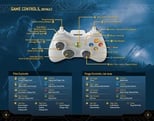 Halo 3 manual's control scheme information on pages 4 and 5.
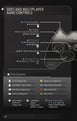 Halo 3: ODST manual's Halo 3 and Halo 3: ODST control scheme information on page 26.
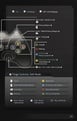 Halo 3: ODST manual's Halo 3 and Halo 3: ODST control scheme information on page 27.
Sources[edit]
- ^ Stick Layout: Default's description is from H3:Menu and H3ODST:Menu.
- ^ Stick Layout: Southpaw's description is from H3:Menu and H3ODST:Menu.
- ^ Stick Layout: Legacy's description is from H3:Menu and H3ODST:Menu.
- ^ Stick Layout: Legacy Southpaw's description is from H3:Menu and H3ODST:Menu.
- ^ Button Layout: Default's description is from H3:Menu and H3ODST:Menu.
- ^ Button Layout: Southpaw's description is from H3:Menu and H3ODST:Menu.
- ^ Button Layout: Boxer's description is from H3:Menu and H3ODST:Menu.
- ^ Button Layout: Green Thumb's description is from H3:Menu and H3ODST:Menu.
- ^ Button Layout: Bumper Jumper's description is from H3:Menu and H3ODST:Menu.
- ^ Button Layout: Walkie Talkie's description is from H3:Menu.
| |||||||||||


