Gameplay

H5G:Control schemes

From Halopedia, the Halo wiki

The following control schemes are available in Halo 5: Guardians for Xbox One and Halo 5: Forge for PC.

Halo 5: Guardians (Xbox One)[edit]

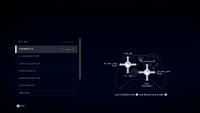
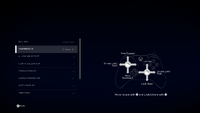
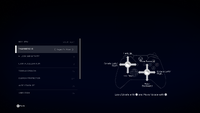
Thumbsticks[edit]
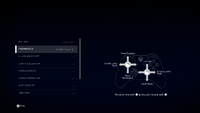
Buttons[edit]

Halo 5: Guardians introduced Spartan abilities, which will be colored in orange.

Default[edit]

Screenshot of "Buttons" set to "Default Layout" in the Halo 5: Forge settings menu.Behind the game pause menu is pitch black.

A - Jump & Clamber
B - Thruster Pack
X - Action & Reload
Y - Switch Weapon
Left Analog Click - Sprint & Change Zoom Level
Right Analog Click - Crouch & Slide
Right Trigger - Fire Weapon
Left Trigger - Hold Smart-Link
Left Bumper - Throw Grenade
Right Bumper - Melee Attack & Spartan Charge & Hold Ground Pound
→ D-Pad - Next Grenade
← D-Pad - Previous Grenade
↑ D-Pad - Issue Orders (campaign, only when playing as Jameson Locke or John-117)
↓ D-Pad - Tracking (campaign)

Action Combination Note
Alert carry Hold X ↓ D-pad These are only useable in Custom Game (with machinima controls ON[1]) and in Forge.
Hide/Show coordinates Press X + → D-pad
Machinima: Detach Camera Hold X + ↑ D-pad
Machinima: Toggle Control Press "Back" Button

Southpaw[edit]

Screenshot of "Buttons" set to "Southpaw" in the Halo 5: Forge settings menu.Behind the game pause menu is pitch black.

A - Jump & Clamber
B - Crouch & Slide
X - Action & Reload
Y - Switch Weapon
Left Analog Click - Sprint
Right Analog Click - Toggle Smart-Link & Secondary Zoom
Right Trigger - Throw Grenade
Left Trigger - Fire Weapon
Left Bumper - Melee Attack & Spartan Charge & Hold Ground Pound
Right Bumper - Thruster Pack
→ D-Pad - Next Grenade
← D-Pad - Previous Grenade
↑ D-Pad - Issue Orders (campaign, only when playing as Jameson Locke or John-117)
↓ D-Pad - Tracking (campaign)

Action Combination
Alert carry Hold X ↓ D-pad
Hide/Show coordinates Press X + → D-pad
Machinima: Detach Camera Hold X + ↑ D-pad
Machinima: Toggle Control Press "Back" Button

Boxer[edit]

Screenshot of "Buttons" set to "Boxer" in the Halo 5: Forge settings menu.Behind the game pause menu is pitch black.

A - Jump & Clamber
B - Sprint
X - Action & Reload
Y - Switch Weapon
Left Analog Click - Crouch & Slide
Right Analog Click - Toggle Smart-Link & Secondary Zoom
Right Trigger - Fire Weapon
Left Trigger - Melee Attack & Spartan Charge & Hold Ground Pound
Left Bumper - Thruster Pack
Right Bumper - Throw Grenade
→ D-Pad - Next Grenade
← D-Pad - Previous Grenade
↑ D-Pad - Issue Orders (campaign, only when playing as Jameson Locke or John-117)
↓ D-Pad - Tracking (campaign)

Action Combination
Alert carry Hold X ↓ D-pad
Hide/Show coordinates Press X + → D-pad
Machinima: Detach Camera Hold X + ↑ D-pad
Machinima: Toggle Control Press "Back" Button

Green Thumb[edit]

Screenshot of "Buttons" set to "Green Thumb" in the Halo 5: Forge settings menu.Behind the game pause menu is pitch black.

A - Jump & Clamber
B - Crouch & Slide
X - Action & Reload
Y - Switch Weapon
Left Analog Click - Sprint & Change Zoom Level
Right Analog Click - Melee Attack & Spartan Charge & Hold Ground Pound
Right Trigger - Fire Weapon
Left Trigger - Hold Smart-Link
Left Bumper - Throw Grenade
Right Bumper - Thruster Pack
→ D-Pad - Next Grenade
← D-Pad - Previous Grenade
↑ D-Pad - Issue Orders (campaign, only when playing as Jameson Locke or John-117)
↓ D-Pad - Tracking (campaign)

Action Combination
Alert carry Hold X ↓ D-pad
Hide/Show coordinates Press X + → D-pad
Machinima: Detach Camera Hold X + ↑ D-pad
Machinima: Toggle Control Press "Back" Button

Bumper Jumper[edit]

Screenshot of "Buttons" set to "Bumper Jumper" in the Halo 5: Forge settings menu.Behind the game pause menu is pitch black.

A - Sprint
B - Action & Reload
X - Thruster Pack
Y - Switch Weapon
Left Analog Click - Crouch & Slide
Right Analog Click - Toggle Smart-Link & Secondary Zoom
Right Trigger - Fire Weapon
Left Trigger - Throw Grenade
Left Bumper - Jump & Clamber
Right Bumper - Melee Attack & Spartan Charge & Hold Ground Pound
→ D-Pad - Next Grenade
← D-Pad - Previous Grenade
↑ D-Pad - Issue Orders (campaign, only when playing as Jameson Locke or John-117)
↓ D-Pad - Tracking (campaign)

Action Combination
Alert carry Hold B ↓ D-pad
Hide/Show coordinates Press B + → D-pad
Machinima: Detach Camera Hold B + ↑ D-pad
Machinima: Toggle Control Press "Back" Button

Recon[edit]

Screenshot of "Buttons" set to "Recon" in the Halo 5: Forge settings menu.Behind the game pause menu is pitch black.

A - Jump & Clamber
B - Melee Attack & Spartan Charge & Hold Ground Pound
X - Sprint
Y - Switch Weapon
Left Analog Click - Crouch & Slide
Right Analog Click - Toggle Smart-Link & Secondary Zoom
Right Trigger - Fire Weapon
Left Trigger - Throw Grenade
Left Bumper - Thruster Pack
Right Bumper - Action & Reload
→ D-Pad - Next Grenade
← D-Pad - Previous Grenade
↑ D-Pad - Issue Orders (campaign, only when playing as Jameson Locke or John-117)
↓ D-Pad - Tracking (campaign)

Action Combination
Alert carry Hold Right Bumper ↓ D-pad
Hide/Show coordinates Press Right Bumper + → D-pad
Machinima: Detach Camera Hold Right Bumper + ↑ D-pad
Machinima: Toggle Control Press "Back" Button

Fishstick[edit]

Screenshot of "Buttons" set to "Fishstick" in the Halo 5: Forge settings menu.Behind the game pause menu is pitch black.

A - Jump & Clamber
B - Crouch & Slide
X - Action & Reload
Y - Switch Weapon
Left Analog Click - Sprint & Change Zoom Level
Right Analog Click - Melee Attack & Spartan Charge & Hold Ground Pound
Right Trigger - Fire Weapon
Left Trigger - Hold Smart-Link
Left Bumper - Thruster Pack
Right Bumper - Throw Grenade
→ D-Pad - Next Grenade
← D-Pad - Previous Grenade
↑ D-Pad - Issue Orders (campaign, only when playing as Jameson Locke or John-117)
↓ D-Pad - Tracking (campaign)

Action Combination
Alert carry Hold B ↓ D-pad
Hide/Show coordinates Press B + → D-pad
Machinima: Detach Camera Hold B + ↑ D-pad
Machinima: Toggle Control Press "Back" Button

Halo 4[edit]

Screenshot of "Buttons" set to "Halo 4" in the Halo 5: Forge settings menu.Behind the game pause menu is pitch black.

A - Jump & Clamber
B - Crouch & Slide
X - Action & Reload
Y - Switch Weapon
Left Analog Click - Sprint
Right Analog Click - Toggle Smart-Link & Secondary Zoom
Right Trigger - Fire Weapon
Left Trigger - Throw Grenade
Left Bumper - Thruster Pack
Right Bumper - Melee Attack & Spartan Charge & Hold Ground Pound
→ D-Pad - Next Grenade
← D-Pad - Previous Grenade
↑ D-Pad - Issue Orders (campaign, only when playing as Jameson Locke or John-117)
↓ D-Pad - Tracking (campaign)

Action Combination
Alert carry Hold B ↓ D-pad
Hide/Show coordinates Press B + → D-pad
Machinima: Detach Camera Hold B + ↑ D-pad
Machinima: Toggle Control Press "Back" Button

Pashooter[edit]

Screenshot of "Buttons" set to "Pashooter" in the Halo 5: Forge settings menu.Behind the game pause menu is pitch black.

A - Jump & Clamber
B - Sprint & Change Zoom Level
X - Action & Reload
Y - Switch Weapon
Left Analog Click - Crouch & Slide
Right Analog Click - Melee Attack & Spartan Charge & Hold Ground Pound
Right Trigger - Fire Weapon
Left Trigger - Hold Smart-Link
Left Bumper - Throw Grenade
Right Bumper - Thruster Pack
→ D-Pad - Next Grenade
← D-Pad - Previous Grenade
↑ D-Pad - Issue Orders (campaign, only when playing as Jameson Locke or John-117)
↓ D-Pad - Tracking (campaign)

Action Combination
Alert carry Hold X ↓ D-pad
Hide/Show coordinates Press X + → D-pad
Machinima: Detach Camera Hold X + ↑ D-pad
Machinima: Toggle Control Press "Back" Button

Helljumper[edit]

Screenshot of "Buttons" set to "Helljumper" in the Halo 5: Forge settings menu.Behind the game pause menu is pitch black.

A - Sprint & Change Zoom Level
B - Action & Reload
X - Thruster Pack
Y - Switch Weapon
Left Analog Click - Crouch & Slide
Right Analog Click - Melee Attack & Spartan Charge & Hold Ground Pound
Right Trigger - Fire Weapon
Left Trigger - Hold Smart-Link
Left Bumper - Jump & Clamber
Right Bumper - Throw Grenade
→ D-Pad - Next Grenade
← D-Pad - Previous Grenade
↑ D-Pad - Issue Orders (campaign, only when playing as Jameson Locke or John-117)
↓ D-Pad - Tracking (campaign)

Action Combination
Alert carry Hold B ↓ D-pad
Hide/Show coordinates Press B + → D-pad
Machinima: Detach Camera Hold B + ↑ D-pad
Machinima: Toggle Control Press "Back" Button

Halo 5: Forge (PC)[edit]

Default keyboard and mouse controls for the PC version of Halo 5: Forge.

On-foot (mode)[edit]

Multiple screenshots merge into an image of the entire "ON FOOT KEY MAPPINGS" setting menu from Halo 5: Forge.Behind the game pause menu is pitch black.Every binding is set by default.
Action Key or Mouse Button Official Info
Move Forward W Key used to move forward.
Move Backwards S Key used to move backward.
Straft Left A Key used to strafe left.
Straft Right D Key used to strafe right.
Jump Space Key used to jump.
Crouch Left Ctrl Key used to crouch.
Thrushter Pack Caps Lock Key used to thrushter pack.
Sprint/Stabilize Shift Key used to sprint. When Smart-Link is OFF. this key stabilizes you in mid-air.
Fire Weapon Left Mouse Button Key used to fire weapon or Mantis rockets.
Swap Weapon Q Wheel Down Key used to swap weapon.
Action E Key used to interact with world objects.
Reload R Key used to reload.
Smart Link (Zoom) Right Mouse Button Key used to use smart-link (zoom) or the Mantis machine gun.
Melee F Middle Mouse Button Key used to melee attack. Use while sprinting to Spartan Charge. Hold while in air to Ground Pound.
Change Zoom Level Z When in smart-link, this key toggles zoom levels.
Increase Zoom Unbind When in smart-link, this key zooms in.
Decrease Zoom Unbind When in smart-link, this key zooms out.
Throw Grenade G Key used to throw grenade.
Frag Grenade Select 1 Key used to select frag grenade.
Plasma Grenade Select 2 Key used to select plasma grenade.
Splinter Grenade Select 3 Key used to select splinter grenade.
Next Grenade Unbind Key used to select next grenade.
Previous Grenade Unbind Key used to select previous grenade.
Global Chat T Key used to start global chat.
Team Chat Y Key used to start team chat.
Alert carry[2] L When in a Custom Game with machinima controls ON, hold this key to lower your weapon.
Machinima: Detach Camera O When in a Custom Game with machinima controls ON, hold this key to detach the camera.
Hide/Show coordinates[3] I When in a Custom Game with machinima controls ON, tap this key to display Spartan/camera coordianates.
Machinima: Toggle Pan P When in a Custom Game with machinima controls ON and the camera detached, tap this key to toggle between Normal and Pan camera control.
Machinima: Toggle Control K When in a Custom Game with machinima controls ON and the camera detached, tap this key to toggle between Spartan and camera control.

Vehicle (mode)[edit]

Multiple screenshots merge into an image of the entire "VEHICLE KEY MAPPINGS" setting menu from Halo 5: Forge.Behind the game pause menu is pitch black.Every binding is set by default.
Action Key or Mouse Button Official Info
Move Forward W Key used to move forward.
Move Backwards S Key used to move backward.
Move Left A Key used to move left. Movement depends on vehicle type.
Move Right D Key used to move right. Movement depends on vehicle type.
Brake F Key used to brake.
Boost Shift Key used to Boost, E-Brake, or to fire Wasp Rockets. Varies per vehicle.
Exit Vehicle E Key used to exit the vehicle.
Fire Weapon Left Mouse Button Key used to fire weapon or honk the horn.
Swap Weapon Q Wheel Down Key used to swap weapon.
Switch Seats Space Key used to switch seats / go up in the Phaeton or Wasp.
Descend Vehicle Left Ctrl Key used to go down in the Phaeton or Wasp.
Banshee Maneuver Right Mouse Button Key used to do Banshee Maneuver.
Global Chat T Key used to start global chat.
Team Chat Y Key used to start team chat.
Machinima: Detach Camera O When in a Custom Game with machinima controls ON, hold this key to detach the camera.
Machinima: Display Posion I When in a Custom Game with machinima controls ON, tap this key to display Spartan/camera coordianates.
Machinima: Toggle Pan P When in a Custom Game with machinima controls ON and the camera detached, tap this key to toggle between Normal and Pan camera control.
Machinima: Toggle Control K When in a Custom Game with machinima controls ON and the camera detached, tap this key to toggle between Spartan and camera control.

On-foot and Vehicle (mode)[edit]

Action Key or Mouse Button Official Info
Scoreboard Tab Key used to open the scoreboard. Cannot be changed.
Interactive Scoreboard Ctrl + Tab Keys used to open the interactive scoreboard. Cannot be changed.
Pause Game Escape Key used to open pause menu. Cannot be changed.

Forge controls[edit]

Unlike "On-foot" and "Vehicle" (mode), these cannot be changed.

Action Key or Mouse Button Official Info
Interaction mode Switch to Monitor Move Mode Hold Right Mouse Button Switches controls to Monitor Move Mode while held.
Select Left Mouse Button Click to select an object.
Add to Selection Hold Shift + Left Mouse Button Adds object to selection.
Add / Remove to Selection Hold Ctrl + Left Mouse Button Adds or removes an object from selection.
Multi-select Left Mouse Button Mouse Drag Selects any object within the selection pane.
Clear Selected Objects C Deselect all objects.
Delete Selected Objects Hold Delete Deletes the object from the level.
Lock Objects L Locks/Unlocks the object from editing.
Camera Up R Numeric 9 Move the camera up.
Camera Down F Numeric 7 Move the camera down.
Move Forward W Numeric 8 Key used to move forward.
Move Backwards S Numeric 5 Key used to move backwards.
Strafe Left A Numeric 4 Key used to strafe left.
Strafe Right D Numeric 6 Key used to strafe right.
Group Objects G Groups multiple selected objects.
Ungroup Objects Hold Ctrl + G Ungroups all the objects in a selected group.
Duplicate Selected Object Ctrl + D Duplicate the currect selection.
Object Library O 1 Bring up the Objects Library.
Object Properties P 2 Bring up the Properties panel for the selected object / group.
Map Options U 3 Bring up the Map Options panel.
Tool Settings I 4 Bring up the Tool Settings menu.
Quick-save Ctrl + S Quick-save your level.
Save As Ctrl + Shift + S Save your level as a new file.
Toggle Camera Lock on Object X Numeric 1 Focus the camera on the selected object's pivot point.
Drag and Drop Selection Alt + Hold Left Mouse Button + Mouse Drag Move the selected object. Less precise than move mode.
Show Highlighted Object Info Hold V Show position and name info for the current highlighted object.
Zoom In Scroll Up Zoom the camera in.
Zoom Out Scroll Down Zoom the camera out.
Move Camera in a Flat Plane Arrow Keys Move the camera without changing the height.
Spartan / Monitor Mode Toggle ~ Toggle between Spartan mode and Monitor mode.
Spartan Mode (Bake Lights) Ctrl + ~ Drop into the game as a Spartan and bake the light map.
Pan Hold Middle Mouse Button Hold to Pan the camera in a plane.
Cycle Manipulation Mode Q Cycles between object Movement and Rotation modes, as well as Scale when applicable.
Reset Object Rotation Ctrl + E Resets the object's rotation.
Change Pivot Location Z Swaps between object root and center of mass.
Change Axis of Orientation E Swaps between World and Object orientation.
Toggle Magnet M Key used to toggle magnet functionality on or off.
Increment Magnet Up Shift + 4 Keys used to increase range of magnet functionality.
Increment Magnet Down Shift + 3 Keys used to decrease range of magnet functionality.
Increment Snap Up Shift + 2 Cycle snap increments up.
Increment Snap Down Shift + 1 Cycle snap increments down.
Global Chat T Key used to start global chat.
Team Chat Y Key used to start team chat.
Pause Game Escape Key used to open pause menu.
Move mode Switch to Interaction Mode Release Right Mouse Button Switches controls to Interaction Mode when released.
Select Object Left Mouse Button Adds or removes an object from selection.
Camera Up R Numeric 9 Move the camera up.
Camera Down F Numeric 7 Move the camera down.
Move Forward W Numeric 8 Key used to move forward.
Move Backwards S Numeric 5 Key used to move backward.
Strafe Left A Numeric 4 Key used to strafe left.
Strafe Right D Numeric 6 Key used to strafe right
Grab Move Hold Left Mouse Button Grab object and move it with the camera.
Toggle Camera Lock on Object X Numeric 1 Focus the camera on the selected object's pivot point.
Speed Boost Hold Shift Hold Numeric Enter Hold in combination with another button to move faster.
Precision Movement Hold Ctrl Hold Numeric 0 Hold in combination with another button to move slowly.
Rotate State Hold Alt Hold to enter Rotation State.
Rotate State: Rotate Object Hold Alt + Mouse Drag Drag mouse in Rotation State to rotate on selected axis.
Rotate State: Change Axis Hold Alt + Q Switch the currently selected rotation axis.
Rotate State: Change Orientation Hold Alt + E Swaps between World and Object orientation.
Zoom In Scroll Up Zoom the camera in.
Zoom Out Scroll Down Zoom the camera out.
Pause Game Escape Key used to open pause menu.