
CE:Control schemes
From Halopedia, the Halo wiki
This article is about the original Xbox and the 2003 PC port versions. For the control schemes of the Halo: Combat Evolved Anniversary Xbox 360 version and the remaster included in Halo: The Master Chief Collection, see CEA:Control schemes and MCC:Control schemes.
![A screenshot of the "CONTROLLER CONFIGURATION" popup menu of Halo Demo.[1]Note: The screenshot was taken from the emulator Xemu.](/File:HCE_Demo_ControlSchemes_Screenshot.png)
The Halo Demo's "CONTROLLER CONFIGURATION" popup menu.
The following control schemes are available for use in the original releases of Halo: Combat Evolved (including when played via Xbox 360 backward compatibility), its PC port, and Custom Edition.
Halo: Combat Evolved (Xbox)[edit]
Stick layout[edit]
The D-pad can be used for directional move/look depending on the "THUMBSTICK SETTINGS" and "INVERT THUMBSTICK" settings.
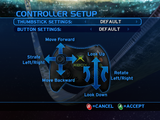 Default
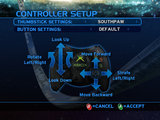 Southpaw
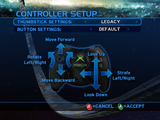 Legacy
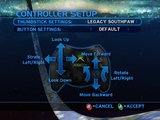 Legacy Southpaw


Button Settings[edit]
Default[edit]
![A screenshot of "BUTTONS SETTINGS" set to "DEFAULT" in the “EDIT PROFILE SETTINGS” → “CONTROLLER SETUP” settings menu of Halo: Combat Evolved.[1]Note: The screenshot was taken from the emulator Xemu.](/File:HCE_%E2%80%94_ControllerLayoutDefault_Menu_Screenshot.png)
| Button | Input action | |
|---|---|---|
| Xbox | Xbox 360 | |
| Jump | ||
| Melee Attack | ||
| Reload weapon/Action | ||
| Switch weapons | ||
| Hold crouch | ||
| Scope Zoom | ||
| Fire primary weapon | ||
| Throw grenade | ||
| Go back/Multiplayer score | ||
| Pause game | ||
| Switch grenades | ||
| Flashlight | ||
Southpaw[edit]
![A screenshot of "BUTTONS SETTINGS" set to "SOUTHPAW" in the “EDIT PROFILE SETTINGS” → “CONTROLLER SETUP” settings menu of Halo: Combat Evolved.[1]Note: The screenshot was taken from the emulator Xemu.](/File:HCE_%E2%80%94_ControllerLayoutSouthpaw_Menu_Screenshot.png)
| Button | Input action | |
|---|---|---|
| Xbox | Xbox 360 | |
| Jump | ||
| Melee Attack | ||
| Reload weapon/Action | ||
| Switch weapons | ||
| Hold crouch | ||
| Scope Zoom | ||
| Throw Grenade | ||
| Fire primary weapon | ||
| Go back/Multiplayer score | ||
| Pause game | ||
| Switch grenades | ||
| Flashlight | ||
Jumpy[edit]
![A screenshot of "BUTTONS SETTINGS" set to "JUMPY" in the “EDIT PROFILE SETTINGS” → “CONTROLLER SETUP” settings menu of Halo: Combat Evolved.[1]Note: The screenshot was taken from the emulator Xemu.](/File:HCE_%E2%80%94_ControllerLayoutJumpy_Menu_Screenshot.png)
| Button | Input action | |
|---|---|---|
| Xbox | Xbox 360 | |
| Throw Grenade | ||
| Melee Attack | ||
| Reload weapon/Action | ||
| Switch weapons | ||
| Hold crouch | ||
| Scope Zoom | ||
| Fire primary weapon | ||
| Jump | ||
| Go back/Multiplayer score | ||
| Pause game | ||
| Switch grenades | ||
| Flashlight | ||
Boxer[edit]
![A screenshot of "BUTTONS SETTINGS" set to "BOXER" in the “EDIT PROFILE SETTINGS” → “CONTROLLER SETUP” settings menu of Halo: Combat Evolved.[1]Note: The screenshot was taken from the emulator Xemu.](/File:HCE_%E2%80%94_ControllerLayoutBoxer_Menu_Screenshot.png)
| Button | Input action | |
|---|---|---|
| Xbox | Xbox 360 | |
| Jump | ||
| Throw Grenade | ||
| Reload weapon/Action | ||
| Switch weapons | ||
| Hold crouch | ||
| Scope Zoom | ||
| Fire primary weapon | ||
| Melee Attack | ||
| Go back/Multiplayer score | ||
| Pause game | ||
| Switch grenades | ||
| Flashlight | ||
Green Thumb[edit]
![A screenshot of "BUTTONS SETTINGS" set to "GREEN THUMB" in the “EDIT PROFILE SETTINGS” → “CONTROLLER SETUP” settings menu of Halo: Combat Evolved.[1]Note: The screenshot was taken from the emulator Xemu.](/File:HCE_%E2%80%94_ControllerLayoutGreenThumb_Menu_Screenshot.png)
| Button | Input action | |
|---|---|---|
| Xbox | Xbox 360 | |
| Jump | ||
| Scope Zoom | ||
| Reload weapon/Action | ||
| Switch weapons | ||
| Hold crouch | ||
| Melee Attack | ||
| Fire primary weapon | ||
| Throw Grenade | ||
| Go back/Multiplayer score | ||
| Pause game | ||
| Switch grenades | ||
| Flashlight | ||
Advanced Controls[edit]


| Setting | Options | Official description | |
|---|---|---|---|
| Invert Thumbstick | No | Default | Your thumbstick will use the default settings: press up to look up and down to look down. |
| Yes | The Y‐axis of your thumbstick will reverse, so that pushing up makes you look down, and vice versa. | ||
| Look Sensitivity | 1 | Look sensitivity will be moderately sluggish. | |
| 2 | Look sensitivity will be a little sluggish. | ||
| 3 | Default | Look sensitivity will be just right - not too fast, not too slow. | |
| 4 | Look sensitivity will be just a tiny bit faster than average. | ||
| 5 | Look sensitivity will be just a little faster than average. | ||
| 6 | Look sensitivity will be faster than average. | ||
| 7 | Look sensitivity will be moderately faster than average. | ||
| 8 | Look sensitivity will be quite fast. | ||
| 9 | Look sensitivity will be extremely fast. | ||
| 10 | Look sensitivity will be ultra‐sensitive. | ||
| Controller Vibration | Yes | Default | Every hit you take will be accompanied by a pleasant vibrating sensation in your hands. |
| No | Your controller will remain inert, with none of that silly vibrating to distract you. | ||
| Invert flight Control | No | Default | Your controller will keep the default behavior when piloting any flying vehicles you might encounter. |
| Yes | Your controller will act as a flight control stick when piloting any flying vehicles you might find. | ||
| Auto-center | No | Default | Your viewpoint will stay the same until you change it, even when you're moving. |
| Yes | Your view will automatically center itself when you move. | ||
Halo: Combat Evolved (PC port)[edit]
Mouse and keyboard[edit]
Configure bindings[edit]
The PC release of Combat Evolved and Halo Custom Edition had rebindable keymaps for mouse and keyboard. The following represents the default controls in the game.
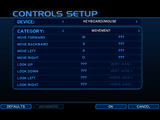 Movement
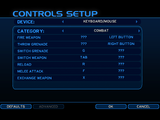 Combat
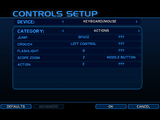 Actions
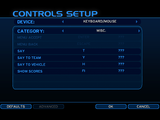 Misc.
Misc.


| Category | Input action | Button | Description | Bindable | |
|---|---|---|---|---|---|
| Keyboard | Mouse | ||||
| Movement | Move Forward | Yes | |||
| Move Backward | |||||
| Move Left | |||||
| Move Right | |||||
| Look Up | Yes & No Keyboard only. The setting "MOUSE SETUP" → "INVERT VERTICAL AXIS" | ||||
| Look Down | |||||
| Look Left | |||||
| Look Right | |||||
| Combat | Fire Weapon | Yes | |||
| Throw Grenade | |||||
| Switch Grenade | |||||
| Switch Weapon | |||||
| Reload | |||||
| Melee Attack | |||||
| Exchange Weapon | "Exchange Weapon" is an alternate way to pick up weapons, but without having to hold it for a short second. | ||||
| Actions | Jump | ||||
| Crouch | |||||
| Flashlight | |||||
| Scope Zoom | |||||
| Action | |||||
| MISC. | Menu Accept | No | |||
| Menu Back | |||||
| Say | Yes | ||||
| Say to Team | |||||
| Say To Vehicle | |||||
| Show Scores | |||||
| Open Console | Opening the console requires adding -console to the game's .exe shortcut file. |
No | |||
Mouse Setup[edit]

| Setting | Options | Official description | |
|---|---|---|---|
| Horizontal Sensitivity | 1 | Looking side‐to‐side will be moderately sluggish. | |
| 2 | Looking side‐to‐side will be a little sluggish. | ||
| 3 | Default | Looking side‐to‐side will be just right - not too fast, not too slow. | |
| 4 | Looking side‐to‐side will be just a tiny bit faster than average. | ||
| 5 | Looking side‐to‐side will be just a little faster than average. | ||
| 6 | Looking side‐to‐side will be faster than average. | ||
| 7 | Looking side‐to‐side will be moderately faster than average. | ||
| 8 | Looking side‐to‐side will be quite fast. | ||
| 9 | Looking side‐to‐side will be extremely fast. | ||
| 10 | Looking side‐to‐side will be ultra‐sensitive. | ||
| Vertical Sensitivity | 1 | Looking up and down will be moderately sluggish. | |
| 2 | Looking up and down will be a little sluggish. | ||
| 3 | Default | Looking up and down will be just right - not too fast, not too slow. | |
| 4 | Looking up and down will be just a tiny bit faster than average. | ||
| 5 | Looking up and down will be just a little faster than average. | ||
| 6 | Looking up and down will be faster than average. | ||
| 7 | Looking up and down will be moderately faster than average. | ||
| 8 | Looking up and down will be quite fast. | ||
| 9 | Looking up and down will be extremely fast. | ||
| 10 | Looking up and down will be ultra‐sensitive. | ||
| Invert Vertical Axis | No | Default | Your mouse will use the default settings: push forward to look up and pull back to look down. |
| Yes | The Y‐axis of your mouse will reverse, so that pushing forward makes you look down, and vice versa. | ||
Various input devices[edit]
Button layout[edit]
The PC release of Combat Evolved and Halo Custom Edition supports various input devices and has rebindable maps for them, including the Xbox 360 controller, Gamepad F310, and more. By default, every input action is always set to Unbind.
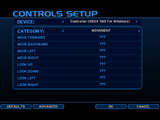 Movement
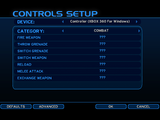 Combat
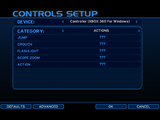 Actions
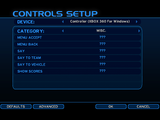 Misc.
Misc.


Advanced[edit]

| Setting | Options | Official description | |
|---|---|---|---|
| Horizontal Sensitivity | 1 | Looking side‐to‐side will be moderately sluggish. | |
| 2 | Looking side‐to‐side will be a little sluggish. | ||
| 3 | Default | Looking side‐to‐side will be just right - not too fast, not too slow. | |
| 4 | Looking side‐to‐side will be just a tiny bit faster than average. | ||
| 5 | Looking side‐to‐side will be just a little faster than average. | ||
| 6 | Looking side‐to‐side will be faster than average. | ||
| 7 | Looking side‐to‐side will be moderately faster than average. | ||
| 8 | Looking side‐to‐side will be quite fast. | ||
| 9 | Looking side‐to‐side will be extremely fast. | ||
| 10 | Looking side‐to‐side will be ultra‐sensitive. | ||
| Vertical Sensitivity | 1 | Looking up and down will be moderately sluggish. | |
| 2 | Looking up and down will be a little sluggish. | ||
| 3 | Default | Looking up and down will be just right - not too fast, not too slow. | |
| 4 | Looking up and down will be just a tiny bit faster than average. | ||
| 5 | Looking up and down will be just a little faster than average. | ||
| 6 | Looking up and down will be faster than average. | ||
| 7 | Looking up and down will be moderately faster than average. | ||
| 8 | Looking up and down will be quite fast. | ||
| 9 | Looking up and down will be extremely fast. | ||
| 10 | Looking up and down will be ultra‐sensitive. | ||
Gallery[edit]
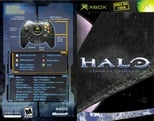 The Halo: Combat Evolved (Xbox) control scheme in the Halo: Combat Evolved manual on the back page.
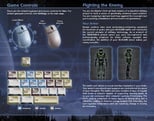 The Halo: Combat Evolved (PC port) control scheme in the Halo: Combat Evolved PC port manual on page 6.
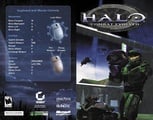 The Halo: Combat Evolved (PC port) control scheme in the Halo: Combat Evolved PC port manual on the back page.
| |||||||||||

