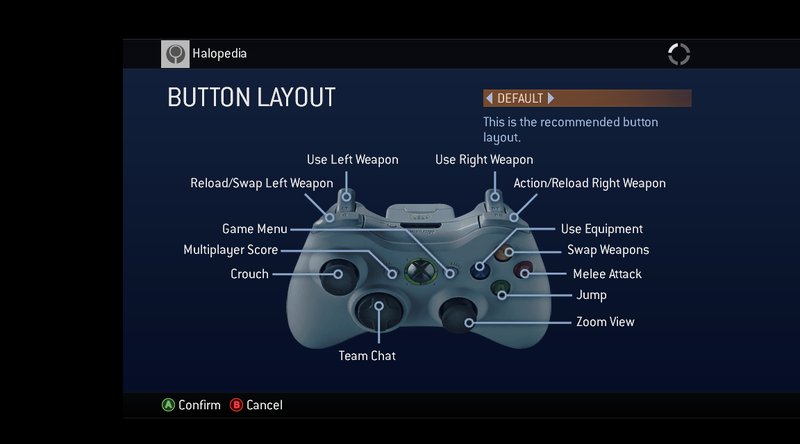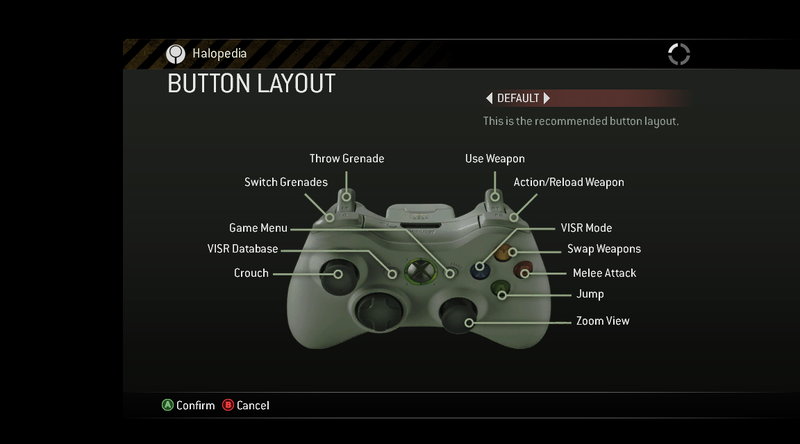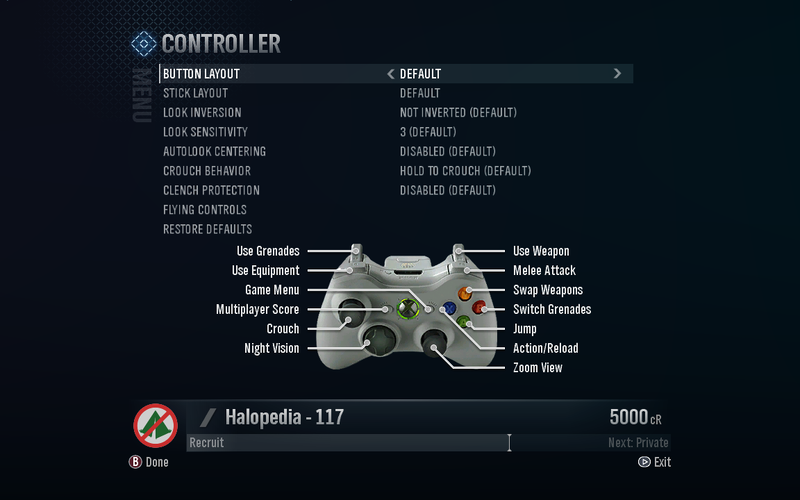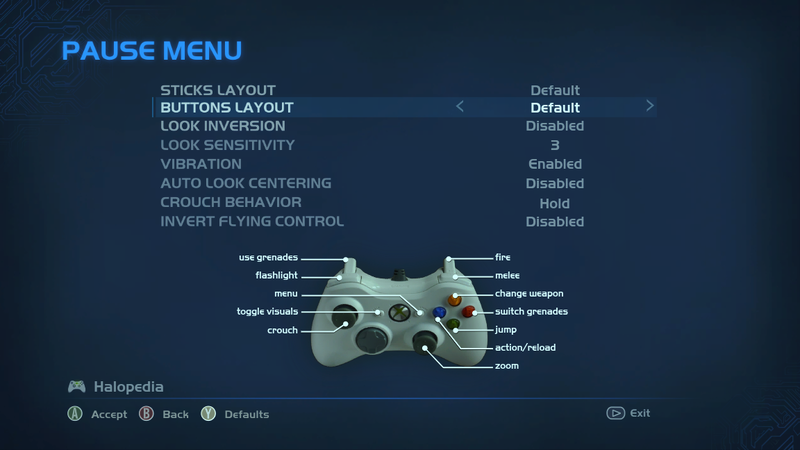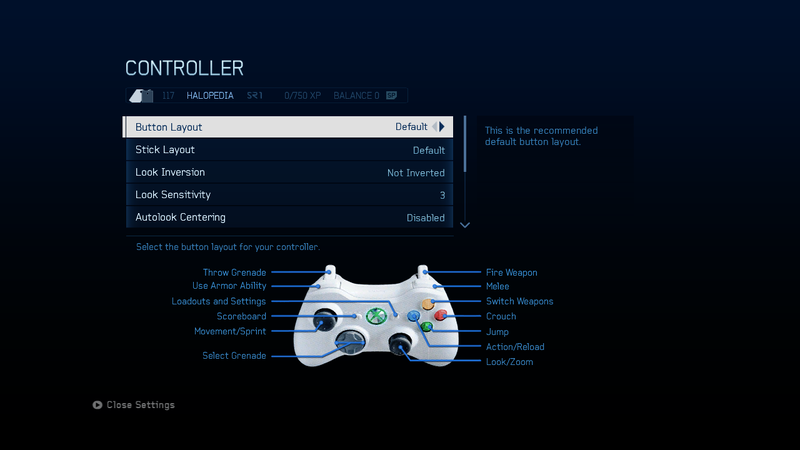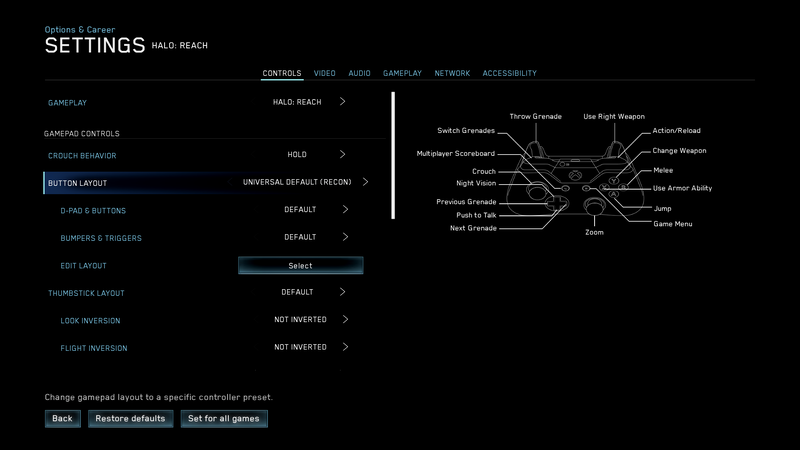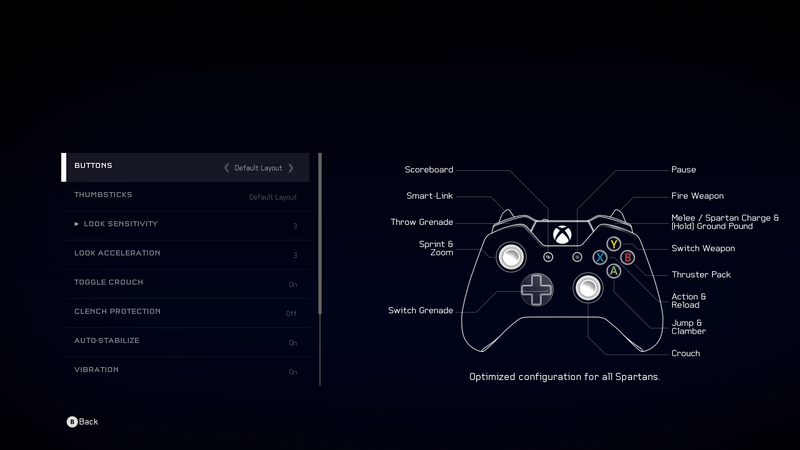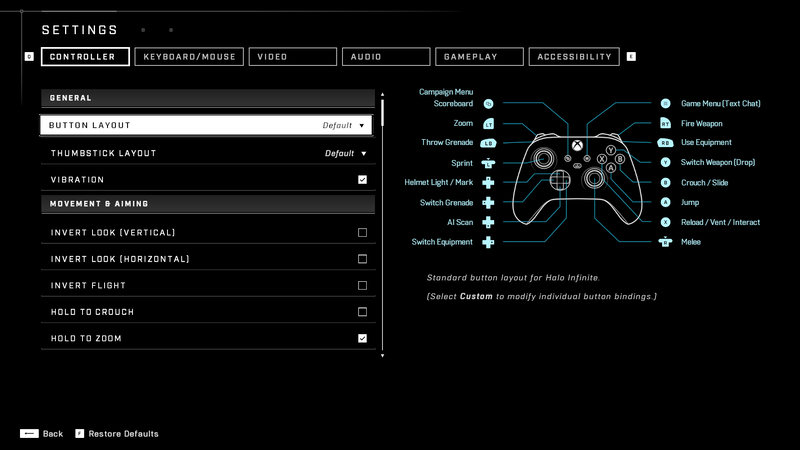
The various Halo games come with a large variety of control schemes for the various input methods available for the games (traditionally some form of Xbox controller).
Stick layouts [ edit ]
All Halo games save for the Halo Wars titles feature the same four stick layouts.
Default [ edit ]
Left Stick - Move Forward/Backward | Strafe Left/Right
Right Stick - Look Up/Down | Rotate Left/Right
Southpaw [ edit ]
"For Lefties"
Left Stick - Look Up/Down | Rotate Left/Right
Right Stick - Move Forward/Backward | Strafe Left/Right
"An older way of doing things."
Left Stick - Move Forward/Backward | Rotate Left/Right
Right Stick - Look Up/Down | Strafe Left/Right
Legacy Southpaw [ edit ]
"An older way of doing things for lefties"
Left Stick - Look Up/Down | Strafe Left/Right
Right Stick - Move Forward/Backward | Rotate Left/Right
General [ edit ]
Alert carry [ edit ]
Main article: Alert carry
Alert carry is a feature introduced in Halo 2 for machinima purposes. The feature can be accessed by pressing "down" on the D-pad (Halo 2 only) or using a combination of buttons (Halo 3 and subsequent games).
Control schemes by game [ edit ]
See the below pages for more specific information on per-game control schemes.
Control schemes by game
Halo: Spartan Assault/Strike
Halo: The Master Chief Collection [ edit ]
It has been suggested that this page be split into multiple pages . Please see the talk page for more details.
Main article: Halo: The Master Chief Collection
In addition to the specific control schemes of each individual game in the collection, The Master Chief Collection features several "Universal" control setups that span all six games.
Halo: Reach
Universal Default (Recon)
Configure Gamepad
Edit Layout
Button
Action
A
Jump
B
Melee
X
Use Armor Ability
Y
Change Weapon
Left Analog
Movement
Left Analog Click
Crouch
Right Analog Click
Zoom
Right Analog
Look
Right Trigger
Use Right Weapon
Left Trigger
Throw Grenade
Right Bumper
Action
Reload
Left Bumper
Switch Grenades
"Back" Button"
Toggle Scoreboard
"Start" Button"
Game Menu
↑ D-Pad
Toggle Night Vision
↓ D-Pad
Push to Talk
→ D-Pad
Select Next Grenades
← D-Pad
Select Previous Grenades
Halo: Combat Evolved
Universal Default (Recon)
Configure Gamepad
Edit Layout
Halo 2
Universal Default (Recon)
Old
Configure Gamepad (Latest)
Edit Layout (Latest)
Button
Action
A
Jump
B
Melee
X
Flashlight
Y
Change Weapon
Swap Left Weapon
Left Analog
Movement
Left Analog Click
Crouch
Right Analog Click
Zoom
Right Analog
Look
Right Trigger
Use Right Weapon
Left Trigger
Throw Grenade
Use Left Weapon
Right Bumper
Action
Reload
Left Bumper
"Back" Button"
Toggle Visuals/Multiplayer Scoreboard
"Start" Button"
Game Menu
↑ D-Pad
Flashlight
↓ D-Pad
Push to Talk
→ D-Pad
Switch Grenades
Select Next Grenades
← D-Pad
Select Previous Grenades
Universal Reclaimer
Old
Latest
Button
Action
A
Jump
B
Crouch
X
Action
Reload
Y
Change Weapon
Swap Left Weapon
Left Analog
Movement
Left Analog Click
Crouch
Right Analog Click
Zoom
Right Analog
Look
Right Trigger
Use Right Weapon
Left Trigger
Throw Grenade
Use Left Weapon
Right Bumper
Melee
Left Bumper
"Back" Button"
Toggle Visuals/Multiplayer Scoreboard
"Start" Button"
Game Menu
↑ D-Pad
Flashlight
↓ D-Pad
Push to Talk
→ D-Pad
Switch Grenades
Select Next Grenades
← D-Pad
Select Previous Grenades
Universal Zoom & Shoot
Old
Latest
Button
Action
A
Jump
B
Crouch
X
Action
Reload
Y
Change Weapon
Swap Left Weapon
Left Analog
Movement
Left Analog Click
Right Analog Click
Melee
Right Analog
Look
Right Trigger
Use Right Weapon
Left Trigger
Zoom
Use Left Weapon
Right Bumper
Throw Grenade
Left Bumper
Flashlight
"Back" Button"
Toggle Visuals/Multiplayer Scoreboard
"Start" Button"
Game Menu
↑ D-Pad
↓ D-Pad
Push to Talk
→ D-Pad
Switch Grenades
Select Next Grenades
← D-Pad
Select Previous Grenades
Universal Bump & Jump
Old
Latest
Button
Action
A
Swap Left Weapon
B
Action
Reload
X
Y
Change Weapon
Left Analog
Movement
Left Analog Click
Crouch
Right Analog Click
Zoom
Right Analog
Look
Right Trigger
Use Right Weapon
Left Trigger
Throw Grenade
Use Left Weapon
Right Bumper
Melee
Left Bumper
Jump
"Back" Button"
Toggle Visuals/Multiplayer Scoreboard
"Start" Button"
Game Menu
↑ D-Pad
Flashlight
↓ D-Pad
Push to Talk
→ D-Pad
Switch Grenades
Select Next Grenades
← D-Pad
Select Previous Grenades
Universal Green Thumbs
Old
Latest
Button
Action
A
Jump
B
Crouch
X
Action
Reload
Y
Change Weapon
Swap Left Weapon
Left Analog
Movement
Left Analog Click
Right Analog Click
Melee
Right Analog
Look
Right Trigger
Use Right Weapon
Left Trigger
Throw Grenade
Use Left Weapon
Right Bumper
Zoom
Left Bumper
"Back" Button"
Toggle Visuals/Multiplayer Scoreboard
"Start" Button"
Game Menu
↑ D-Pad
Flashlight
↓ D-Pad
Push to Talk
→ D-Pad
Switch Grenades
Select Next Grenades
← D-Pad
Select Previous Grenades
Default
Old
Latest
Button
Action
A
Jump
B
Melee
X
Action
Reload
Y
Change Weapon
Swap Left Weapon
Left Analog
Movement
Left Analog Click
Crouch
Right Analog Click
Zoom
Right Analog
Look
Right Trigger
Use Right Weapon
Left Trigger
Throw Grenade
Use Left Weapon
Right Bumper
Switch Grenades
Select Next Grenades
Left Bumper
Flashlight
"Back" Button"
Toggle Visuals/Multiplayer Scoreboard
"Start" Button"
Game Menu
↑ D-Pad
↓ D-Pad
Push to Talk
→ D-Pad
← D-Pad
Select Previous Grenades
Halo 3
Universal Default (Recon)
Configure Gamepad
Edit Layout
Halo 3: ODST
Universal Default (Recon)
Configure Gamepad
Edit Layout
Halo 4
Universal Default (Recon)
Configure Gamepad
Edit Layout
Mouse and Keyboard (Default) [ edit ]
Configuration file name
GameUserSettings.ini
File Location (Microsoft Store)
C:\Users\%USERPROFILE% \AppData\LocalLow\MCC\
File Location (Steam)
C:\Users\%USERPROFILE%\AppData\LocalLow\MCC\Saved\Config\WindowsNoEditor\
Here is the list of key and mouse button number codes for the configuration file.
Halo: Reach
In-game
Line: CustomKeyboardMouseMappingV2[5]=
Action
Key or Mouse Button
Action = Blue
Default Key (First Key Binding) = Grenn
Unbind Key (Secondary Key Binding) = Red
Communication
Open Text Chat
J
N/A
Push to Talk
V
N/A
Movement
Move Forward
W
N/A
Move Backward
S
GameKeyboardMouseMappings[17]=(AbstractButton=17,VirtualKeyCodes[0]= 83 ,VirtualKeyCodes[1]= 0
Move Left
A
N/A
Move Right
D
N/A
Jump
Space
GameKeyboardMouseMappings[0]=(AbstractButton=0,VirtualKeyCodes[0]= 32 ,VirtualKeyCodes[1]= 0
Crouch
Left Ctrl
N/A
Actions
Fire
Mouse 1
N/A
Zoom
Mouse 2
N/A
Zoom In
Z
N/A
Zoom Out
X
N/A
Melee
Q
N/A
Reload
R
N/A
Throw Grenade
F
N/A
Action
E
N/A
Change Weapon
1
N/A
Switch Grenades
2
N/A
Use Armor Ability
Shift
N/A
Toggle Night Vision
4
N/A
Vehicle Controls
Vehicle Function 1
Mouse 2
N/A
Vehicle Function 2
Left Ctrl
N/A
Vehicle Function 3
Space
N/A
UI Controls
Toggle Scoreboard
Tab
N/A
Open loadouts Menu
L
N/A
Forge
Ascend
R
N/A
Descend
F
N/A
Grab/Release Object
Mouse 1
N/A
Boost
Shift
N/A
Precision Edit
Left Ctrl
N/A
Delete Object
Delete
N/A
Create Object/Object Properties
1
N/A
Tools
2
N/A
Duplicate
G
N/A
Reset
X
N/A
Switch Player Mode
`
N/A
Zoom
Mouse 2
N/A
Rotation Mode
Left Alt
N/A
Toggle Rotation Axes
E
N/A
Theater
Toggle Panel
X
N/A
Toggle Interface
Z
N/A
First/Third Person
C
N/A
Camera Reset
Mouse 2
N/A
Jump Forward
Right
N/A
Jump Back
Left
N/A
Pause/Resume Playback
Enter
N/A
Fast Forward
E
N/A
Toggle Freecam
Space
N/A
Boost
Shift
N/A
Theater Panning
Left Alt
N/A
Ascend
R
N/A
Descend
F
N/A
Zoom
Mouse 2
N/A
Halo: Combat Evolved
In-game
Line: CustomKeyboardMouseMappingV2[0]=
Action
Key or Mouse Button
Action = Blue
Default Key (First Key Binding) = Grenn
Unbind Key (Secondary Key Binding) = Red
Communication
Open Text Chat
J
N/A
Push to Talk
V
N/A
Movement
Move Forward
W
N/A
Move Backward
S
N/A
Move Left
A
N/A
Move Right
D
N/A
Jump
Space
GameKeyboardMouseMappings[0]=(AbstractButton=0,VirtualKeyCodes[0]= 32 ,VirtualKeyCodes[1]= 0
Crouch
Left Ctrl
N/A
Actions
Fire
Mouse 1
N/A
Zoom
Mouse 2
N/A
Zoom In
Z
N/A
Zoom Out
X
N/A
Melee
Q
N/A
Reload
R
N/A
Throw Grenade
F
N/A
Action
E
N/A
Change Weapon
1
N/A
Switch Grenades
2
N/A
Toggle Flashlight
4
GameKeyboardMouseMappings[6]=(AbstractButton=6,VirtualKeyCodes[0]= 52 ,VirtualKeyCodes[1]= 0
Vehicle Controls
Vehicle Function 1
Mouse 2
N/A
Vehicle Function 2
Left Ctrl
N/A
Vehicle Function 3
Space
N/A
UI Controls
Toggle Scoreboard/Scoreboard
Tab
N/A
N/A
Toggle Flashlight Alt
Unbind
GameKeyboardMouseMappings[64]=(AbstractButton=64,VirtualKeyCodes[0]= 0 ,VirtualKeyCodes[1]= 0
Halo 2
In-game
Line: CustomKeyboardMouseMappingV2[1]=
Action
Key or Mouse Button
Action = Blue
Default Key (First Key Binding) = Grenn
Unbind Key (Secondary Key Binding) = Red
Communication
Open Text Chat
J
N/A
Push to Talk
V
N/A
Movement
Move Forward
W
N/A
Move Backward
S
N/A
Move Left
A
N/A
Move Right
D
N/A
Jump
Space
GameKeyboardMouseMappings[0]=(AbstractButton=0,VirtualKeyCodes[0]= 32 ,VirtualKeyCodes[1]= 0
Crouch
Left Ctrl
N/A
Actions
Fire
Mouse 1
N/A
Fire Secondary
Mouse 2
N/A
Zoom
Mouse 2
N/A
Zoom In
Z
N/A
Zoom Out
X
N/A
Melee
Q
N/A
Reload
R
N/A
Throw Grenade
F
N/A
Action
E
N/A
Change Weapon
1
N/A
Switch Grenades
2
N/A
Toggle Flashlight
4
N/A
Dual-Wield
C
N/A
Vehicle Controls
Vehicle Function 1
Mouse 2
N/A
Vehicle Function 2
Left Ctrl
N/A
Vehicle Function 3
Space
N/A
Banshee Bomb
Q
N/A
UI Controls
Toggle Scoreboard
Tab
N/A
Open loadouts Menu
L
N/A
Forge
Ascend
R
N/A
Descend
F
N/A
Grab/Release Object
Mouse 1
N/A
Boost
Shift
N/A
Precision Edit
Left Ctrl
N/A
Delete Object
Delete
N/A
Create Object/Object Properties
1
N/A
Tools
2
N/A
Duplicate
G
N/A
Reset
X
N/A
Switch Player Mode
`
N/A
Zoom
Mouse 2
N/A
Rotation Mode
Left Alt
N/A
Toggle Rotation Axes
E
N/A
Theater
Toggle Panel
X
N/A
Toggle Interface
Z
N/A
First/Third Person
C
N/A
Camera Reset
Mouse 2
N/A
Jump Forward
Right
N/A
Jump Back
Left
N/A
Pause/Resume Playback
Enter
N/A
Fast Forward
E
N/A
Toggle Freecam
Space
N/A
Boost
Shift
N/A
Theater Panning
Left Alt
N/A
Ascend
R
N/A
Descend
F
N/A
Zoom
Mouse 2
N/A
Halo 3
In-game
Line: CustomKeyboardMouseMappingV2[3]=
Action
Key or Mouse Button
Action = Blue
Default Key (First Key Binding) = Grenn
Unbind Key (Secondary Key Binding) = Red
Communication
Open Text Chat
J
N/A
Push to Talk
V
N/A
Movement
Move Forward
W
N/A
Move Backward
S
N/A
Move Left
A
N/A
Move Right
D
N/A
Jump
Space
GameKeyboardMouseMappings[0]=(AbstractButton=0,VirtualKeyCodes[0]= 32 ,VirtualKeyCodes[1]= 0
Crouch
Left Ctrl
N/A
Actions
Fire
Mouse 1
N/A
Fire Secondary
Mouse 2
GameKeyboardMouseMappings[49]=(AbstractButton=49,VirtualKeyCodes[0]= 2 ,VirtualKeyCodes[1]= 0
Zoom
Mouse 2
N/A
Zoom In
Z
N/A
Zoom Out
X
N/A
Melee
Q
N/A
Reload
R
N/A
Reload Secondary Weapon
F
GameKeyboardMouseMappings[55]=(AbstractButton=55,VirtualKeyCodes[0]= 70 ,VirtualKeyCodes[1]= 0
Throw Grenade
F
N/A
Action
E
N/A
Change Weapon
1
N/A
Select Next Grenades
2
N/A
Select Previous Grenades
3
N/A
Use Equipment
Shift
N/A
Toggle Night Vision
4
N/A
Dual-Wield
C
N/A
Vehicle Controls
Vehicle Function 1
Mouse 2
N/A
Vehicle Function 2
Left Ctrl
N/A
Vehicle Function 3
Space
N/A
Banshee Bomb
Q
N/A
UI Controls
Toggle Scoreboard
Tab
N/A
Forge
Ascend
R
N/A
Descend
F
N/A
Grab/Release Object
Mouse 1
N/A
Boost
Shift
N/A
Precision Edit
Left Ctrl
N/A
Delete Object
Delete
N/A
Create Object/Object Properties
1
N/A
Tools
2
N/A
Switch Player Mode
`
N/A
Zoom
Mouse 2
N/A
Rotation Mode
Left Alt
N/A
Toggle Rotation Axes
E
N/A
Theater
Toggle Panel
X
N/A
Toggle Interface
Z
N/A
First/Third Person
C
N/A
Camera Reset
Mouse 2
N/A
Jump Forward
Right
N/A
Jump Back
Left
N/A
Pause/Resume Playback
Enter
N/A
Fast Forward
E
N/A
Toggle Freecam
Space
N/A
Boost
Shift
N/A
Theater Panning
Left Alt
N/A
Ascend
R
N/A
Descend
F
N/A
Zoom
Mouse 2
N/A
Halo 3: ODST
In-game
Line: CustomKeyboardMouseMappingV2[4]=
Action
Key or Mouse Button
Action = Blue
Default Key (First Key Binding) = Grenn
Unbind Key (Secondary Key Binding) = Red
Communication
Open Text Chat
J
N/A
Push to Talk
V
N/A
Movement
Move Forward
W
N/A
Move Backward
S
N/A
Move Left
A
N/A
Move Right
D
N/A
Jump
Space
GameKeyboardMouseMappings[0]=(AbstractButton=0,VirtualKeyCodes[0]= 32 ,VirtualKeyCodes[1]= 0
Crouch
Left Ctrl
N/A
Actions
Fire
Mouse 1
N/A
Fire Secondary
Mouse 2
GameKeyboardMouseMappings[49]=(AbstractButton=49,VirtualKeyCodes[0]= 2 ,VirtualKeyCodes[1]= 0
Zoom
Mouse 2
N/A
Zoom In
Z
N/A
Zoom Out
X
N/A
Melee
Q
N/A
Reload
R
N/A
Reload Secondary Weapon
F
GameKeyboardMouseMappings[55]=(AbstractButton=55,VirtualKeyCodes[0]= 70 ,VirtualKeyCodes[1]= 0
Throw Grenade
F
N/A
Action
E
N/A
Change Weapon
1
N/A
Select Next Grenades
2
N/A
Select Previous Grenades
3
N/A
Use Equipment
Shift
N/A
Toggle Night Vision
4
N/A
Dual-Wield
C
N/A
Vehicle Controls
Vehicle Function 1
Mouse 2
N/A
Vehicle Function 2
Left Ctrl
N/A
Vehicle Function 3
Space
N/A
Banshee Bomb
Q
N/A
UI Controls
Toggle Scoreboard
Tab
N/A
Toggle Display Waypoint Markers
Up
N/A
Toggle Display Waypoint Markers Alt
Down
N/A
Theater
Toggle Panel
X
N/A
Toggle Interface
Z
N/A
First/Third Person
C
N/A
Camera Reset
Mouse 2
N/A
Jump Forward
Right
N/A
Jump Back
Left
N/A
Pause/Resume Playback
Enter
N/A
Fast Forward
E
N/A
Toggle Freecam
Space
N/A
Boost
Shift
N/A
Theater Panning
Left Alt
N/A
Ascend
R
N/A
Descend
F
N/A
Zoom
Mouse 2
N/A
Halo 4
In-game
Line: CustomKeyboardMouseMappingV2[6]=
Action
Key or Mouse Button
Action = Blue
Default Key (First Key Binding) = Grenn
Unbind Key (Secondary Key Binding) = Red
Communication
Open Text Chat
J
N/A
Push to Talk
V
N/A
Movement
Move Forward
W
N/A
Move Backward
S
N/A
Move Left
A
N/A
Move Right
D
N/A
Jump
Space
GameKeyboardMouseMappings[0]=(AbstractButton=0,VirtualKeyCodes[0]= 32 ,VirtualKeyCodes[1]= 0
Crouch
Left Ctrl
GameKeyboardMouseMappings[9]=(AbstractButton=9,VirtualKeyCodes[0]= 162 ,VirtualKeyCodes[1]= 0
Sprint
Shift
N/A
Actions
Fire
Mouse 1
N/A
Zoom
Mouse 2
GameKeyboardMouseMappings[10]=(AbstractButton=10,VirtualKeyCodes[0]= 2 ,VirtualKeyCodes[1]= 0
Zoom In
Z
N/A
Zoom Out
X
N/A
Melee
Q
N/A
Reload
R
N/A
Throw Grenade
F
N/A
Action
E
GameKeyboardMouseMappings[2]=(AbstractButton=2,VirtualKeyCodes[0]= 69 ,VirtualKeyCodes[1]= 0
Change Weapon
1
N/A
Select Next Grenades
2
N/A
Select Previous Grenades
3
N/A
Use Armor Ability
C
N/A
Special Action
G
N/A
Vehicle Controls
Vehicle Function 1
Mouse 2
N/A
Vehicle Function 2
Left Ctrl
N/A
Vehicle Function 3
Space
N/A
UI Controls
Toggle Scoreboard
Tab
N/A
Open loadouts Menu
L
N/A
Forge
Ascend
R
N/A
Descend
F
N/A
Grab/Release Object
Mouse 1
N/A
Boost
Shift
N/A
Precision Edit
Left Ctrl
N/A
Delete Object
Delete
N/A
Create Object/Object Properties
1
N/A
Tools
2
N/A
Duplicate
G
N/A
Lock
C
N/A
Reset
X
N/A
Switch Player Mode
`
N/A
Zoom
Mouse 2
N/A
Rotation Mode
Left Alt
N/A
Toggle Rotation Axes
E
N/A
Theater
Toggle Panel
X
N/A
Toggle Interface
Z
N/A
First/Third Person
C
N/A
Camera Reset
Mouse 2
N/A
Jump Forward
Right
N/A
Jump Back
Left
N/A
Pause/Resume Playback
Enter
N/A
Fast Forward
E
N/A
Toggle Freecam
Space
N/A
Boost
Shift
N/A
Theater Panning
Left Alt
N/A
Ascend
R
N/A
Descend
F
N/A
Zoom
Mouse 2
N/A
Other Control Settings [ edit ]
Removed
Setting
Options
Official Info
Zoom Mode[1]
Hold
Zooming for a period of time will require a button hold.
Toggle
Zooming for a period of time will require a button press to toggle the effect.