
Alert carry
From Halopedia, the Halo wiki
 |
It has been suggested that Lowering weapon glitch be merged into this article or section. |
The alert carry, sometimes mistakenly called "ceasing fire", "standing down", or "gun down", is a feature introduced in Halo 2 for machinima purposes, and has since appeared in Halo 3, Halo 3: ODST, Halo: Reach, Halo 4, Halo 2: Anniversary, Halo 5: Guardians, Halo Infinite and Halo: Campaign Evolved. The feature allows gamers to holster or lower their in-game weapons; it is commonly used when making machinima. The exact execution of the alert carry has changed between games and requires different button combinations for different game controller layouts.
Halo: Combat Evolved[edit]

The alert carry can be performed in Halo: Combat Evolved by simply looking down. Although the player is looking at the ground, others will see their head looking forward with their arms and weapons pointed at the ground. Generally, using a Pistol or a Plasma Pistol resulted in a more relaxed effect; using a Needler or an Assault Rifle tended to bend the left arm inwards.
Halo 2[edit]
Noticing that Red vs Blue, which frequently used the alert carry effect, helped the Halo franchise, Bungie made it easier to perform the technique in Halo 2 by assigning it its own input action system.

Unlike later titles, a weapon doesn't disappear
on the screen after performing an alert carry.

| Version | Input device | Button |
|---|---|---|
| Original Xbox | Controller | Press "↓ D-Pad" |
| Vista | N/A | N/A |
| Halo MCC PC | Controller (Xinput) | Press "↓ D-Pad" |
| Mouse and keyboard | It's not possible to alert carry with M&K.[Note 1] |
| Game Mode | Original Xbox | Vista | Halo MCC PC |
|---|---|---|---|
| Campaign | Yes | N/A | Yes |
| Matchmaking | N/A | N/A | N/A |
| Custom Games | Yes | N/A | Yes |
 This section is a stub. You can help Halopedia by expanding it.
Input actions that end the alert carry mode.
| Input action | End the alert carry Mode |
|---|---|
| Melee | Always |
| Fire | Always |
| Throw Grenade | Always |
| Alert carry | Always |
The alert carry is shown by looking down at the player's legs, they will not be as bent as normal. Other players will see it as your weapon being lowered. Shooting, throwing grenades, meleeing, reloading, entering vehicles, dying, or pressing the D-Pad again will end the effect. On Xbox Live, the trick can also be performed by exhausting all grenades and holding L (Left Trigger).
In Halo 2, not all weapons can be put into ready position, such as dual-wield weapons, Rocket Launchers, and Energy Swords. The trick seems to work on two-handed rifle type weapons, as when the Brute Shot is lowered, but on closer inspection, the player's arm is bent slightly and the Brute Shot itself is slightly tilted.
Halo 3 and Halo 3: ODST[edit]
- Note: This does not work on Xbox Live due to the possibility of exploits, according to Bungie.[citation needed]
The Halo 3 alert carry was first performed in public by Red vs Blue cast members. In Halo 3, the feature is activated with a button combination. The player can cease fire by pressing and holding the following in any order (different according to button layout):
| Version | Input device | Combination |
|---|---|---|
| Xbox 360 | Controller | Hold "Jump" + "Crouch" + "Reload/Swap Left Weapon" + "Action/Reload Right Weapon" + "↓ D-Pad" for 3 seconds. |
| Halo MCC PC | Controller (Xinput) | Hold "Jump" + "Crouch" + "Action" + "Reload" + "Reload Left Weapon" + "↓ D-Pad" for 3 seconds. |
| Mouse and keyboard | It's not possible to alert carry with M&K.[Note 1] |
Depending on your button layout, your layout might be:

| Button | Input actions |
|---|---|
| A Button | Jump |
| Left Bumper | Reload/Swap Left Weapon |
| Right Bumper | Action/Reload Right Weapon |
| Left Analog Click | Crouch |
| ↓ D-Pad |

| Button | Input actions |
|---|---|
| A Button | Jump |
| Left Bumper | Reload/Swap Left Weapon |
| Right Bumper | Action/Reload Right Weapon |
| Left Analog Click | Crouch |
| ↓ D-Pad |

| Button | Input actions |
|---|---|
| A Button | Jump |
| Left Bumper | Reload/Swap Left Weapon |
| Right Bumper | Action/Reload Right Weapon |
| Left Analog Click | Crouch |
| ↓ D-Pad |

| Button | Input actions |
|---|---|
| A Button | Jump |
| Left Bumper | Reload/Swap Left Weapon |
| Right Bumper | Action/Reload Right Weapon |
| Left Analog Click | Crouch |
| ↓ D-Pad |

| Button | Input actions |
|---|---|
| A Buttom | Reload/Swap Left Weapon |
| B Buttom | Action/Reload Right Weapon |
| Left Bumper | Jump |
| Left Analog Click | Crouch |
| ↓ D-Pad |

| Button | Input actions |
|---|---|
| A Buttom | Jump |
| B Buttom | Action/Reload Right Weapon |
| X Buttom | Reload/Swap Left Weapon |
| Left Analog Click | Crouch |
| ↓ D-Pad |
D-pad & Buttons: Default
Bumpers & Triggers: Default


| Button | Input actions | ||
|---|---|---|---|
| A Button | Jump | ||
| Left Bumper | Reload Left Weapon | Switch Grenades | Swap Left Weapon |
| Right Bumper | Action | Reload | |
| Left Analog Click | Crouch | ||
| ↓ D-Pad | Push to Talk | ||
D-pad & Buttons: Default
Bumpers & Triggers: Default

| Button | Input actions | ||||
|---|---|---|---|---|---|
| A Button | Jump | ||||
| Left Bumper | Reload Left Weapon | Switch Grenades | Next Grenade | Previous Grenade | Swap Left Weapon |
| Right Bumper | Action | Reload | |||
| Left Analog Click | Crouch | ||||
| ↓ D-Pad | Push to Talk | ||||
| Game Mode | Xbox 360 | Halo MCC PC |
|---|---|---|
| Campaign | N/A | Yes |
| Matchmaking | N/A | N/A |
| Custom Games | N/A | Yes |
| Forge | N/A | Yes |
| Version | Input device | Combination |
|---|---|---|
| Xbox 360 | Controller | Hold "Jump" + "Crouch" + "Switch Grenades" + "Action/Reload Weapon" + "↓ D-Pad" for 3 seconds. |
| Halo MCC PC | Controller (Xinput) | Hold "Jump" + "Crouch" + "Action" + "Reload" + "Reload Left Weapon" + "↓ D-Pad" for 3 seconds. |
| Mouse and keyboard | It's not possible to alert carry with M&K.[Note 1] |
Depending on your button layout, your layout might be:

| Button | Input actions |
|---|---|
| A Button | Jump |
| Left Bumper | Switch Grenades |
| Right Bumper | Action/Reload Weapon |
| Left Analog Click | Crouch |
| ↓ D-Pad |

| Button | Input actions |
|---|---|
| A Button | Jump |
| Left Bumper | Switch Grenades |
| Right Bumper | Action/Reload Weapon |
| Left Analog Click | Crouch |
| ↓ D-Pad |

| Button | Input actions |
|---|---|
| A Button | Jump |
| Left Bumper | Switch Grenades |
| Right Bumper | Action/Reload Weapon |
| Left Analog Click | Crouch |
| ↓ D-Pad |

| Button | Input actions |
|---|---|
| A Button | Jump |
| Left Bumper | Switch Grenades |
| Right Bumper | Action/Reload Weapon |
| Left Analog Click | Crouch |
| ↓ D-Pad |

| Button | Input actions |
|---|---|
| A Buttom | Switch Grenades |
| B Buttom | Action/Reload Weapon |
| Left Bumper | Jump |
| Left Analog Click | Crouch |
| ↓ D-Pad |

| Button | Input actions |
|---|---|
| A Buttom | Jump |
| B Buttom | Action/Reload Weapon |
| X Buttom | Switch Grenades |
| Left Analog Click | Crouch |
| ↓ D-Pad |
D-pad & Buttons: Default
Bumpers & Triggers: Default


| Button | Input actions | ||
|---|---|---|---|
| A Button | Jump | ||
| Left Bumper | Switch Grenades | ||
| Right Bumper | Action | Reload | |
| Left Analog Click | Crouch | ||
| ↓ D-Pad | Push to Talk | ||
D-pad & Buttons: Default
Bumpers & Triggers: Default

| Button | Input actions | ||||
|---|---|---|---|---|---|
| A Button | Jump | ||||
| Left Bumper | Switch Grenades | Next Grenade | Previous Grenade | ||
| Right Bumper | Action | Reload | |||
| Left Analog Click | Crouch | ||||
| ↓ D-Pad | Push to Talk | ||||
| Game Mode | Xbox 360 | Halo MCC PC |
|---|---|---|
| Campaign | N/A | Yes |
| Firefight | N/A | Yes |
After holding the combination together for three seconds, a player will find that their weapon has disappeared off of their screen; the weapon is lowered and visible to other players. Some weapons, however, are barely or not at all affected by this trick; such weapons include the Energy Sword, Brute Shot, Gravity Hammer, Sentinel Beam, Plasma Cannon, Machine Gun Turret, and Flamethrower. The trick looks odd when performed with the Rocket Launcher, Fuel Rod Gun, Spartan Laser, and dual-wielded weapons.
The animation of the Rocket Launcher, Fuel Rod Gun, and the Spartan Laser will look similar to that of the assault rifle in Halo: Combat Evolved (unless the player uses an Elite model, then there's no change). If a player is dual-wielding, looking around will desynchronize their hands.
Shooting, throwing grenades, meleeing, going into Edit Mode on Forge, dying or re-entering the button combination will end the effect.
Halo: Reach[edit]
The alert carry option returned in Halo: Reach and was first seen being used in the Red vs. Blue Halo: Reach PSA: Deja View. The player can alert carry by pressing and holding the following in any order (different according to button layout):
| Version | Input device | Combination |
|---|---|---|
| Xbox 360 | Controller | Hold "Action/Reload" + "Zoom" + "Switch Grenades" + "↓ D-Pad" for 3 seconds. |
| Halo MCC PC | Controller (Xinput) | Hold "Action" + "Reload" + "Zoom" + "B Button" + "↓ D-Pad" for 3 seconds. |
| Mouse and keyboard | It's not possible to alert carry with M&K.[Note 1] |
Depending on your button layout, your layout might be:

| Button | Input actions |
|---|---|
| B Button | Switch Grenades |
| X Button | Action/Reload |
| Right Analog Click | Zoom View |
| ↓ D-Pad | Open Mic/Regroup |

| Button | Input actions |
|---|---|
| B Button | Switch Grenades |
| X Button | Action/Reload |
| Right Analog Click | Zoom View |
| ↓ D-Pad | Open Mic/Regroup |

| Button | Input actions |
|---|---|
| B Button | Switch Grenades |
| X Button | Action/Reload |
| Right Analog Click | Zoom View |
| ↓ D-Pad | Open Mic/Regroup |

| Button | Input actions |
|---|---|
| B Button | Switch Grenades |
| X Button | Action/Reload |
| Right Bumper | Zoom View |
| ↓ D-Pad | Open Mic/Regroup |

| Button | Input actions |
|---|---|
| A Button | Switch Grenades |
| B Button | Action/Reload |
| Right Analog Click | Zoom View |
| ↓ D-Pad | Open Mic/Regroup |

| Button | Input actions |
|---|---|
| X Button | Switch Grenades |
| Right Bumper | Action/Reload |
| Right Analog Click | Zoom View |
| ↓ D-Pad | Open Mic/Regroup |
D-pad & Buttons: Default
Bumpers & Triggers: Default


It's not possible to alert carry with this layout because of the B Button (Melee).
D-pad & Buttons: Default
Bumpers & Triggers: Default

| Button | Input actions | ||
|---|---|---|---|
| B Button | Switch Grenades | Next Grenade | Previous Grenade |
| X Button | Action | Reload | |
| Right Analog Click | Zoom | ||
| ↓ D-Pad | Push to Talk | ||
| Button | Input actions | ||
|---|---|---|---|
| B Button | Action | ||
| Right Bumper | Zoom | ||
| ↓ D-Pad | Reload | Push to Talk | |
This is the editor's custom layout, by the way; you can customize it however you want in MCC, unlike the Xbox 360 version.
| Game Mode | Xbox 360 | Halo MCC PC |
|---|---|---|
| Campaign | N/A | Yes |
| Matchmaking | No | N/A |
| Custom Games | N/A | Yes |
| Firefight | N/A | Yes |
| Forge | N/A | Yes |
Input actions that end the alert carry mode or cause the alert carry mode not to activate after the combination.
| Input action | Alert carry mode won't activate after the combination | End the alert carry mode |
|---|---|---|
| Fire | Always | |
| Melee | Always | |
| Throw Grenade | Always | |
| Toggle Scoreboard | Always | Never |
| Use Armor Ability | Depended | |
Buttons that cause the alert carry mode won't activate after the combination.
| Input Device | Button |
|---|---|
| Controller (Xinput) | ↑ D-Pad |
After holding the combination together for three seconds, a player will find that their weapon has disappeared off of their screen; the weapon is lowered and visible to other players. Like in Halo 3, players will be unable to perform it on Xbox LIVE.[1]
Unlike Halo 3, the Rocket Launcher, Fuel Rod Gun, Gravity Hammer, and the Flag will be in a resting position after using alert carrying.
Unlike previous games, when the player alert carries while holding a detached turret, the camera angle will shift a bit and the Spartan will also appear to be slightly more relaxed. It is also possible to use alert carry in the campaign.
Halo 4[edit]
Pre-release screenshots revealed that alert carry had been incorporated into Halo 4. The player can alert carry by pressing and holding the following in any order (different according to button layout):
| Version | Input device | Combination |
|---|---|---|
| Xbox 360 | Controller | Hold "B Button" + "Action/Reload" + "Jump" + “↓ D-Pad" for 3 seconds. |
| Halo MCC PC | Controller (Xinput) | Hold “Zoom” + “Action” + "Jump" + “↓ D-Pad" for 3 seconds. |
| Mouse and keyboard | Hold “Zoom” + “Action” + "Jump" + “↓ Arrow Key" for 3 seconds. |
Depending on your button layout, your layout might be:

| Button | Input actions |
|---|---|
| A Button | Jump |
| B Button | Crouch |
| X Button | Action/Reload |
| ↓ D-Pad |

| Button | Input actions |
|---|---|
| A Button | Jump |
| B Button | Crouch |
| X Button | Action/Reload |
| ↓ D-Pad |

| Button | Input actions |
|---|---|
| A Button | Jump |
| B Button | Sprint |
| X Button | Action/Reload |
| ↓ D-Pad |

| Button | Input actions |
|---|---|
| A Button | Jump |
| B Button | Crouch |
| X Button | Action/Reload |
| ↓ D-Pad |

| Button | Input actions |
|---|---|
| B Buttom | Action/Reload |
| Left Bumper | Jump |
| ↓ D-Pad |


| Button | Input actions |
|---|---|
| A Button | Jump |
| B Button | Crouch |
| X Button | Action/Reload |
| ↓ D-Pad |
D-pad & Buttons: Default
Bumpers & Triggers: Default


| Button | Input actions | |
|---|---|---|
| A Button | Jump | |
| Right Bumper | Action | Reload |
| Right Analog Click | Zoom | |
| ↓ D-Pad | Push to Talk | |
D-pad & Buttons: Default
Bumpers & Triggers: Default

| Button | Input actions | |
|---|---|---|
| A Button | Jump | |
| X Button | Action | Reload |
| Right Analog Click | Zoom | |
| ↓ D-Pad | Push to Talk | |

| Key and mouse button | Input action |
|---|---|
| Right Mouse Button | Zoom |
| Space Bar | Jump |
| ↓ Arrow Key | |
| E Key | Action |
| Game Mode | Xbox 360 | Halo MCC PC |
|---|---|---|
| Campaign | N/A | Yes |
| Matchmaking | N/A | N/A |
| Custom Games | N/A | Yes |
| Spartan Ops | N/A | Yes |
| Forge | N/A | Yes |
Input actions that end the alert carry mode or cause the alert carry mode not to activate after the combination.
| Input action | Alert carry mode won't activate after the combination | End the alert carry mode |
|---|---|---|
| Melee | Always | |
Unlike other games, it's possible to use a keyboard to alert carry as well as display coordinates; it might have something to do with the Ordnance game mechanic. As in Halo 3 and Halo: Reach, alert carry doesn't work in Xbox Live games. Like with Halo: Reach, alert carry is usable in the Halo 4 campaign. Unlike the other games, alert carry only works when the player is standing still; any other movement will cancel the alert carry for as long as the player is moving; it can be fixed via modding.[2]
Halo 2: Anniversary multiplayer[edit]
The alert carry returns in Halo 2: Anniversary, fixing Halo 4's problem;[3] in addition, the function can now be performed on Xbox Live. The particular combination of buttons used to enter alert carry varies depending on the selected control scheme, but corresponds to the following actions:
| Version | Input device | Combination |
|---|---|---|
| PC | Controller (Xinput) | Hold “Zoom” + “Action” + "Jump" + “↓ D-Pad" for 3 seconds. |
| Mouse and keyboard | It's not possible to alert carry with M&K.[Note 1] |
Depending on your button layout, your layout might be:
D-pad & Buttons: Default
Bumpers & Triggers: Default


| Button | Input actions | |
|---|---|---|
| A Button | Jump | |
| Right Bumper | Action | Reload |
| Right Analog Click | Zoom | |
| ↓ D-Pad | Push to Talk | |
D-pad & Buttons: Default
Bumpers & Triggers: Default

| Button | Input actions | |
|---|---|---|
| A Button | Jump | |
| X Button | Action | Reload |
| Right Analog Click | Zoom | |
| ↓ D-Pad | Push to Talk | |
| Game Mode | Halo MCC PC |
|---|---|
| Matchmaking | N/A |
| Custom Games | Yes |
| Forge | N/A |
Unlike previous entries, dual-wielded weapons, the Brute Shot, and the Sentinel Beam can be alert-carried, and Elites can exclusively alert-carry the Machine Gun Turret. Additionally, simultaneously dual wielding and crouching makes the player character point their weapons upwards. Note that switching your weapon will exit the alert carry stance.
Halo 5: Guardians[edit]
Alert carry in Halo 5: Guardians can be achieved with the new Machinima control setting in Custom Games. When activated, the instructions to alert carry are viewed below:
| Version | Input device | Combination |
|---|---|---|
| Halo 5: Forge (PC) | Controller (Xinput) | Hold "Action/Reload" + “↓ D-Pad" for 3 seconds. |
| Mouse and keyboard | Hold "Machinima: Lower Weapon" for 3 seconds. |
Depending on your button layout, your layout might be:

| Button | Input actions |
|---|---|
| X Button | Action/Reload |
| ↓ D-Pad |

| Button | Input actions |
|---|---|
| X Button | Action/Reload |
| ↓ D-Pad |

| Button | Input actions |
|---|---|
| X Button | Action/Reload |
| ↓ D-Pad |

| Button | Input actions |
|---|---|
| X Button | Action/Reload |
| ↓ D-Pad |

| Button | Input actions |
|---|---|
| B Button | Action/Reload |
| ↓ D-Pad |

| Button | Input actions |
|---|---|
| Right Bumper | Action/Reload |
| ↓ D-Pad |

| Button | Input actions |
|---|---|
| X Button | Action/Reload |
| ↓ D-Pad |

| Button | Input actions |
|---|---|
| X Button | Action/Reload |
| ↓ D-Pad |

| Button | Input actions |
|---|---|
| X Button | Action/Reload |
| ↓ D-Pad |

| Button | Input actions |
|---|---|
| B Button | Action/Reload |
| ↓ D-Pad |


| Key | Input action |
|---|---|
| L Key | Machinima: Lower Weapon |

Unlike Halo: Reach and Halo 4, the player cannot achieve alert carry in the campaign outside of the missions Meridian Station, Alliance, and Before the Storm. Instead, only AI-controlled Spartans can use alert carry.
Halo Infinite[edit]
Alert carry in Halo Infinite can be enabled via the custom games settings, by turning on machinima controls. After turning it on, here's this simple instruction to alert carry:
| Input Device | Combination |
|---|---|
| Controller (Xinput) | Hold "X Button" + “↓ D-Pad" for 5 seconds. |
| Mouse and keyboard | It's not possible to alert carry with M&K.[Note 1] |

| Game Mode | Supported or not |
|---|---|
| Campaign | N/A |
| Matchmaking | N/A |
| Custom Games | Yes, if "Machinima Control" is enabled in the Custom Games settings |
| Forge | Yes |
It can also be enabled using the node-graph scripting system in Forge. The node "Set Player Weapon Lowered" can be activated in the scripting system. Activating this node via the "On Player Mark" node can allow for you to activate alert carry by pressing the Mark button (Default: ↑ D-Pad on controller, or X Key on mouse and keyboard).
- Note: The "Set Player Weapon Lowered" node is currently buggy, and will not always work properly.
This will only work on maps that have the "Set Player Weapon Lowered" node in the node-graph. As a result, you cannot alert carry in campaign, matchmaking or on official multiplayer maps.
Halo: Campaign Evolved[edit]
- This section is a stub. You can help Halopedia by expanding it. Reason: It does exist in the game.[4][5]
Trivia[edit]
- Alert carry in Halo: Combat Evolved is actually a glitch rather than a feature. The creators of Red vs. Blue exploited this glitch for their machinima. Due to the popularity of the webseries, Bungie implemented an actual alert carry feature in Halo 2 solely for machinima.
- In Halo 3, by executing this trick in Forge while Edit Mode, you can create a permanent, lasting effect. This way, the effect will last until you die. Also, if you man a turret or enter a vehicle and then get out, your weapon will appear, but it will be misplaced (this effect is most notable with the Brute Shot).
- Execute this trick in conjunction with an Energy Sword and it will disappear. See Silhouette Sword.
- In Halo 3 local Split-Screen, this trick may be a possible method to combat screenwatching due to not being able to see what weapon you have equipped, though they may still be able to see the icon for it on your HUD.
- A tip to Halo 3 machinima makers; when you want to view someone lowering their weapon, the most commonly known, and probably the easiest way to do this, is to simply reverse the footage of them raising it. However, the button combination can be performed in any order. If you're talented enough, you can "crouch" while running, which negates its effect, and hold down (A) after you have jumped. If you hold these down while puppeteering your character, and complete the combo, your character will lower their weapon while neither crouching nor jumping, giving it a smoother look. It is tricky to master though, and some find the reverse-footage method more convenient. This trick is not very effective for Elites in general, and is only really visible when the player does not move. Running will cause the weapon to appear (to other players) to lift back up again, although to the player it will appear as if the weapon is still lowered. Another, simpler method is simply to turn off the ability to crouch in a custom game.
- During an alert carry, when a player enters a vehicle and exits, the player will see in his HUD that the weapon is frozen at the highest point of being drawn and the player does not appear to breathe as during holding a weapon off of cease fire. However, it will disappear if the player swaps or switches weapons, fires his weapon, or throws a grenade.
- Using an Armor Ability while Alert-Carrying will not cancel the alert carry.
- In Halo: Reach, Alert-Carrying any Turret weapon while playing as an Elite results in a somewhat humorous "Hold" posture; it will appear as though your left arm is merged with your chestpiece.
- Interestingly enough, in Halo: Reach, if you Alert-Carry and enter a vehicles passenger seat, it will look like you are holding a weapon like normal. However, when you exit the seat, assuming you didn't fire while in the seat, you are still Alert-Carrying.
- If you alert carry while holding an Energy Sword in Halo: Reach, it appears to the player holding it as though the sword mostly vanished; all you will see is little crackles of electricity from where it should be. To others, though, it is still fully visible.
- Because in Halo 3, Halo 3: ODST, Halo: Reach, Halo 4, and Halo 2: Anniversary multiplayer, it takes 3 seconds to alert carry; it's not possible to point and lower as fast as in Halo 2, but in Halo 5: Guardians and Halo Infinite, after the alert carry is active, players can use "Smart Scope" (zoom) to point and lower fast.
Gallery[edit]
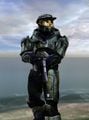 Alert carry in Halo: Combat Evolved.
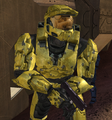 Alert carry, used in the machinima series Red vs. Blue in Halo 2.
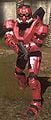 A red-colored Spartan with a pistol in alert carry position in Halo 3.
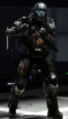 Alert carry in Halo 3: ODST.
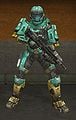 A Spartan with a lowered Assault Rifle in Halo: Reach.
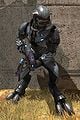 A Sangheili with a lowered Plasma Repeater in Halo: Reach.
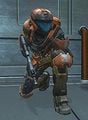 A Spartan with a lowered Assault Rifle, in crouched position.
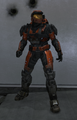 A Spartan is performing an alert carry who also has no weapon in Halo: Reach.
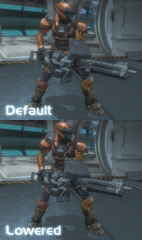 A Spartan with a Heavy Machine Gun Turret, normally and in alert carry. Note the slight difference in right arm position.
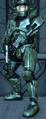 Alert carry in Halo: Combat Evolved Anniversary.
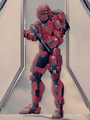 Alert carry in Halo 4.
 Alert carry in Halo 2: Anniversary campaign.
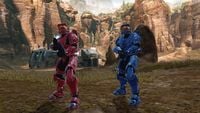 Two Spartan-IVs with their weapons lowered in Halo 2: Anniversary multiplayer.
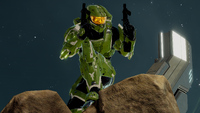 A Spartan dual wielding with alert carry and crouching in Halo 2: Anniversary multiplayer.
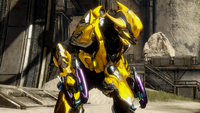 A Sangheili dual wielding with alert carry in Halo 2: Anniversary multiplayer.
 Alert carry in Halo 5: Guardians.
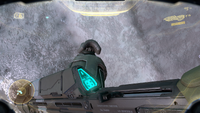 First-person view of Edward Buck holding his MA5D assault rifle in alert carry position, in the Halo 5: Guardians campaign mission Meridian Station.
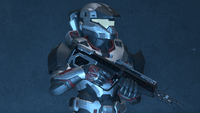 Forge script enabled alert carry in Halo Infinite.


Notes[edit]
Sources[edit]
- ^ YouTube - {{{Channel}}}, Easier Way to Lower Weapon on Halo: Reach
- ^ YouTube - Connor Dawn, The Halo 4 Machinima Problem Everyone Hated Is Finally Fixed
- ^ YouTube - {{{Channel}}}, Halo: The Master Chief Collection - "Cliff"
- ^ Halo Waypoint, July Community Q&A | Halo: Campaign Evolved (Retrieved on Jul 3, 2026) [archive]
- ^ YouTube - HALO, Let's talk MACHINIMA MODE
- ^ YouTube - The Vengeful 'Vadam, Full Analysis of the Halo CE Beta (1749): Main Menu and General Gameplay (Re-upload)
See also[edit]
- Panoramic camera mode - See the rest of the button combinations, such as displaying coordinates, freecam, and more.
- No weapon glitch - Have Spartans or Elites be weaponless, which can also be used for machinima, or make them glitchy.


