User:Pilot/Sandbox/Redesign the Button Layout/View Option 2
From Halopedia, the Halo wiki

The following control schemes were available for use in Halo 3 for Xbox 360.
Multiple Forms
| Input Action | Game Mode | Form | ||||||||||
|---|---|---|---|---|---|---|---|---|---|---|---|---|
| Reality & Precise Name | Official Name | Campaign | Multiplayer | Forge | Theater | On-foot | Monitor | Observer | ||||
| Single-Wield | Dual-Wield | Tached Turret | Detached Turret | Vehicle | ||||||||
| Game Menu | Pause / Settings | |||||||||||
| Switch On-foot/Monitor Mode | Play / Edit Mode | |||||||||||
| Select Next Grenade Type | Reload/Swap Left Weapon | |||||||||||
On-foot
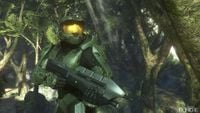 Campaign John-117
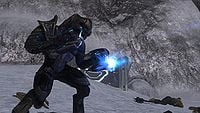 Campaign Thel 'Vadam
 Campaign N'tho 'Sraom
 Campaign Usze 'Taham
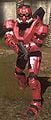 Multiplayer Spartan
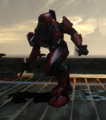 Multiplayer Elite


| Reality & Precise Name | Official Input Action Names and Unaffected Settings | Campaign | Multiplayer | Forge |
|---|---|---|---|---|
| Jump | A — Default/Southpaw/Boxer/Green Thumb/Walkie Talkie Left Bumper — Bumper Jumper |
Yes | ||
| Melee | Melee Attack | |||
| Throw Selected Grenade | Throw Grenade | |||
| Use Equipped Equipment | Use Equipment | |||
| Zoom Mode | Zoom View | |||
| Swap Weapons | Swap Weapons | |||
| Toggle Flashlight | ↑ D-Pad — Default/Southpaw/Boxer/Green Thumb/Bumper Jumper Left Bumper — Walkie Talkie | |||
| Team Chat | ||||
| Alert Carry | Hold Jump + Crouch + Reload/Swap Left Weapon + Action/Reload Right Weapon + ↓ D-pad for 3 Seconds | ~[1] | ||
| Enable/Disable Coordinates | Hold Jump + Crouch + Reload/Swap Left Weapon + Action/Reload Right Weapon + ↑ D-pad for 3 Seconds | |||
| Hide/Show Coordinates | Press Crouch + Zoom + → D-pad | ~[2] | ||
| Panoramic Camera Mode | Press Crouch + Zoom + ← D-pad | |||
Monitor
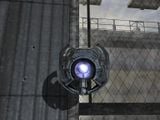 Monitor

Observer
Vehicles
Control Settings
| “ | Customize your Xbox 360 Controller to your personal playing style. | ” |
Look Inversion
| “ | If inverted, moving the look stick up causes the player to look down. | ” |
| Option |
|---|
| Not Inverted (Default) |
| Inverted |
Look Sensitivity
| “ | Select the speed at which you look around. Keep in mind that a higher look speed is not necessarily better. | ” |
| Option |
|---|
| 1 (Low) |
| 2 |
| 3 (Default) |
| 4 |
| 5 (Medium) |
| 6 |
| 7 (High) |
| 8 |
| 9 |
| 10 (Insane) |
Button Layout

| “ | This is the default button configuration recommended by Bungie.[3] | ” |
| Input Action | Button | Control Settings | |
|---|---|---|---|
| Reality & Precise Name | Offical Name | ||
| Jump | Jump | A | |
| Melee | Melee Attack | B | |
| N/A | Use Equipment | X | |
| N/A | Swap Weapons | Y | |
| Select Next Grenade Type | Reload/Swap Left Weapon | Left Bumper | |
| Reload Left Weapon | |||
| N/A | Action/Reload Right Weapon | Right Bumper | |
| Reload Right Weapon | |||
| Hold Crouch | Crouch | Left Analog Click | Crouch Behavior: Hold to Crouch (Default) |
| Toggle Crouch | Crouch Behavior: Toggle Crouch | ||
| N/A | Zoom View | Right Analog Click | |
| Throw Selected Grenade | Use Left Weapon/Throw Grenade | Left Trigger | |
| Use Left Weapon | |||
| N/A | Use Right Weapon | Right Trigger | |
| Toggle Flashlight | Team Chat | ↑ D-Pad | |
| N/A | |||
A - Jump
B - Melee Attack
X - Use Equipment
Y - Swap Weapons
Left Analog Click - Crouch
Right Analog Click - Zoom View
Right Trigger - Use Right Weapon
Left Trigger - Use Left Weapon/Throw Grenade
Right Bumper - Action/Reload Right Weapon
Left Bumper - Reload/Swap Left Weapon/Select Grenade Type
↑ D-Pad - Flashlight/Team Chat
This is the most common control scheme despite many flaws (see below) that often become apparent to more experienced players. This is the control scheme that Bungie starts you with, but it is suggested that one quickly learns to either use the claw grip, bumper jumper, walkie talkie, or possibly even green thumb, all of which are more often used by experienced players.
Please note that it is not possible to aim while meleeing, jumping, and deploying equipment without use of the "claw grip."

| “ | This setting is similar to the default except the left and right controls are flipped.[4] | ” |
A - Jump
B - Melee Attack
X - Use Equipment
Y - Swap Weapons
Left Analog Click - Crouch
Right Analog Click - Zoom View
Right Trigger - Use Left Weapon
Left Trigger - Use Right Weapon
Right Bumper - Action/Reload Right Weapon
Left Bumper - Reload/Swap Left Weapon/Select Grenade Type
↑ D-Pad - Flashlight/Team Chat
This is the same as default except that the triggers are switched.
Please note that if you compare new players using all button layouts this is the most accurate. Because unlike all of the other layouts offered in the game this is the only one that you are not required to use the same hand to shoot and aim with. Therefore, having more reaction time and accuracy.

| “ | If you're tired of hitting the wrong button in the heat of a melee fight, this setting is for you. Instead, you will pull the left trigger to melee attack.[5] | ” |
A - Jump
B - Throw Grenade
X - Use Equipment
Y - Swap Weapons
Left Analog Click - Crouch
Right Analog Click - Zoom View
Right Trigger - Use Right Weapon
Left Trigger - Melee/Use Left Weapon
Right Bumper - Action/Reload Right Weapon
Left Bumper - Reload/Swap Left Weapon/Select Grenade Type
↑ D-Pad - Flashlight/Team Chat
This has the advantage of giving the user aim while meleeing, but has the disadvantage of not allowing you to aim while throwing grenades.
Please note that it is not possible to aim while throwing grenades, jumping, and deploying equipment without use of the "claw grip."

| “ |